My iPhone says there isn’t enough storage to install the latest iOS update. I noticed the Optimize iPhone Storage setting and I’m trying to figure out if turning it on will free up enough space, or if I still need to delete apps, photos, or other files. I need help understanding the fastest way to make enough room for the update without losing anything important.
I burned too many hours on this exact mess, so here’s the plain version.
Optimize iPhone Storage on iPad works the same way. It’s set per device. I had it on for my phone, left full downloads on another device with more space, and it behaved fine.
It does not delete your photos. It also does not “move” them like dragging files between folders. The full version stays in iCloud. Your phone keeps a smaller local copy. When you open the photo, iOS pulls down the full one if your connection is decent. If your internet is weak, you’ll feel it.
Where this falls apart is iCloud storage. If iCloud is full, the phone has nowhere to upload the original files. Then optimization stalls. So if you’re trying to free space for an iOS update, flipping on Optimize Storage might do almost nothing when iCloud is already packed.
I saw this hit performance too. My phone got slow, camera launch dragged, a few apps dumped me out to the Home Screen. After clearing storage, it eased up. iOS seems to need some free space to function without tripping over itself. When storage gets pinned near zero, stuff starts acting weird.
I tried cleaning things by hand first. Bad idea. Apple’s built-in tools help a little, but they miss the obvious junk:
- Batches of near identical photos
- Old giant videos buried in the library
- Piles of screenshots
- Random screen recordings you forgot existed
Optimize Storage shrinks local copies. It does not help you decide what to remove.
What helped me most was finding the biggest files first. I used Clever Cleaner after ignoring a bunch of junk cleaner apps for years. This one felt different when I tested it. I found one 4K screen recording taking around 4 GB by itself. Deleting one file gave me enough room to install an update and the phone stopped choking so much.
The useful parts for me were simple:
- A section for the biggest media files first
- Grouping for similar photos, so you don’t sort through 18 versions of the same picture
- Screenshot cleanup with file sizes shown clearly
- On-device processing, which mattered to me because I did not want my library sent off somewhere
If you need space fast, this is the order I’d use:
1. Remove your largest files first
Look for long videos, 4K clips, and screen recordings. Those eat storage faster than anything else. One or two files might free more space than deleting 500 photos.
2. Wipe screenshots
I had hundreds. Most were receipts, tracking numbers, error messages, or stuff I meant to save “for later” and never touched again.
3. Offload unused apps
Open Settings > General > iPhone Storage. Check what you haven’t opened in months. Offloading removes the app but keeps its documents and data.
4. Empty Recently Deleted
This part trips people up. Deleted photos stay there for 30 days. If you don’t clear it, the storage does not come back right away.
5. Recheck iCloud space
If iCloud was full before, clearing local junk alone might not fix photo syncing. You need enough room in iCloud for originals to upload, or Optimize Storage stays half-stuck.
My short version is this. If your phone is lagging and storage is nearly full, free a few gigabytes before doing anything else. I saw better results from deleting big hidden files than from toggling settings and hoping iOS sorted itself out.
1 Like
Turning on Optimize iPhone Storage might free enough space, but I would not count on it for an iOS update.
It only helps if your Photos app is using a lot of local storage and your iPhone has time to sync with iCloud first. If your phone is almost full right now, iOS often needs space before it starts reclaiming space. Annoying, but true. So the setting is more of a slow fix, not a fast one.
I slightly disagree with @mikeappsreviewer on one part. Optimize Storage is useful, but for updates it feels unreliable. Sometimes it frees a few GB. Sometimes barely anyhting happens for hours.
What tends to work faster:
Go to Settings, General, iPhone Storage.
Delete old Messages attachments.
Remove downloaded Netflix, Spotify, YouTube, or podcast files.
Clear Safari website data if it is bloated.
Delete the iOS update file itself if a failed download is sitting there, then retry.
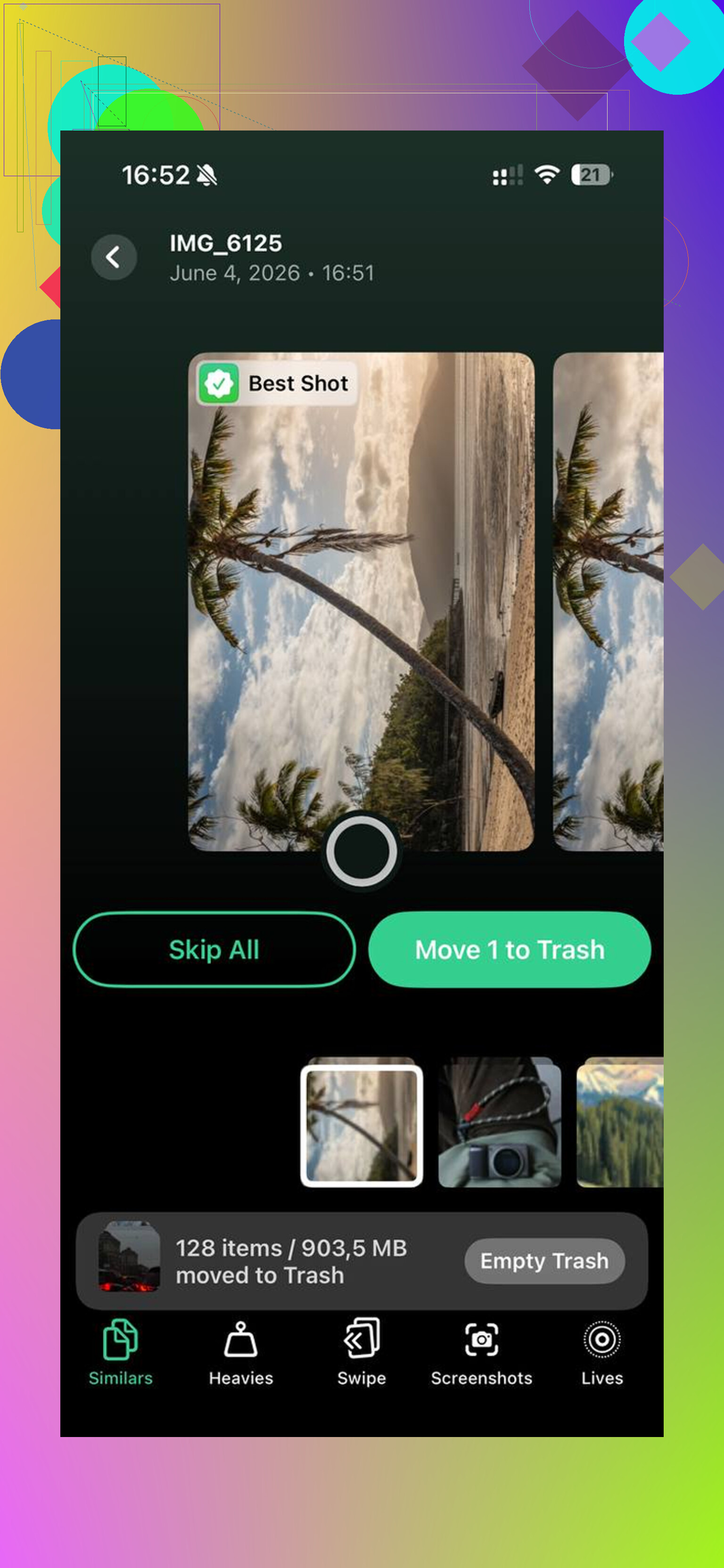
If you want a quicker way to spot waste, Clever Cleaner is worth a look. It helps surface storage hogs without endless tapping. Also, if you want to see it in action, this is a decent example of how Clever Cleaner frees up iPhone storage fast.
Fastest workaround if you need the update now, use a Mac or PC and update through Finder or iTunes. That often needs less free space on the phone itself. That part gets overlooked alot.
Turning on Optimize iPhone Storage can help, but I wouldn’t trust it as the thing that saves an iOS update at the last minute.
@mikeappsreviewer and @himmelsjager are right about it being hit-or-miss. My only slight disagreement is that people sometimes expect it to act like an instant cleanup switch. It’s not. It works best when your photos are already synced to iCloud and the phone has time to breathe a little. If storage is critically low, iOS can get weirdly stubborn and free up almost nothing for a while.
Also, Optimize only really helps if Photos is the problem. If your storage is being eaten by apps, message attachments, downloaded media, or “System Data,” flipping that setting on may do basically squat.
What I’d do instead is check what category is actually huge in Settings > General > iPhone Storage. If Photos is massive and iCloud Photos is fully synced, sure, enable Optimize. But if not, you still need to clear space manually.
One thing people forget: some updates need temporary unpacking space. So even if the update says it needs, say, 5 GB, your phone may act like it wants more. Annoying, but that’s Apple storage math lol.
If you want a fast way to spot what’s worth deleting, Clever Cleaner is actually useful for finding giant videos, duplicate shots, and other junk that matters more than shaving off tiny files. That’s probly more effective than waiting on optimization. Also worth reading this thread on what Reddit users say about Clever Cleaner for freeing iPhone storage.
Short answer: yes, maybe, but no, I would not rely on it alone if you need the update now.

I’m with @himmelsjager and @andarilhonoturno on the main point: Optimize iPhone Storage is not a reliable emergency button for an iOS update.
Where I slightly disagree with @mikeappsreviewer is this: people often assume the update only fails because of visible storage use. Sometimes the real blocker is temporary install space plus bloated System Data or cached app junk that iOS reports badly. In those cases, turning on photo optimization barely moves the needle even if Photos looks huge.
A better test is this:
- If Photos is your biggest category and iCloud Photos is fully synced, Optimize might help.
- If Apps, Messages, or System Data are huge, it probably will not help enough.
One thing not mentioned enough: restarting the iPhone after freeing space can make iOS recalculate storage and purge temporary caches. I’ve seen available space jump after a reboot, then the update installs fine.
Another workaround is using the delta update path. If the update offered is large, sometimes updating first to a smaller intermediate version through a computer works better than trying the full over-the-air package.
About Clever Cleaner: it’s useful if you want a quicker visual scan of large media clutter.
Pros
- surfaces big files fast
- easier than digging through Photos manually
- good for duplicate-ish images and screenshots
Cons
- won’t magically reduce System Data
- less helpful if your storage problem is app documents, not media
- still requires you to decide what to delete
So, short version: yes, Optimize iPhone Storage can free enough space, but only in the right scenario. If you need the update today, I would not wait on it alone. A reboot, checking System Data behavior, and using something like Clever Cleaner to find truly large files is usually the faster path.