My external hard drive started showing errors and Windows keeps asking me to scan and repair it. I’m worried about losing files, so I’m looking for reliable disk repair software that can fix drive errors or recover data safely before things get worse. Any recommendations?
I’d be pretty skeptical of any list claiming there’s one “best hard drive repair software.” That phrase gets used for a bunch of totally different problems, and the right tool depends on what’s actually wrong with the drive.
Figure that part out first. If files were deleted, the drive was formatted, or it suddenly shows up as RAW, treat it like a data recovery job. If a partition disappeared or Windows shows the disk as unallocated, you’re probably looking at partition repair. If the drive is slow, freezing, or showing bad sectors, check the drive health before trying to “fix” anything. And if it’s clicking, grinding, dropping connection, or not showing up consistently, stop messing with it as much as possible and focus on getting the data off.
For tools, this is the set I’d look at:
Disk Drill
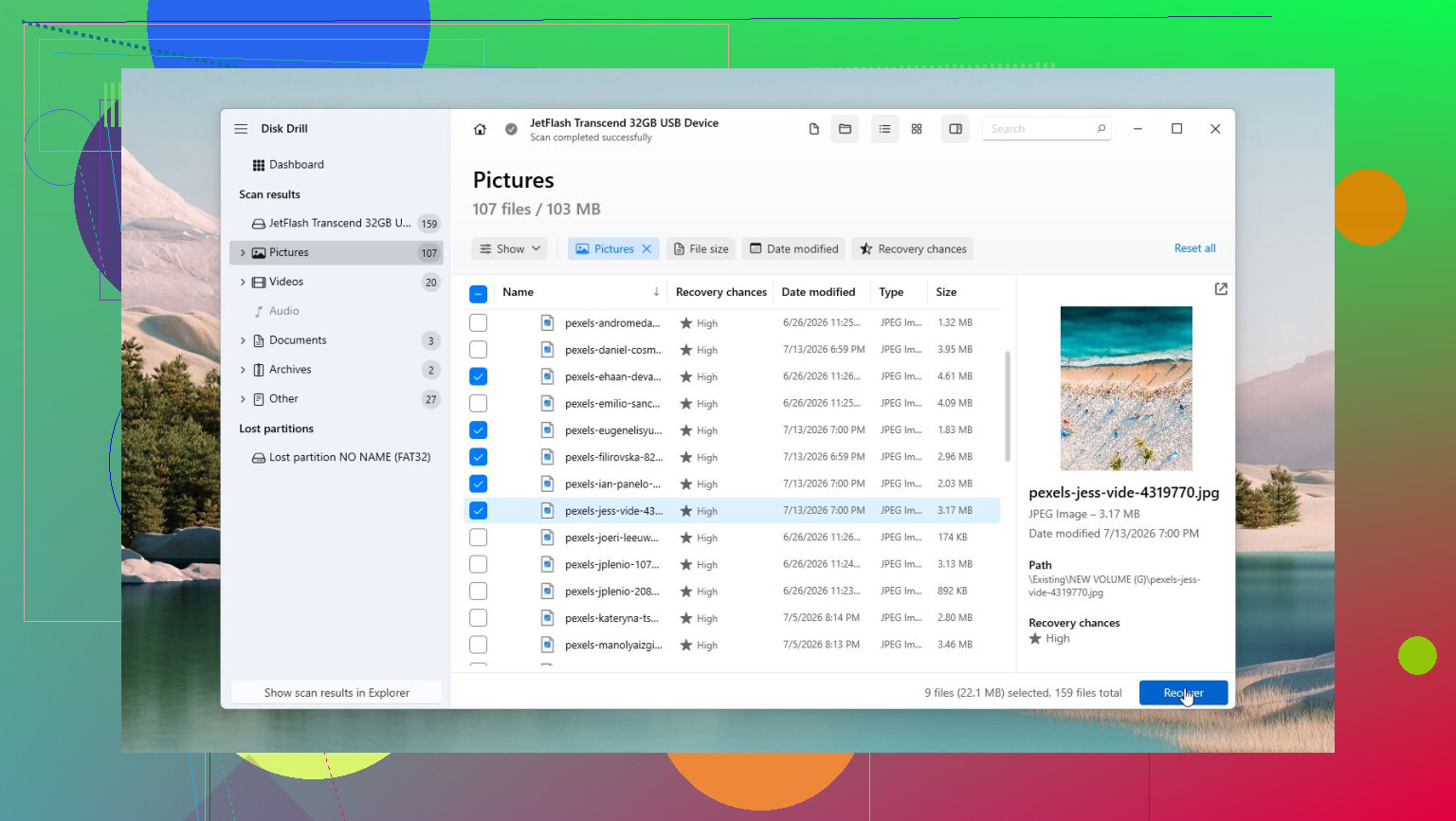
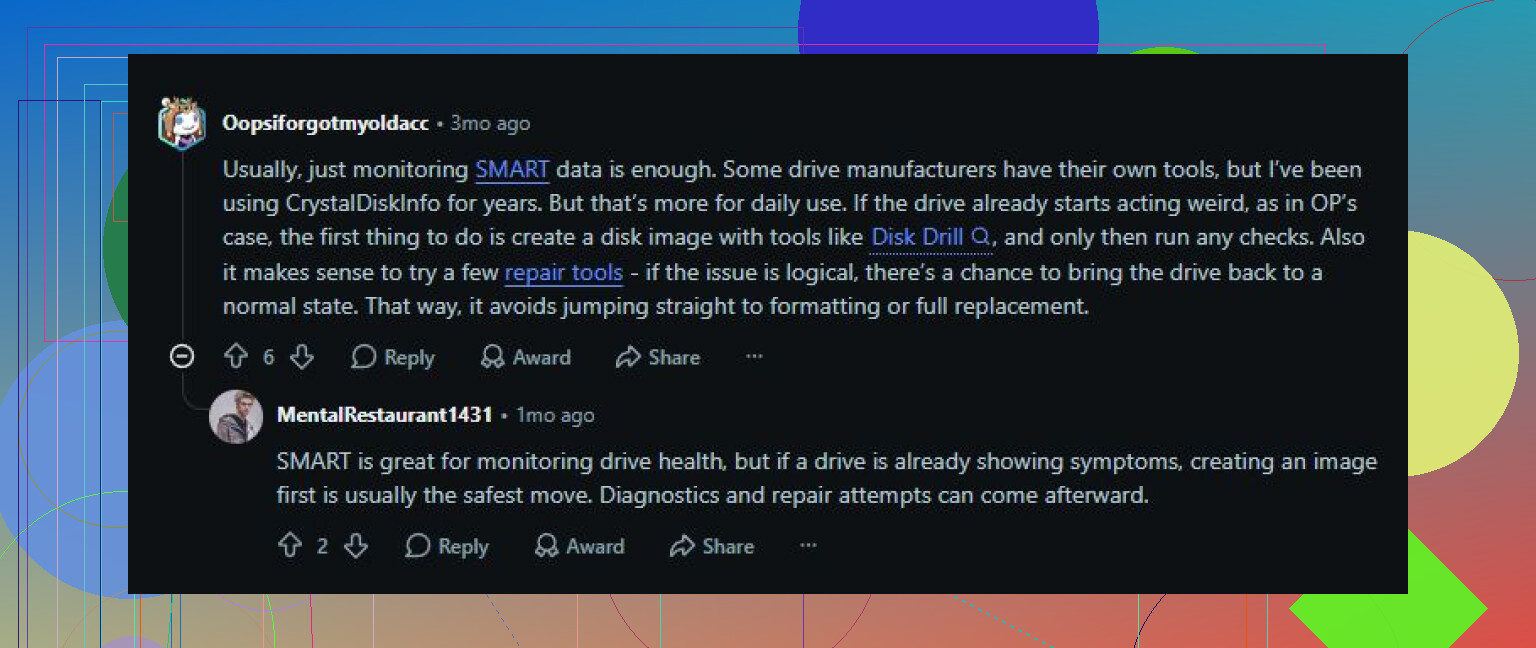
Disk Drill is usually the first one I’d reach for when the goal is getting files back. It can handle deleted files, formatted drives, RAW partitions, corrupted file systems, and external hard drives that Windows refuses to open. The other useful part is that it includes S.M.A.R.T. monitoring and can make a byte-to-byte image of the drive, which matters a lot if the disk is unstable. Working from an image is much safer than repeatedly scanning a failing drive directly.
SeaTools
Good free option for basic diagnostics, especially when you’re not sure if the issue is Windows, the file system, or the drive itself. The short and long tests can give you a quick idea of whether the disk is starting to fail.
TestDisk
This is one of the better free tools for partition table and boot sector repair. If a partition suddenly vanishes or the drive appears as unallocated, TestDisk is worth considering. Just know it’s not very beginner-friendly since the interface is text-based and a little unforgiving.
Clonezilla
If the drive still reads but seems to be getting worse, clone it before doing anything risky. Clonezilla is solid for making a full copy or disk image so you can work from that instead of putting more stress on the original drive.
CrystalDiskInfo
This is handy to keep installed even when nothing is wrong. It shows S.M.A.R.T. status, temperatures, and other warning signs that can point to a dying drive before Windows starts throwing obvious errors.
Victoria HDD/SSD
More of an advanced tool, but useful for surface scans and checking bad sectors in detail. I wouldn’t make it someone’s first hard drive tool, but if you know what you’re looking at, it can show you a lot about the condition of the disk.
The big thing is not to keep running random repair tools on a drive that’s clearly failing. If it clicks, vanishes from Windows or BIOS, freezes during transfers, or keeps getting new bad sectors, back up or recover the data while you still can and replace the drive. If it isn’t detected at all or it’s making obvious mechanical noise, software isn’t going to fix that. At that point, a professional data recovery service is the safer route. Software can deal with logical damage, but it can’t repair heads, motors, or platters.
1 Like
Copy the important files off before you let Windows “scan and repair” anything. That prompt usually means file system trouble, and CHKDSK can make the drive usable again, but it can also dump damaged file entries into fragments or make recovery harder. If the files matter, I’d treat repair as the last step, not the first one. Image the drive if it seems flaky, then run recovery against the image or another copy. Disk Drill is fine for the recovery side if you want a more guided tool, but I wouldn’t think of it as magically repairing a bad external drive. Once your data is safe, then use the manufacturer’s diagnostic and decide whether the drive is trustworthy enough to keep. If it has bad sectors or keeps triggering the same warning, replace it.
Don’t run repair from inside Windows while the drive is dropping out or throwing I/O errors. That “scan and repair” button is not a recovery tool, it writes changes to the file system, and on a weak external drive that can turn a messy problem into a worse one.
I’m mostly with @mike34 on the order of operations, but I’d separate “repair” and “recover” more sharply. If you need the files, use recovery software first or make an image first. Disk Drill is reasonable for that because it’s simple enough for a normal user and can work with lost files, RAW volumes, and disk images. The caveat is that it won’t make a physically bad drive healthy. No software will. If the drive is clicking, vanishing, or taking forever to copy one folder, stop scanning it over and over.
The boring thing people skip is the connection. Before assuming the disk itself is toast, try a different USB cable, a rear motherboard USB port if it’s a desktop, and no hub. Some external drive errors are just flaky power or a bad enclosure. If it behaves normally after that, copy your important stuff off first, then run the manufacturer’s diagnostic. If it fails the long test or keeps asking for repair again after being fixed, I wouldn’t trust it for anything important. Use it only after replacing it, or don’t use it at all.
Do not install anything or save recovered files onto that external drive. That sounds obvious, but it is the mistake that ruins a lot of recoveries. If the drive is already throwing file system errors, every write to it can overwrite directory info, deleted file records, or files that are still recoverable.
The advice above about imaging first is right, but I’d put the “where are you recovering to?” question even higher. You need another drive with enough free space before you start. If it’s a 2 TB external and you care about most of it, don’t try to recover it onto your laptop’s half-full C drive. Get another disk first, then recover or clone to that. Recovery software is not a magic repair bench, it’s more like a careful copier.
For normal users, Disk Drill is fine as a recovery tool because the interface is less hostile than tools like TestDisk, and it can work from a disk image instead of hammering the original drive. That is the way I’d use it if the files matter. I would not use it, CHKDSK, or anything else with the expectation that the external drive becomes trustworthy again afterward. If Windows keeps asking to scan and repair after you get your files off, the drive has already lost my confidence.
If you only need a few folders and the drive still mounts, the faster imperfect approach is to copy the most important stuff first, manually, before running big scans. Start with documents, photos, tax files, project folders, whatever you can’t replace. Don’t begin with a full-drive scan just because software offers one. Full scans can take hours and a weak USB drive may not stay alive that long.
After the data is safe, then repair is fair game. Run the manufacturer’s long test, check SMART if the enclosure passes it through, and run Windows repair only if you are okay with the possibility that it “fixes” the file system by removing broken entries. If it passes and this was just from yanking the cable without ejecting, maybe keep it for noncritical stuff. If it fails, disconnects, or starts the same warning again, replace it. The most reliable disk repair software is still a backup plus a new drive when the hardware is going bad.