I ran into this with a couple relatives, and it never looked like some random iPhone glitch. What I kept seeing was slower buildup. Old downloads here, bloated apps there, message attachments piling up for months. Then one day the phone throws the storage warning and it feels sudden, even though it wasn’t.
First thing I’d do is check where the space went.
Go to Settings > General > iPhone Storage and wait a bit for it to finish loading. Don’t skip that part. Once it populates, you’ll see which category is eating the most room, Photos, Apps, Messages, or something else.
If Apps is high on the list, start with the biggest ones. I’ve seen Instagram, TikTok, Spotify, Netflix, and chat apps hold onto a dumb amount of cache. Video clips, thumbnails, temp files, old downloads. Stuff you never asked to keep. Removing apps you never open, or offloading them, frees space faster than people expect. Apple has an Offload Unused Apps setting for a reason.
Messages is another one people miss. Every image, video, meme, voice note, and random attachment from iMessage sits there until you remove it. I cleaned out a few long group chats once and got back multiple gigabytes. No joke, it was more than deleting half the apps on the phone.
Then check your saved media and files. Downloaded songs, podcast episodes, Netflix downloads, YouTube downloads, PDFs, and whatever is sitting in the Files app all count. They’re easy to forget because they don’t stare at you from the Home Screen.
If Photos is the biggest category, which is what I usually saw, cleanup gets slower. Most people don’t have piles of exact duplicate pics. What they do have is endless near-duplicates, ten versions of the same dog photo, screenshots they meant to delete, Live Photos, and giant videos from years ago.
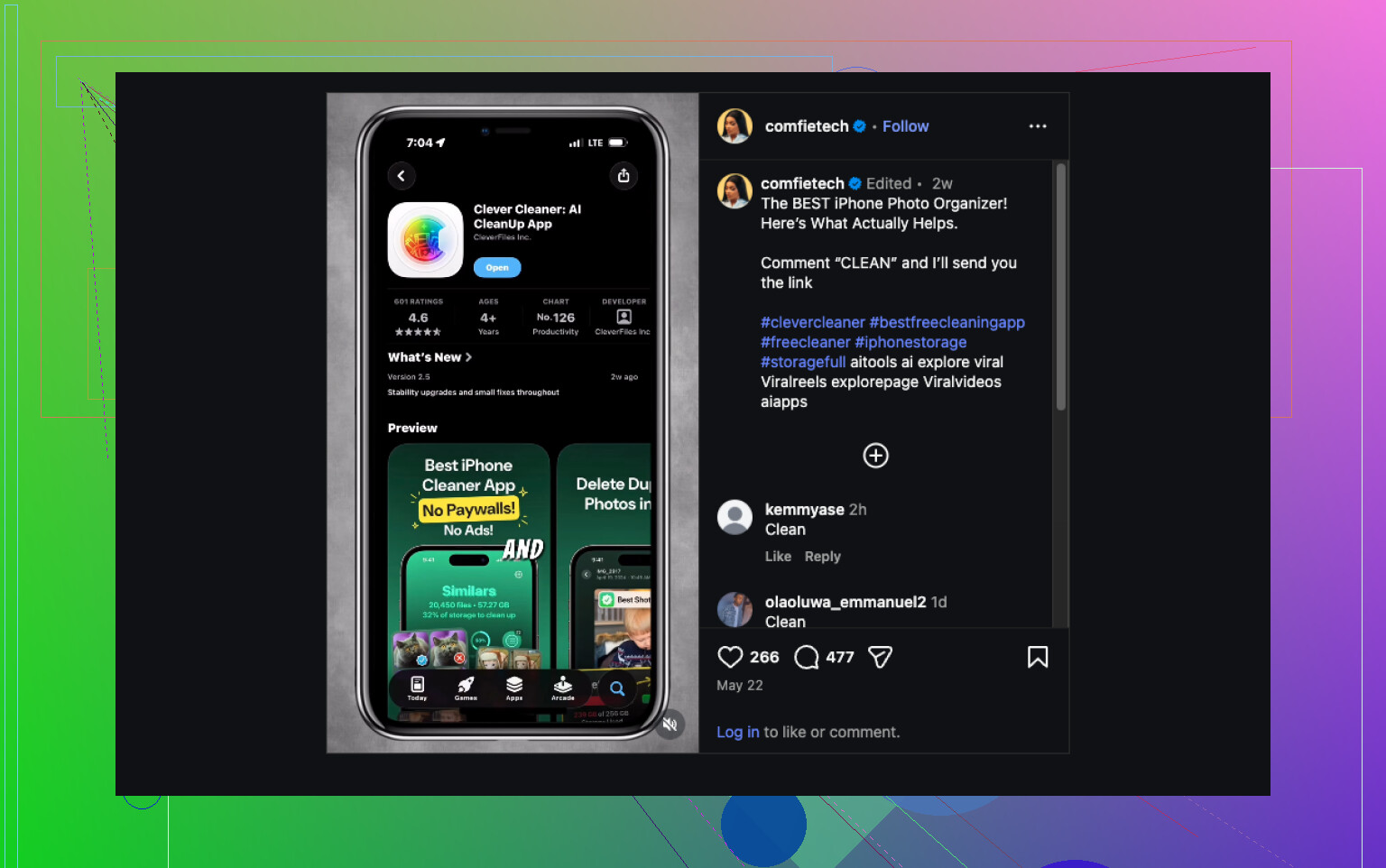
For that part, I’d use Clever Cleaner.
Small note though. It won’t clean your whole phone. Apple doesn’t let outside apps dig through system files or wipe data from other apps. What it does handle well is the photo library, which is where a lot of storage gets trapped.
What stood out to me:
- It finds similar photos, not only exact duplicates.
- It groups screenshots so you can clear them fast.
- It points out the biggest photos and videos.
- It turns Live Photos into regular still photos.
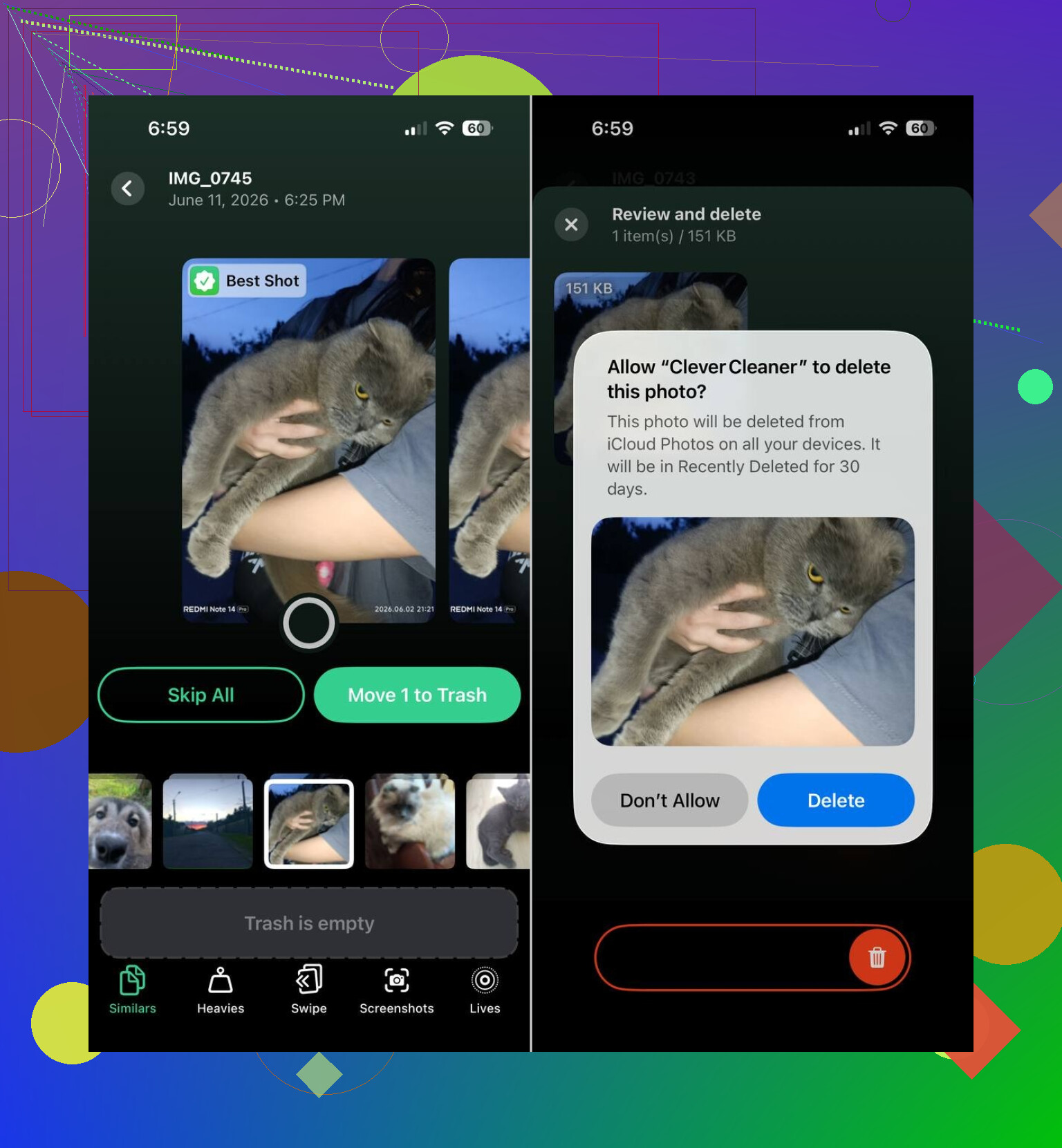
- It picks a likely best shot from a batch of similar images.
The similar-photo scan is the useful bit. Apple’s built-in Duplicates album only catches exact copies. In real libraries, the space drain is usually five blurry takes of the same receipt, or twelve photos from the same angle, not true duplicates.
What I liked is you still have to approve deletions yourself. It suggests. You decide. I prefer that, because auto-delete stuff makes me nervous and I’ve seen people wipe things they meant to keep.
So yeah, my order would be this.
Check iPhone Storage first.
Clear obvious junk from apps.
Delete old message attachments.
Remove forgotten downloads.
If Photos still owns most of your storage, clean the library with Clever Cleaner.
That sequence fixed it more than once for people around me. Usually the biggest win came from photos, and once those got under control, the “Storage Almost Full” warning stopped popping up every other day.
This sounds less like “mystery storage” and more like background data growth while your phone sits on Wi-Fi and power overnight.
I partly disagree with @mikeappsreviewer on one point. It is not always old clutter finally catching up. Overnight jumps often come from active processes:
- iCloud Photos syncing or re-processing.
- Podcast or music auto-downloads.
- Streaming apps re-downloading offline content.
- Mail app caching big attachments.
- Safari creating website data.
- iOS update files downloading in the background.
- Logs and “System Data” expanding after failed syncs or low storage loops.
What to check tonight, before bed:
Go to Settings, then General, then Background App Refresh. Turn it off for streaming, social, cloud, and shopping apps first.
Go to Settings, then App Store. Turn off App Downloads and App Updates.
Go to Settings, then Podcasts and Music. Disable automatic downloads.
Go to Settings, then Photos. If iCloud Photos is on, see if syncing is stuck. A stalled sync eats space for temp files. Same with Shared Library.
Check Mail. If you use Gmail or Outlook in Apple Mail, remove and re-add the account if Mail is hoarding storage. I’ve seen Mail cache gigs of attachments for no good reaosn.
Then look at System Data in iPhone Storage before bed, and again in the morning. If that number jumps, the issue is usually cache, logs, update files, or sync temp data, not your photos.
One more thing. Restart the phone after cleanup. If storage still spikes overnight, back it up and update iOS. If it keeps happening after the update, backup, erase, and restore. Annoying, yep. But it fixes corrupt caches a lot.
If Photos is still one of the top categories, Clever Cleaner is worth using for photo cleanup. It’s a solid iPhone cleaner app for duplicate and similar photos, screenshots, large videos, and Live Photos. Also, this shows the kind of cleanup it does, see how Clever Cleaner frees up iPhone storage fast.
My bet is on auto-downloads, Mail cache, or System Data bloat. Those are the usual culprits when storage grows while you sleep.
I’d actually push back a little on both @mikeappsreviewer and @jeff here. If it’s specifically overnight and not just generally getting worse, I’d look at stuff that runs only when the phone is locked, charging, and on Wi-Fi.
Big one nobody mentions enough: iCloud backup size churn. Go to Settings > your name > iCloud > iCloud Backup, then check what apps are included. Some apps dump huge local data into backup snapshots, and if the phone is low on space, iOS can get weird with temp backup files. Same with WhatsApp/Telegram if you use them a lot.
Another sneaky one is voicemail and deleted media not actually being gone. Check:
- Photos > Recently Deleted
- Files > Browse > Recently Deleted
- Voice Memos
- Podcasts downloaded but marked “played”
- TV app rentals/downloads
- WhatsApp storage inside the app itself
Also, if you use a security cam app, baby monitor app, dashcam app, or anything that uploads footage overnight, those apps can build local caches first and clean them badly. Same for Google Photos, OneDrive, Dropbox. They’re “syncing,” but really they’re hoarding temp junk.
I’d do a simple test:
- Put the phone in Airplane Mode overnight with Wi-Fi off.
- Note free space before bed.
- Check again in the morning.
If storage stays stable, it’s almost def a network/background sync issue. If it still grows, that points more to system data corruption or local indexing.
And yeah, if Photos is one of your top categories, Clever Cleaner is useful for trimming similar pics, screenshots, big videos, and Live Photos faster than doing it by hand. Different use case than system cleanup, but still worth it.
Also this is a decent roundup if you’re comparing options: best AI cleaner apps for iPhone storage cleanup
The Airplane Mode test usually tells the story prety fast.
I’d test one thing none of the others really emphasized enough: analytics/crash logs. On some iPhones, especially when storage is already tight, logs can snowball overnight from one buggy app or a failed process.
Check:
- Settings > Privacy & Security > Analytics & Improvements > Analytics Data
- Settings > Siri & Search, then disable suggestions for a few noisy apps
- Settings > General > Date & Time, make sure it’s automatic
Why I partly disagree with @jeff and @hoshikuzu: not every overnight jump is a sync/download issue. Sometimes iOS keeps re-indexing Photos, Messages, or Spotlight, and “System Data” grows because something is looping, not because content is actually being added.
Another overlooked culprit: Safari offline reading lists and tab groups with media-heavy pages. Also check if a browser other than Safari is hoarding site data.
My move would be:
- Note exact System Data size.
- Force close any app that constantly refreshes content.
- Clear Safari history and website data.
- Delete any partially downloaded iOS update in iPhone Storage.
- Turn off Low Power Mode before bed once, weirdly enough it can delay cleanup tasks.
If your storage graph shows Photos as the real hog, then Clever Cleaner makes sense.
Pros: fast for similar pics, screenshots, big videos, Live Photos.
Cons: won’t fix System Data, Mail cache, or app-specific junk.
So yeah, @mikeappsreviewer is right about checking categories first, but if it jumps overnight, I’d personally suspect looping system processes before I’d blame old clutter.