My iPhone storage shows about 30GB under media, but I don’t have any downloaded or offline videos saved. I already checked my apps, photos, and streaming downloads, and I still can’t figure out what is taking up that space. I need help finding where this hidden media storage is coming from and how to clear it safely.
I ran into this after iOS 17 too, and the part that got me was how useless the storage screen felt. “Media” looked huge in Settings, but when I tapped around, there was no clean trail to follow. No obvious app. No giant file waving its hand. It looked broken.
What Apple puts inside “Media”
This bucket is wider than most people think. It covers audio, video, and other playback-type files sitting on the phone outside your normal Photos library. Stuff like downloaded songs from Apple Music or Spotify, offline movies, TV episodes, voice memos, ringtones, cached artwork, thumbnails from streaming apps, and other leftovers tied to media playback all land there.
Podcasts were the sneaky one for me. One episode being 100MB or more doesn’t sound wild until your phone pulls down new episodes for multiple shows for weeks. Then it adds up fast. If you want to stop more from piling on, open Settings > Podcasts and turn off Download When Saving. Mine had been grabbing episodes in the background for who knows how long.
Why the number looks wrong
On iOS 17, Apple split some storage reporting in a way that makes this harder to read. Older content transferred from a Mac or PC through iTunes or Finder often sits under Synced Media. Music libraries, audiobooks, home video files, old imports, all of that. The annoying part is you get the total size, but not a useful itemized list on the iPhone Storage page. So you see 20GB, 30GB, whatever, and there’s nothing obvious to inspect.
If you used to sync from a computer and later moved over to iCloud, some of those old cached files seem to hang around. I saw people mention, and I tried it myself, removing the Apple Music and Apple Books apps after clearing whatever was visible inside them first. Then reinstalling if needed. Weird fix, kind of dumb, but in some cases it knocks loose old Synced Media cache and the number drops.
Why the built-in cleanup tools don’t help much
Apple gives totals. It doesn’t give a practical way to sort your full library by file size and work top-down. If you forgot about one 5GB video, good luck finding it by hand. Photos also still doesn’t give you a real file-size sorting view. And the Duplicates album is narrow. It catches exact copies. It won’t catch the seven near-matching shots you took 2 seconds apart while trying to get one decent photo.
I tried the manual route first. It turned into one of those chores where you keep digging and still don’t know if you found the thing eating the space.
What helped me find the junk faster
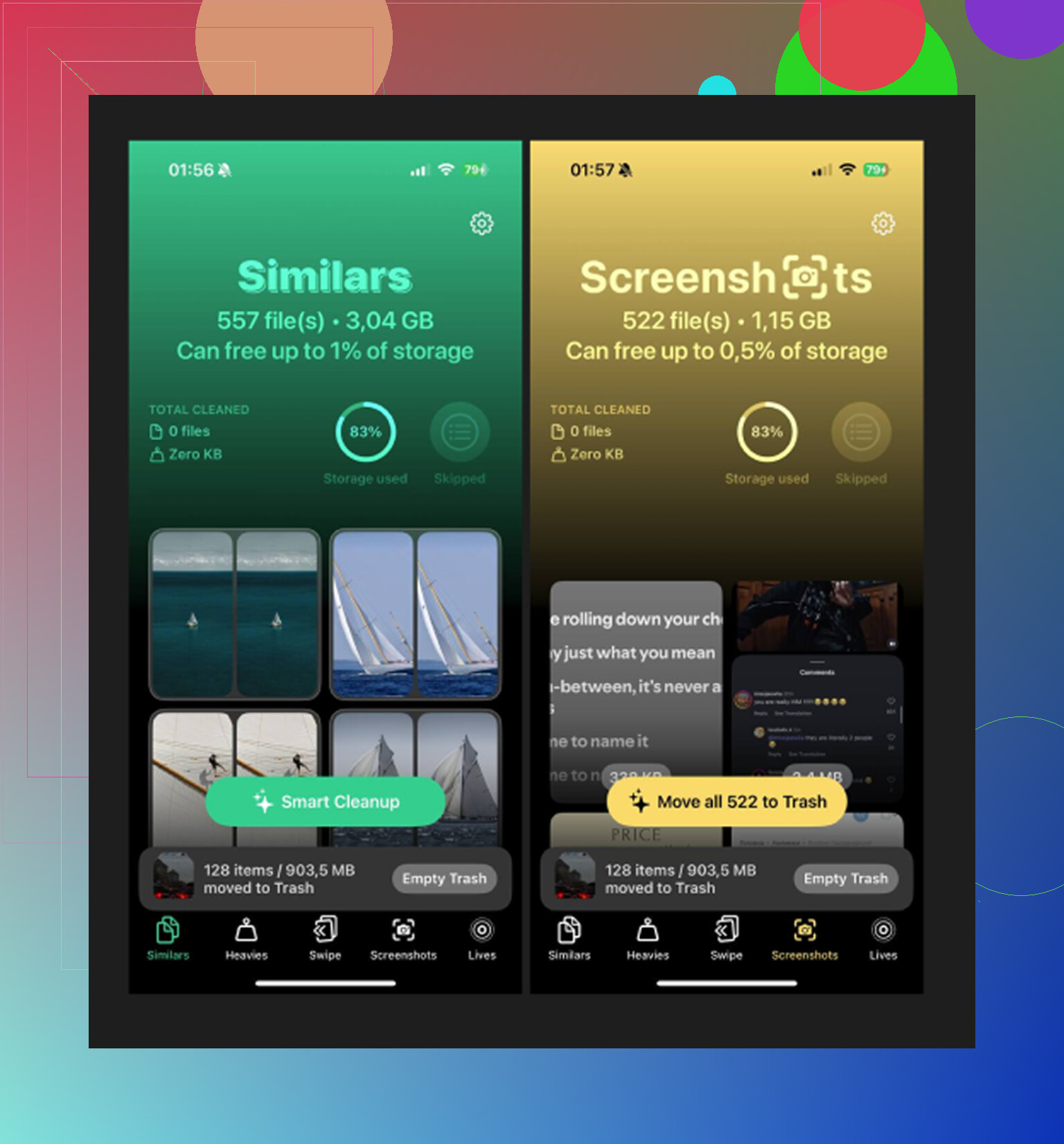
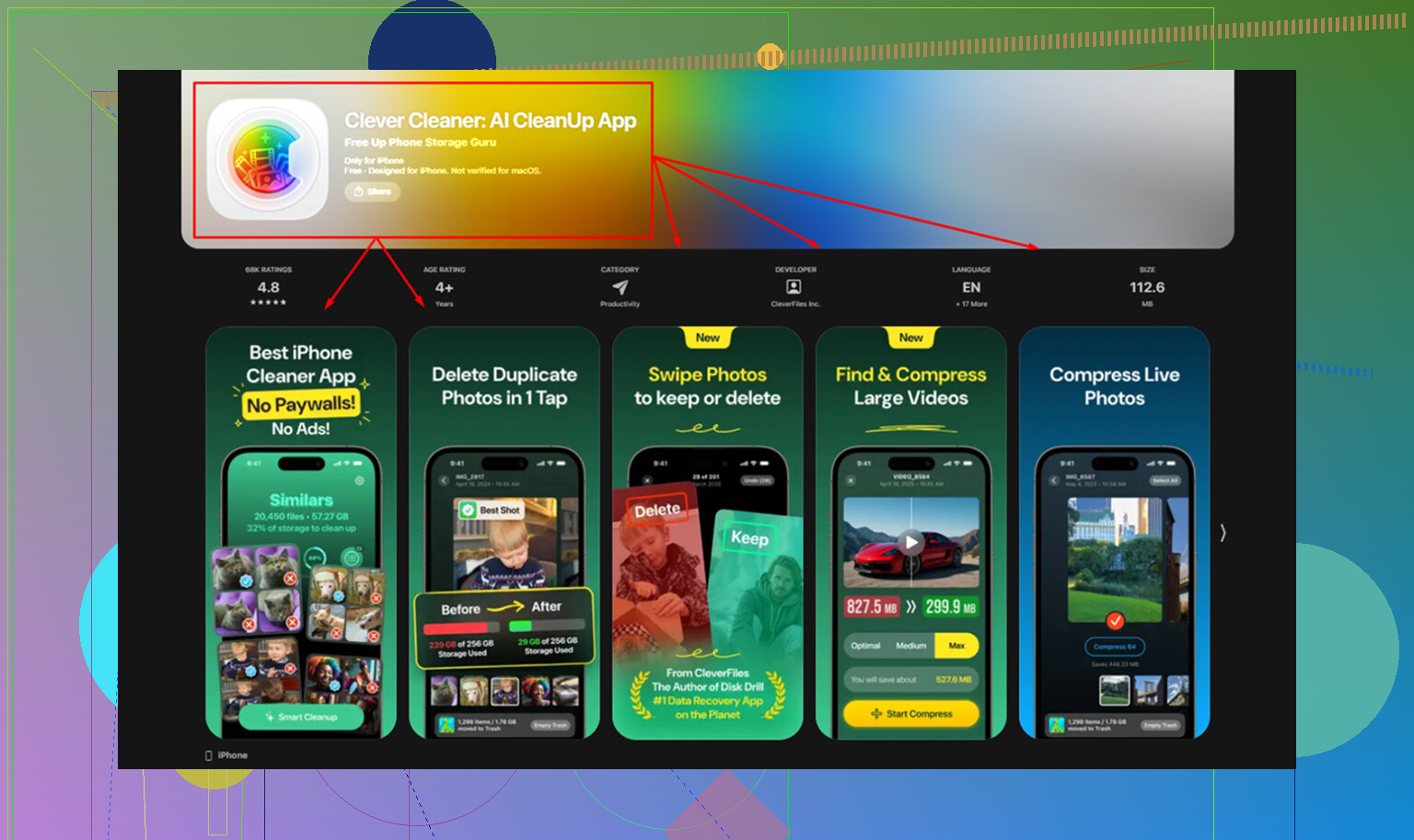
After trying a bunch of cleanup apps and getting tired of the usual “free scan, pay to remove” routine, the one I stuck with was Clever Cleaner is the one. No ads. No subscription screen shoved in my face. No paywall after the scan.
If your issue is the bloated Media category, this is the workflow I used:
- Start with the Heavies tab. It lays out your library from biggest file to smallest and shows the file sizes up front. In my case, old screen recordings and a couple giant videos were near the top. Those were chewing through storage far more than I expected.
- Then check Similars. This part groups near-duplicate photos, not only exact matches. Multiple tries of the same shot, burst leftovers, slightly different angles, all of that gets grouped together. You keep one and wipe the rest.
- Look through Screenshots too. This one surprised me. Screenshots pile up like dust. The app shows the size on each thumbnail before you delete anything, which makes triage quicker.
- It runs locally on the phone. Nothing gets uploaded out somewhere else for processing. If your library has private videos, recordings, family stuff, whatever, that matters.
The part people miss after deleting files
This got me once. Removing stuff from Photos or a cleanup app does not free the space right away if it lands in Recently Deleted. Those files still count against storage for 30 days.
So after every cleanup pass, go to Albums > Recently Deleted > Delete All. That is the step where the storage graph finally changes. Skip it, and you’ll think nothing worked.
If your Media number still looks inflated after cleaning out downloads and large files, I’d put money on one of two things. Old Synced Media from an earlier iTunes or Finder setup, or podcast downloads stacking in the background for months. The settings tweak stops more buildup. A cleanup pass handles the mess already sitting there.
1 Like
30GB in Media is often hidden in boring places, not in obvious offline videos.
A few spots people miss:
-
Messages app attachments.
Videos, voice notes, memes, stickers, GIFs. Open Settings, General, iPhone Storage, Messages. If it shows a few GB under Photos or Videos, there’s your leak. -
Safari downloads and Reading List cache.
Check Files app, On My iPhone, Downloads. Also clear Safari history and website data. Safari cache gets stupidly large. -
Voice Memos.
These sit outside Photos, and long recordings eat space fast. -
GarageBand, iMovie, Clips, CapCut, Instagram drafts, TikTok drafts.
Draft/export files hide well. Some apps keep failed exports too. -
Mail attachments.
The Mail app hoards cached attachments. Remove and re-add the mail account if the cache looks stuck.
I partly disagree with @mikeappsreviewer on one point. Media is not always old synced stuff. A lot of the time it’s app cache Apple labels badly.
Fast reset trick if nothing adds up:
- Restart iPhone.
- Update iOS.
- Offload big media apps.
- Check storage again after a few mins.
- If the number stays fake, make an encrypted backup, erase iPhone, restore. Annoying, but it fixes corrupted storage indexes more often than people want to admit.
If you want a faster scan for big videos and duplicate junk, Clever Cleaner is worth a look. Also, this review from Fossbytes breaks down why it stands out as a free iPhone cleanup app: see how Fossbytes tested Clever Cleaner on iPhone
Also check System Data after a reboot. Sometimes people mix up Media and System Data, and iOS reporting is, frankly, a mess lol.
30GB in “Media” is sometimes not actual media at all, it’s iOS being vague. I kinda disagree a bit with @mikeappsreviewer and @suenodelbosque on the backup/erase angle being the next big move, because that’s a lot of pain before checking two boring places Apple hides stuff.
First, open the Apple TV app and look at Library, not just Downloads. Old purchased/rented items and partial downloads can sit there weirdly. Same with the Music app if you ever synced lossless tracks. Lossless and Dolby Atmos files are way fatter than people realize.
Second, check Files app providers, not just “On My iPhone.” Tap Browse and look inside iCloud Drive, “Recently Deleted,” and any third-party file locations. VLC, Infuse, Dropbox, and Telegram can stash video/audio files there and they still count.
Third, look at Messages search. Search file types like “.mov” or just open a convo with someone who sends lots of clips. Shared media in threads can be huge even if it doesn’t feel like “offline video.”
If you want a faster visual scan, Clever Cleaner is useful for surfacing large videos/screenshots fast, and it’s also featured in this roundup of top AI cleaner apps for freeing up iPhone storage.
Also, wait a bit after deleting stuff. iPhone storage stats lag like crazy. Super annyoing.