I accidentally deleted some important work and personal documents from my hard drive and didn’t realize it until later. I’m trying to figure out the best way to recover deleted files from a hard drive without making things worse, since I really need these files back and don’t have a recent backup.
Losing files like this sucks. I went through it once with a client drive, and the part where people make it worse usually happens in the first ten minutes. So first thing, stop using the drive now.
Do not write anything else to it. When a file gets deleted, the drive usually does not erase it on the spot. The system marks the space as available, then waits until new data lands there. If you keep using the disk, you raise the odds of overwriting the stuff you want back. So no installs, no moving files around, no saving screenshots, no random browsing if Windows is running from that same disk.
If the missing files were on a secondary drive or an external disk, you are in better shape. Unplug it and connect it to another computer for the recovery attempt. If the lost data sits on your main OS drive, boot from a USB stick or use another machine. The goal is simple, fewer writes.
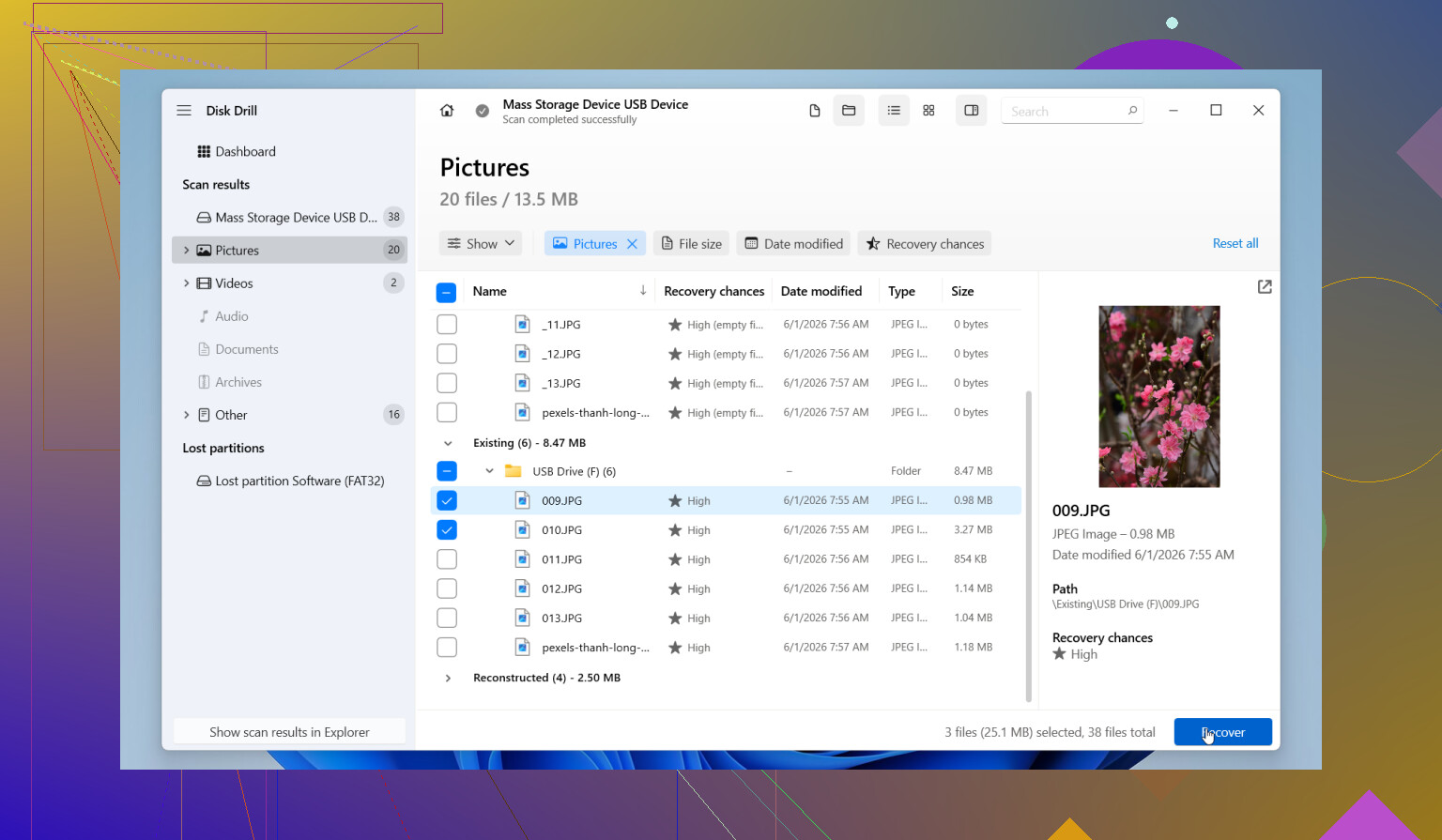
What I would do next is install Disk Drill onto a different drive, not the damaged one. People skip this all the time, then wonder why recovery gets worse. One part I like here is the option to make a full byte-for-byte image of the disk before messing with recovery. I prefer working from a copy when the files matter. It also shows file previews before restore, which saves time because you can check whether the results are usable. The free version lets you scan and preview, then you decide later if recovery is worth paying for.
A few things matter here:
- Hard drives usually give you a better shot than SSDs. Still, don't drag your feet. Some newer HDDs support TRIM too, so waiting is not smart.
- If you hear clicking, grinding, or repeated spin-up noises, stop. Shut the system down and send it to a recovery lab. Software will not fix a hardware failure.
- Run one proper deep scan. Repeating the same scan over and over does not help much, and it puts more strain on the drive.
If Disk Drill does not get it done, I’d try other tools after that. Recuva is simpler and fast for lighter cases. DiskGenius helps more when partitions or file system damage are part of the mess. Data Rescue is worth a look if you're on a Mac. I had the best luck with Disk Drill for the mix of easy scanning and decent recovery depth, but the others are fine fallback options.
Move fast. Keep the drive idle. Recover to a different disk, not the same one. Those three things matter more than people think. Typos and panic happen when you lose files, I know. Still, if the drive is healthy, your odds are not bad.

1 Like
I’d add one thing to what @mikeappsreviewer said. Check the easy places first before you run recovery.
Look in Recycle Bin. Check OneDrive, Google Drive, Dropbox version history. Office apps sometimes keep autosaved temp copies. In Word, look for ASD files. In Excel, look for unsaved workbook recovery. On Windows, File History or Previous Versions sometimes saves you a ton of pain. On Mac, Time Machine is the first stop.
If none of that hits, use Disk Drill. I don’t agree with doing a deep scan first every time. A quick scan on a healthy drive is faster and often finds recently deleted docs with original names and folders intact. Deep scan is for when the file system is messy or the quick pass misses stuff.
Big rule, restore recovered files to another drive. Not the same hard drive. If your docs matter for work, I’d recover the most important few first, check they open, then keep going. Don’t mass restore 200GB blind. Waste of time tbh.
For a simple guide to recovering permanently deleted files, this short video helps explain the basics in plain English:
easy steps to recover deleted files from your hard drive
If the files were deleted weeks ago from an SSD, odds drop a lot. If it’s an HDD, chances are usualy better.

One angle I don’t see stressed enough in the replies from @mikeappsreviewer and @ombrasilente is checking whether the files were actually deleted or just moved, renamed, or filtered out by the app. Sounds dumb, but it happens allll the time. Windows search can miss stuff, and Office recent-files lists are not always honest.
Try this before doing anything heavy:
- search by file extension like
.docx,.xlsx,.pdf - sort folders by date modified
- check hidden files
- look in the app’s “recent” list and open the file location from there
- if it was an external drive, make sure the drive letter didn’t change and confuse shortcuts
I slightly disagree with going straight into a deep recovery mindset unless the files are truly gone. Sometimes people create more chaos than the original deletion did.
If they are definitely deleted, then yeah, Disk Drill is a solid choice, mostly because it lets you preview recoverable files and usually makes document recovery pretty simple. I’d focus on recovering the irreplaceable docs first, not your whole drive in one giant panic session.
Also, if the docs are super important for work, check if your company email or Slack/Teams has copies attached. I’ve seen ppl “recover” files that way faster than with any scanner.
This post on external hard drive data recovery success story and tips is worth a look too. Sometimes seeing a real case helps more than generic advice.
And yeah, if the drive starts acting weird, stop messing with it. That part is non-negotiable tbh.
One thing I’d add to what @ombrasilente, @mike34, and @mikeappsreviewer covered: check whether the deletion happened on a synced folder with selective sync turned on. I’ve seen files “deleted” locally but still sitting in the cloud trash, or the reverse where sync propagated the deletion everywhere. That changes the recovery plan a lot.
I also slightly disagree with the idea that software recovery is always the next move. If the deleted files were on your system drive and the PC has been used normally since, sometimes the smarter move is to shut it down and clone the disk first, then work from the clone. Especially if the docs are truly critical.
For recovery software, Disk Drill is a reasonable pick because it’s simple to sort results by file type and preview documents before restoring.
Pros of Disk Drill
- easy to use
- preview support is helpful
- can scan images, docs, archives well
- good for people who do not want command-line tools
Cons of Disk Drill
- free use is limited depending on platform
- deep scans can return lots of messy, duplicate results
- file names/folder structure are not always preserved after heavier damage
One more angle: if the docs were ever printed, emailed, exported as PDF, or attached in Teams/Slack, search those ecosystems too. Sometimes “recovery” is really reconstruction, and that’s faster than carving raw files off a disk.
If the drive is physically fine, I’d still try targeted recovery first, not a giant all-files restore.