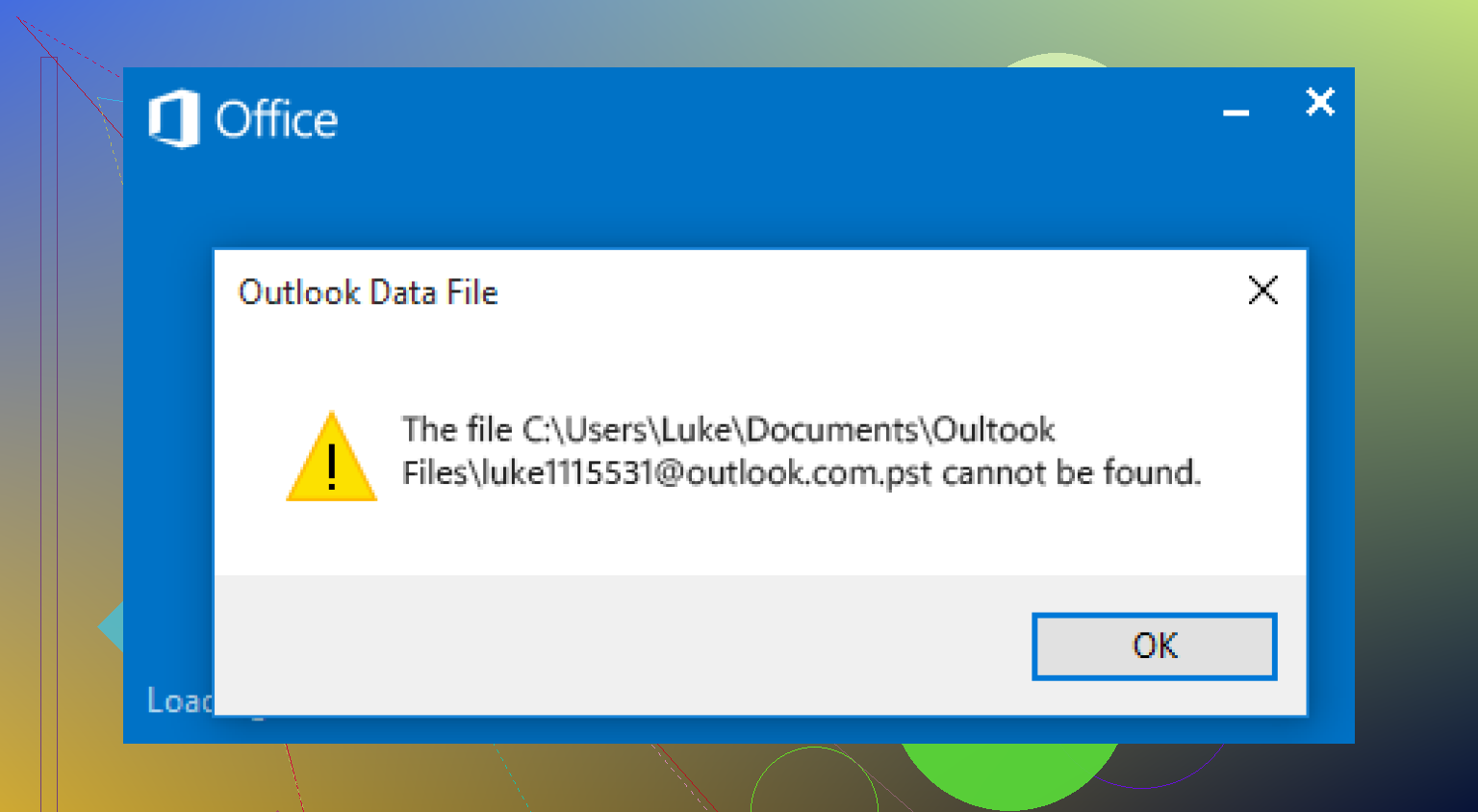
I can’t find my Outlook archive PST file after moving some folders and restarting my computer. My old emails and saved messages are missing, and I need them for work and personal records. I’m looking for help locating the PST file or restoring access to the archived Outlook data.
Outlook says the file is missing, what I’d do first
I ran into this once, same warning, “file cannot be found.” Outlook still opened, but all the old folders were gone. In my case, the PST had been removed during a cleanup. One bad delete, and years of mail looked wiped.
The ugly part is simple. Outlook usually loses track of the PST because the file is gone, moved, or damaged. If it was deleted, time matters.
Stop using the PC for a bit
First thing, I’d stop doing stuff on the machine.
No downloads. No Windows updates. No random installs. I’d even keep browsing to a minimum. When Windows writes new data, it reuses free space. If the deleted PST was sitting there, you want those sectors left alone. I learned this the hard way once with photos, not mail, same result.
Start with the easy checks
Before trying recovery software, I’d go through the obvious places.
-
Recycle Bin
Open it and search for a .pst file. If you see it, restore it. -
Cloud trash
If your Documents folder was synced with OneDrive, Dropbox, or Google Drive, check the web version too. Look in Deleted files, Trash, Recycle Bin, or Version history. Sometimes the local copy is gone and the cloud copy is still sitting there.
Check if Windows kept an older copy
Sometimes Windows saved a previous version of the folder, and people forget this exists.
The usual PST path is:
C:\Users\YourName\Documents\Outlook Files
Go to that folder, right-click it, then pick “Restore previous versions.” If Windows shows an older snapshot from before the problem, open it and copy the PST somewhere safe.
I’d copy it out first, not open it in place. Less risk, fewer mistakes.
If the file is gone, use recovery software
If Recycle Bin and cloud history are empty, I’d move to file recovery.
I’ve seen Disk Drill do a decent job with deleted mail archives, mostly because it digs past the normal file list and looks for deleted entries too.
This is the order I’d follow:
-
Install the recovery tool to another drive or a USB stick if you have one
Don’t install it on the same drive where the PST was deleted if you can avoid it. -
Scan the drive where Outlook kept the file
Usually this is C:. -
Search the results for .pst
-
Compare file sizes
This matters more than the filename in a lot of cases. A fresh empty PST might be tiny, maybe a few hundred KB. A real one with years of mail is often much larger. -
Recover the best candidate to a different folder or external drive
I would not restore it back into the original location right away.
That file size clue saved me once. I had three PSTs in the scan results, two tiny ones and one big one. The big one was the real archive.
Why Outlook looks empty even when it still opens
This throws people off.
Outlook often creates a new blank data file when the old one disappears. So the app launches, no crash, no giant red alert, but your folders are gone and it looks like a brand new mailbox. That does not always mean the old mail is erased. It often means Outlook attached itself to an empty replacement.
Reattach the recovered PST
Once you get the PST back, open it in Outlook here:
File > Open & Export > Open Outlook Data File
Pick the recovered file. If it’s the right one, your old folders should show up in the left pane. I’d click around a bit first and confirm the mail is there before changing any account defaults.
After that, if needed, go into Account Settings and switch the default data file.
If your account used IMAP, there’s still a split here
This part trips people up.
If the account was IMAP, your inbox and synced folders often still live on the mail provider’s server. Adding the account again often brings those back.
But local-only stuff is different. Old archives, manual folders, stuff you dragged out of the mailbox years ago, all of that may have lived only inside the PST. If those items mattered, recovering the original PST is the main job.
What I’d do after recovery
Once the mail is back, I’d make a copy of the PST somewhere else right away. External drive, backed-up folder, whatever you trust. PST files tend to become important only after they vanish. Bit late then, heh.
Big recovered PST in the scan results usually means you found the one worth opening.
1 Like
If you moved folders by hand, I’d check Outlook’s own file path before doing recovery. A lot of people skip this part.
In Outlook, go to File, Account Settings, Account Settings, Data Files. Look for your archive entry. It often shows the old path even when the file still exists somewhere else. Hit Open File Location if it works. If it errors, note the full path and search Windows for the exact file name.
Also search these spots, not only Documents:
C:\Users\YourName\AppData\Local\Microsoft\Outlook
C:\Users\YourName\Documents\Outlook Files
Turn on hidden items in File Explorer first. AppData is hidden by default. This is where people miss it. I’ve seen PSTs sitting there after a restart and everyone thinks they vanished.
One small disagreement with @mikeappsreviewer. I would not assume deletion first. If you were moving folders, Outlook often points to a stale location. Missing is not always deleted.
If Windows search is trash on your PC, use this in Command Prompt:
dir C:*.pst /s /a
That scans the drive for all PST files. Fast and simple.
If you find a PST, copy it to another folder before opening it. Then use scanpst.exe, the Inbox Repair Tool, if Outlook says the file is damaged. Search Windows for scanpst.exe. It ships with Office.
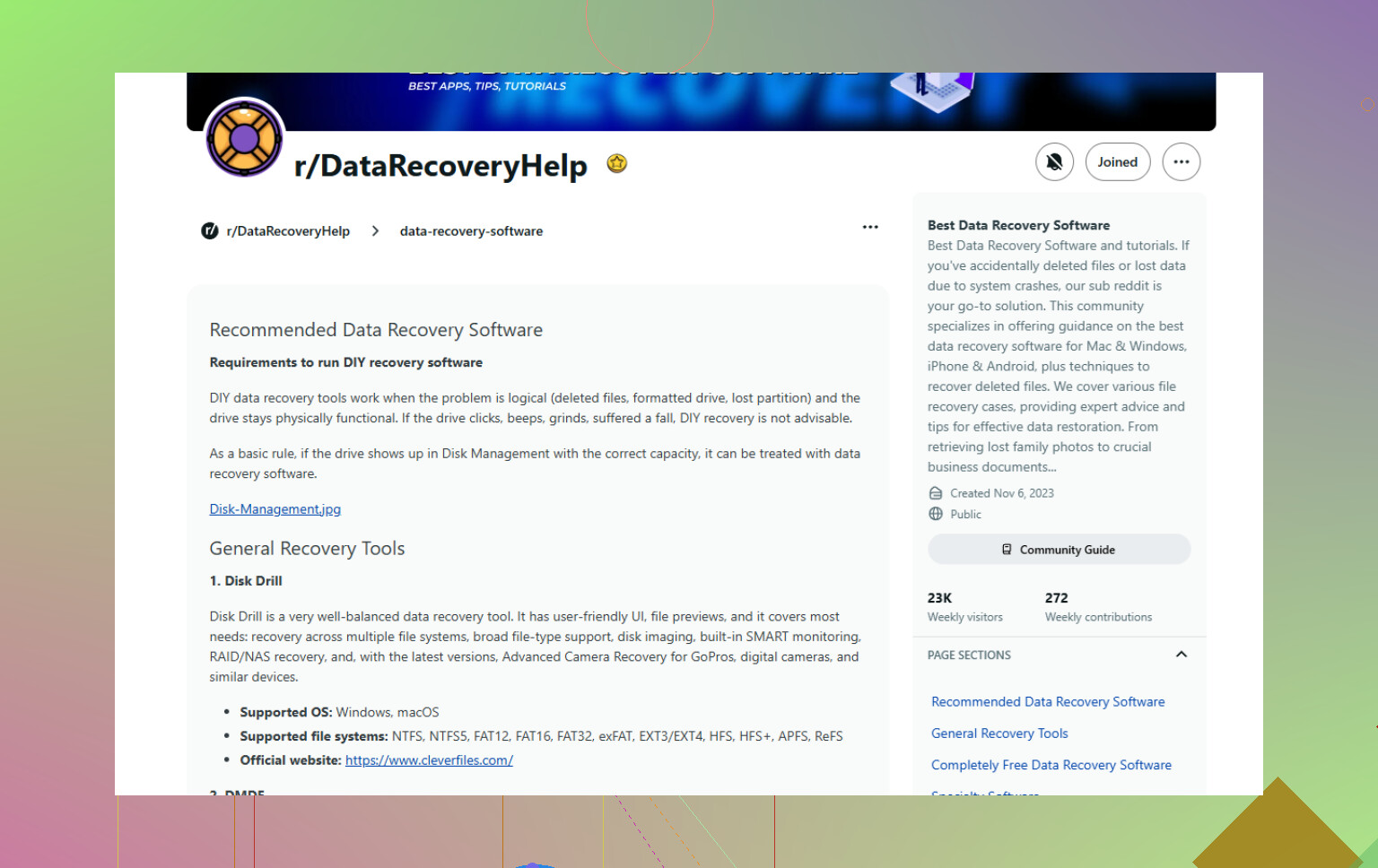
If the search finds nothing, then move to recovery software. Disk Drill is one option. Also, pick from this best data recovery software list for deleted PST files. Recover to a different drive. Dont save back to C: if that’s where the archive lived.
One more thing. If this was an AutoArchive PST, check Outlook AutoArchive settings too. Sometimes Outlook made a new archive.pst in a different path and your old mail is split across two files. Annoying, but fixable.
I’d check one thing neither @mikeappsreviewer nor @sonhadordobosque leaned on enough: Outlook profile weirdness.
Sometimes the PST is still there, but Outlook starts using a different mail profile after a restart and your archive just doesn’t get mounted. Go to Control Panel > Mail > Show Profiles. If there’s more than one profile, open the old one or set the correct one as default. This bites ppl more than you’d think.
Also check if you moved the PST into a protected folder like Desktop, Downloads, or a synced OneDrive path. Outlook can be annoyng about PSTs stored there, especially after reboot. If you find it, move it somewhere simple like C:\Outlook Archive\ and then attach it again from Outlook.
Another angle: if this was a work machine, check whether Windows File History or your company backup agent restored the folder to a different path silently. I’ve seen backup software rename missing PSTs with dates stuck on the end.
If the file is truly gone, then yeah, recovery time. I agree with them there. Disk Drill is a solid option for finding deleted PST files, especially if the archive got removed during the folder move. Just recover it to another drive, not back onto C:.
And after you get it back, set up a real backup routine for Outlook archives. This Microsoft guide on how to back up Outlook emails, contacts, and calendar items to a PST file is worth bookmarking.
One small disagree from me: I wouldn’t run ScanPST too early. If the file is partially recovered, repair tools can sometimes make a mess of a bad copy. First make a duplicate, then test/repair the copy. Less risk, less regret.

One angle not covered enough by @sonhadordobosque, @viaggiatoresolare, and @mikeappsreviewer: check Outlook’s Navigation Pane reset issue.
Sometimes the PST is fine, but Outlook’s left pane config gets corrupted after a move/restart, so the archive just stops showing.
Try this:
- Close Outlook
- Press
Win + R - Run:
outlook.exe /resetnavpane
If the archive reappears, the file was never lost. Different fix entirely.
Also, if you remember part of a message that used to be in the archive, use Windows Search indexing options and search for the message text, not just .pst. If indexed content finds an email stub, it can hint which PST path Outlook was using.
Small disagreement with the recovery-first crowd: if the folder move happened on the same drive, sometimes Windows just changed permissions. Right-click the suspected PST folder, check Security, and make sure your account still has access.
If the file really is gone, then yes, Disk Drill is reasonable.
Pros:
- good at finding deleted PSTs by signature
- preview and size info help identify the real archive
- simple UI
Cons:
- recovery success drops fast if you keep using the PC
- large scans can take a while
- best results usually need another drive for recovery target
If you use it, recover only to a different disk, then open the recovered PST as a copy, not the original candidate.