I accidentally permanently deleted important files on my Windows 11 PC and already emptied the Recycle Bin. Some of them are work documents and family photos I really need back. I’m looking for the best way to recover permanently deleted files in Windows 11 as quickly as possible.
I hate seeing this happen. You hit Shift+Delete, or you empty the Recycle Bin, then the file is gone and your stomach drops a bit. I’ve been there. The one useful thing to know up front is this: a file marked as permanently deleted is not always wiped right away. On Windows, the system often removes the file’s listing and marks its space as free. If new data has not landed there yet, recovery still has a shot.
First move, stop writing to the drive.
Seriously, keep use of that drive as low as you can. Don’t install apps there. Don’t download random stuff. Don’t move files around. Don’t keep working off it if you have another option. Every write cuts into your odds. On SSDs, this gets worse because of TRIM. TRIM helps the SSD clear deleted blocks for speed and wear handling. Once that cleanup runs, the old data is often gone for good.
Before running recovery tools, I’d check the boring places people forget about:
OneDrive
File History
Previous Versions
Any cloud sync folder
External drives
NAS backups
Older backup jobs you set up once and forgot about
I’ve seen “lost” files turn up in backup folders people had not opened in months. Worth five minutes before you do anything heavier.
If none of those turn up the file, I’d move to recovery software.
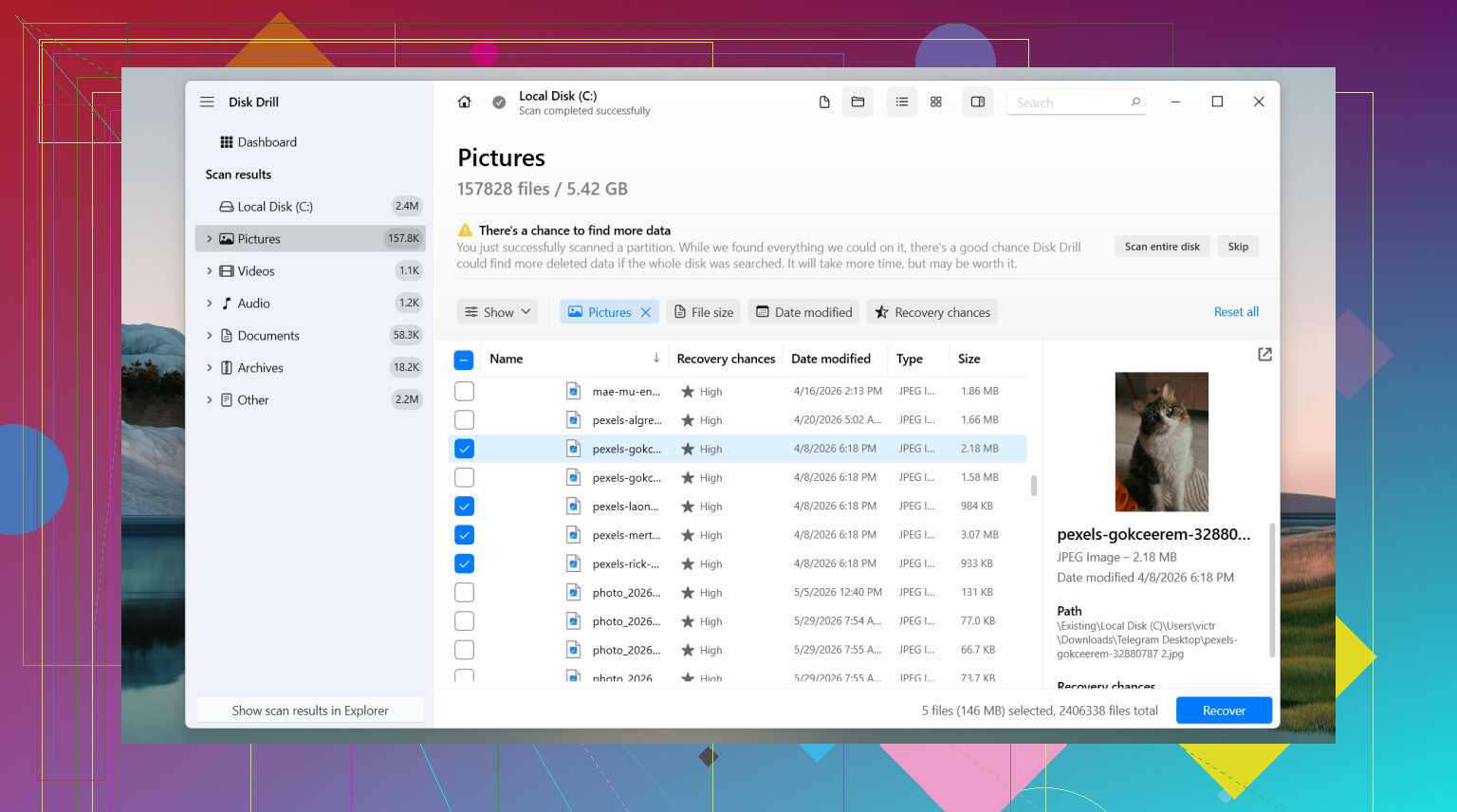
The one I’d start with is Disk Drill. I’ve had decent luck with it. What stood out for me was how often it kept filenames and folder paths intact when the file system info was still there. Preview helps too. If you’re hunting for one document or one photo set, being able to open a preview saves a ton of wasted time.
What I’d do, step by step:
Install Disk Drill to a different drive if you have one.
Pick the drive where the file disappeared.
Run the scan.
Use filters or search to narrow results.
Preview the file if preview is available.
Recover to another drive, not the same one.
One nice part on Windows, it lets you scan and preview without limits, and the free recovery cap is 100 MB. If your missing file is small, sometimes that’s enough.
If Disk Drill doesn’t fit what you need, there are a couple others people use a lot.
PhotoRec is free and pulls a lot of data back when the raw file content still exists. I used it once on a trashed memory card and it found a mountain of files. The downside was rough. Filenames were gone. Folder structure was gone. I ended up sorting a huge pile of generically named files by type and date. It works, but it’s messy.
DiskGenius is one I’d keep in mind if this is bigger than one deleted file. It tends to be more useful when the drive has file system problems, lost partitions, damaged partitions, or shows up as RAW. On drives with weird logical damage, I’ve seen simpler tools miss things DiskGenius still picked up.
One more thing, and this matters. Recovery software is not the right next step every time. If the drive clicks, drops offline, vanishes from Windows, throws hardware errors, or holds data you cannot risk losing, I’d stop and look at a professional data recovery service. Software helps when the drive still reads cleanly enough. Physical failure is a different mess.
So, short version. Stop using the drive. Check backups first. If nothing turns up, try recovery software fast, and restore recovered files somewhere else. If this is a normal delete case and the drive has not been written to much since, your odds are usually a lot better than people think. Hopefuly you caught it early.
1 Like
Yes, there is still a shot on Windows 11, but your odds depend on what happened after deletion.
I agree with @mikeappsreviewer on one big point, stop using the PC if the files were on your main drive. I slightly disagree on jumping straight into a full scan first. I’d check Windows logs and built-in restore points before doing heavy recovery, especailly for work docs.
Try this order.
-
Search Office temp and autosave locations.
Word, Excel, and some PDF apps keep temp copies.
Look in:
C:\Users\YourName\AppData\Roaming\Microsoft\Word
C:\Users\YourName\AppData\Local\Microsoft\Office\UnsavedFiles
If these are work files, this step saves time. -
Check OneDrive version history, not only deleted items.
If the folder was synced, older versions might still exist even if the file is gone from the bin. -
Use Windows File Recovery.
It’s Microsoft’s own command line tool from the Store.
Best when you know file type or folder.
Example:
winfr C: D: /regular /n \Users\YourName\Documents*.docx
Recover to another drive only. -
If that fails, use Disk Drill.
It’s easier to sort photos and docs, and previews help avoid recoving junk. For family photos, that matters a lot. -
If the drive is an SSD, move fast. TRIM hurts recovery odds fast.
For a simple Windows 11 deleted file recovery guide, this helps:
easy Windows 11 file recovery walkthrough
If the files were deleted today and the PC hasn’t been used much, recovery rates are often decent. If it’s a noisy drive or BitLocker got involved, stop and reassess befroe doing more.

If the files were deleted today, there’s still a real chance, but I’d push back a little on going too deep into Windows internals first. For family photos and mixed personal files, time matters more than perfect method order.
@mikeappsreviewer is right about avoiding writes, and @viajantedoceu is right that app temp folders can save work docs. But one thing people skip is this: check the drive type first. If it’s an SSD, recovery can go downhill fast because deleted blocks may get cleaned up pretty quick. If it’s an HDD, your odds are usually better.
What I’d add:
- If the deleted files were on the Desktop, Documents, or Pictures, also check whether another Windows user profile on the PC has copies
- Look inside email attachments, Teams/Slack downloads, printer scan folders, and phone import folders
- If the photos came from a camera or phone, the originals may still be on the SD card/device
For actual recovery, Disk Drill is probly the easiest option on Windows 11 if you want to search by file type and preview stuff before restoring. That matters when you’re trying to separate real photos from junk thumbnails. I don’t love command line tools unless you already know exactly what you’re after.
One more thing people forget: recover the files to a USB drive or external drive, not back onto C:. Super common mistake.
Also, this thread is useful if you want more Windows 11 deleted file recovery context: how to recover permanently deleted files on Windows without File History
If the drive is making weird noises, disappearing, or freezing during scans, stop. That’s not “try another app” territory.
One small disagreement with @viajantedoceu and @nachtschatten: I would not spend too long digging through logs or niche restore traces if the deletion just happened. The first hour matters more than the perfect checklist, especially on SSDs.
My angle:
- If the files lived on an internal SSD, shut the PC down and recover from another machine or bootable USB if possible.
- If they were on an HDD or external drive, you usually have a bit more breathing room.
- If this is a work PC, check whether your company uses backup agents like Veeam, Acronis, CrashPlan, or endpoint backup. A lot of people forget IT may already have snapshots.
About Disk Drill since @mikeappsreviewer mentioned it:
- Pros: easy preview, good filtering, simple for photos/docs, less painful than command line.
- Cons: free recovery on Windows is limited, deep scans can return lots of clutter, and if TRIM already ran, no app is performing miracles.
I’d still rate it as a practical first GUI tool. If it misses stuff, try R-Studio or UFS Explorer after that. They are less beginner-friendly but sometimes better at damaged file systems and partial metadata recovery.
Big warning: if recovered photos open half-gray, docs are corrupted, or filenames are gone, that usually means partial overwrite, not “wrong app.” At that point, clone the drive before trying more scans.
So yes, recovery is still possible today. Just treat the drive like evidence, not like a normal PC.