My external hard drive suddenly won’t open in Windows and shows “The parameter is incorrect.” It was working before, and I’m worried about losing the files on it. What are the safest ways to repair an inaccessible external hard drive or recover the data without making things worse?
Don’t format the drive yet, even if Windows keeps pushing you that way. That’s the main thing. The 'The parameter is incorrect.' message can look like the drive is dead, but a lot of the time Windows just can’t read the file system properly. The data may still be sitting there.
I’d also avoid running CHKDSK right away if there are files you care about. It can help later, but it can also make recovery messier if the file system is already damaged.
Start with the basic checks first:
- Use a different USB cable.
- Try another USB port, preferably one directly on the motherboard if this is a desktop PC.
- Connect the drive to another computer.
- Open Disk Management and see if the drive still appears with the correct size.
If Disk Management still shows the drive and the capacity looks right, that’s usually a decent sign. It means Windows is at least still talking to the device.
Next, check the drive health before stressing it more. CrystalDiskInfo is good for that and it’s free. If you already have Disk Drill, it also has SMART monitoring built in. Watch for warnings like reallocated sectors, pending sectors, or other serious SMART errors. If those show up, stop using the drive as much as possible because it may be failing physically.
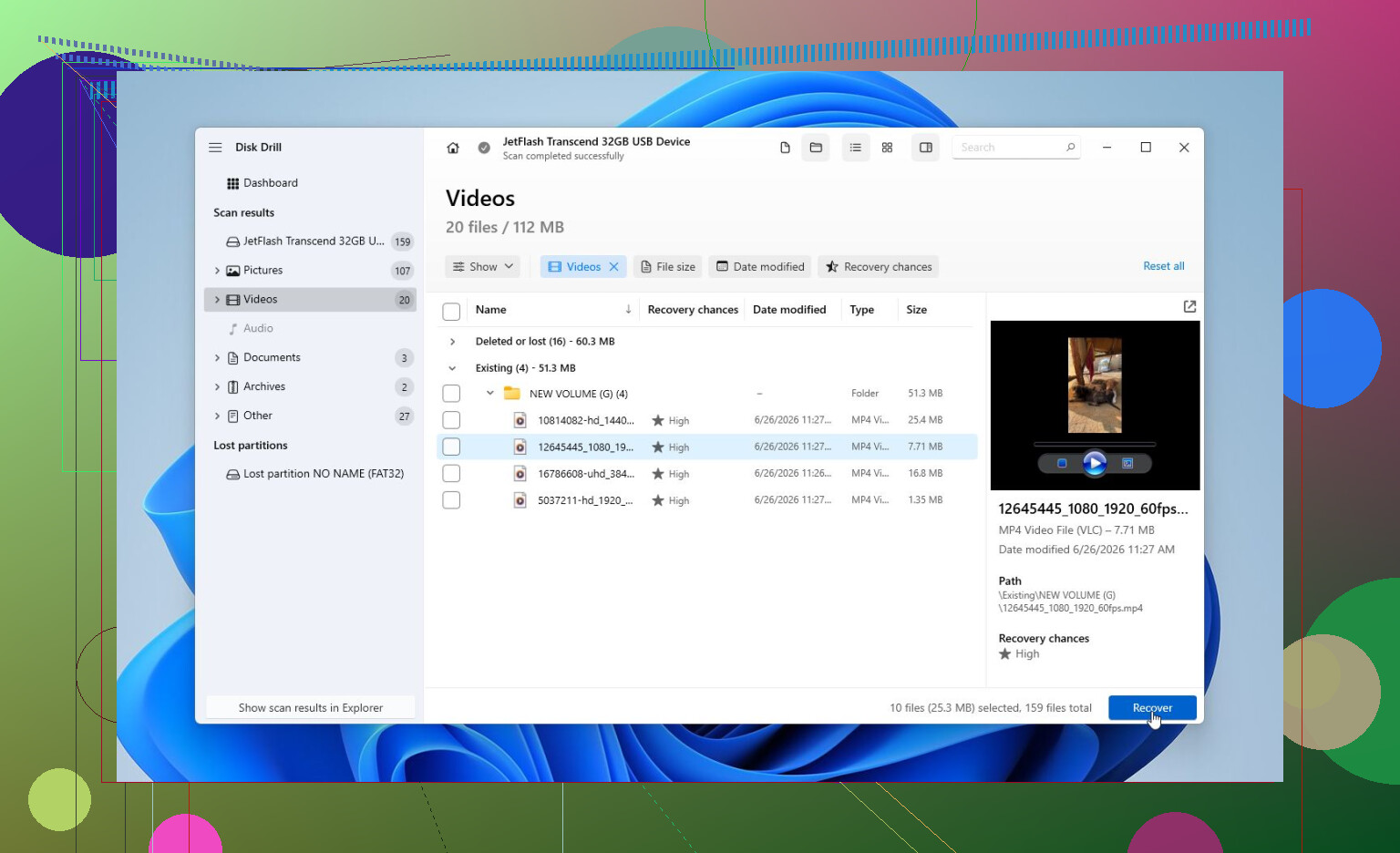
For getting the files back, I’d use Disk Drill. That’s what saved my files when I ran into this.
The feature I’d use first is Byte-to-byte Backup. It makes an exact image of the drive, so you can scan the image instead of repeatedly scanning the actual problem drive. That matters because every extra read can be risky if the drive is starting to fail.
Once you have the image, run a Universal Scan on it. If the drive seems healthy, you can scan it directly, but imaging it first is safer. When the scan finishes, preview the files before recovering them. If your photos, documents, videos, and other files preview correctly, that’s a good sign. Recover them to a different drive, never back onto the one throwing the error.
After the important files are copied somewhere safe, then I’d look at repair options.
- If Windows still recognizes the file system, try CHKDSK with
chkdsk X: /rto fix logical errors. - If the drive has turned RAW, CHKDSK usually won’t do much. In that case, TestDisk may help because it can rebuild damaged partitions in some situations.
- If the drive seems fine and Windows itself is acting up, run SFC and DISM to repair corrupted system files.
- There are also rare cases where the Windows decimal separator causes weird behavior. Changing it back to a period has fixed this error for some people, but I wouldn’t check that until the obvious stuff is ruled out.
If recovery is done and nothing else works, a quick format is the next reasonable step. If the drive works normally after that, the issue was probably file system corruption. If the same error comes back after formatting, I’d stop trusting the drive and replace it.
One place I wouldn’t keep experimenting is with obvious hardware failure. If the drive clicks, drops in and out, vanishes from Disk Management, only gets detected sometimes, or SMART shows serious warnings, disconnect it. At that point, professional recovery is usually the safer route.
Most recovery labs will evaluate the drive first and quote you before doing the work. Many also have a no data, no fee policy. From what I’ve seen, logical recovery is often around $300-600. If the drive needs hardware repair or clean-room work, it can jump to $700-2,000+, depending on the damage and the size of the drive.

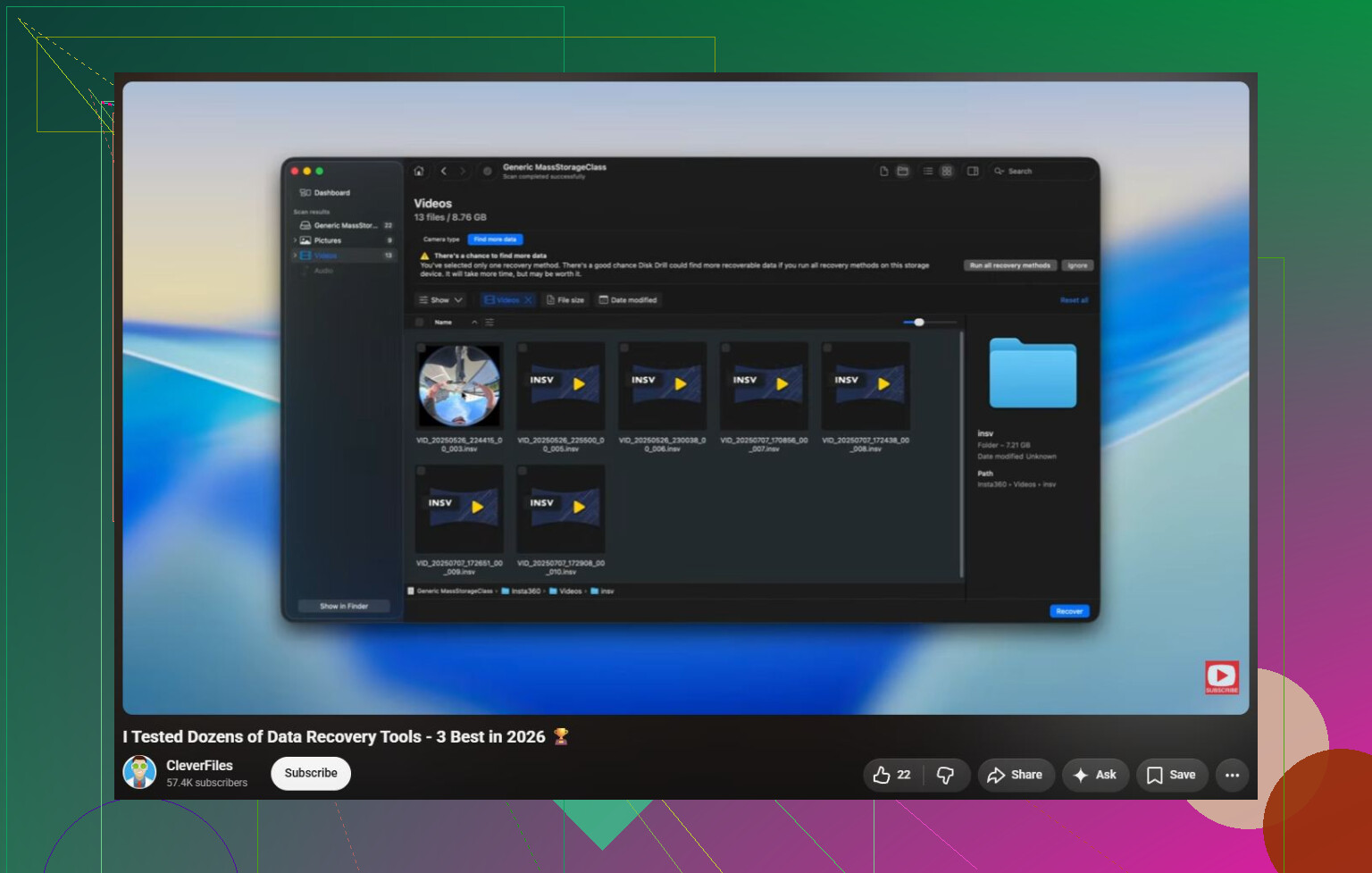
https://www.youtube.com/watch?v=_e4D_2bu8LE
1 Like
The missing detail is whether the drive shows the correct full capacity in Disk Management, not just whether Windows gives it a drive letter. If it shows as “No Media,” 0 bytes, or keeps disappearing, that is probably not a Windows repair job. That points more toward the USB enclosure, cable, power, or the drive itself. In that case, running repair commands is mostly just poking a failing device.
I agree with the general “recover first, repair later” approach, but I’d be a little more blunt about CHKDSK: don’t run it until you have another copy of the important files or a full image. CHKDSK is meant to make the file system usable again, not preserve every damaged file for recovery. Sometimes it helps, sometimes it moves broken pieces into found folders, and sometimes it makes recovery tools see less structure than before.
A cheap thing to try before buying anything is booting from a Linux live USB and seeing if the drive mounts read-only. Don’t install Linux, just run it from the USB stick. If Linux can see the folders, copy the files to a different drive and leave the bad one alone until you’re done. If it refuses to mount or throws lots of I/O errors, stop. That is useful information too.
After your files are safe, then you can try the boring fixes: remove and reassign the drive letter, run CHKDSK if the partition is still NTFS/exFAT, or quick format and retest the drive if you no longer need recovery from it. If the error returns after a clean format, I would not trust that external drive for anything important, even if it seems to behave for a while.
The hidden downside of “fixing” it is that Windows may make the drive look normal again while quietly throwing away clues recovery software would have used. That is why I’d treat the first successful access as a rescue window, not as proof the drive is fixed. If it opens even once, copy the irreplaceable stuff first. Don’t start organizing folders, deleting junk, or trying to “clean it up” on that same disk.
A small caveat to the usual advice: if this is a factory-made external drive, be careful about pulling the bare drive out of the enclosure too early. Some USB enclosures do odd sector translation, and some external drives have hardware encryption tied to the USB board. Moving the disk straight to SATA can make the data look even more unreadable. Trying another cable, port, or computer is safer before doing surgery on the case.
I’d only call it “repairable” after you know which problem you have. If Disk Management shows the right size and SMART looks clean, it may just be file system damage and recovery followed by format could be enough. If it disconnects, clicks, shows 0 bytes, or freezes the whole PC when plugged in, stop treating it like a Windows error. At that point the safest repair is no repair at all until the files are copied or imaged elsewhere.
Do not let Windows keep retrying the same bad reads for hours.
A lot of people make this worse by double-clicking the drive, waiting forever, unplugging it, plugging it back in, then doing the same thing again. Explorer is terrible for this because it may try to read thumbnails, scan folders, or calculate sizes before you even copy anything useful. If the drive appears even briefly, go straight for the most important folders first and copy in small chunks to another disk. Photos, tax files, work documents, whatever you cannot replace. Leave movies, installers, and junk for later.
I agree with the “recover before repair” advice, but I would be careful with chkdsk X: /r specifically. /r can take a very long time and hammers the whole surface looking for bad sectors. That is fine for a healthy drive you are trying to fix, but it is a bad first move on a drive that may be dying. After you have an image or your files copied, sure, try repair commands. Before that, I’d rather use something that copies with low retries, or image the disk and work from the image.
So yes, it may be repairable if it is only file system damage. But treat “The parameter is incorrect” as a warning sign, not as the actual diagnosis. If the drive stays stable and shows the right size, recovery software or an image-first tool like Disk Drill can make sense. If it drops out, clicks, or shows weird capacity, stop testing it like a normal USB stick. At that point every extra attempt is spending some of the drive’s remaining life.