My external hard drive suddenly shows up as RAW instead of NTFS, and Windows is asking me to format it before I can use it. I have important files on it, so I’m trying to find out if there’s a way to repair or recover the drive without formatting and losing everything. I need help figuring out the safest next step for RAW to NTFS recovery.
No, formatting is not the only path. I still would not jump straight from RAW to NTFS if the drive has anything you care about. When Windows shows a drive as RAW, it usually means the file system structure is damaged enough that Windows no longer treats it as valid. This is different from simpler cases. The safer order is to pull your files off first, then rebuild the drive.
I’d handle it like this.
Step 1: Stop writing to the drive
I would not format it yet. I would not run CHKDSK. I would not start firing DiskPart repair commands at it either. All of those write changes to the disk, and once you do that, recovery tends to get messier. I learned this the hard way on an old external HDD where CHKDSK turned a bad situation into a worse one.
Step 2: Recover the files first
If the drive still shows up in Disk Management with the right size, I’d start there and try recovery before anything else. My first pass would be Disk Drill.
What I’d do:
- Install it on a different drive, not the damaged one.
- Plug in the RAW USB drive, SSD, or external hard drive.
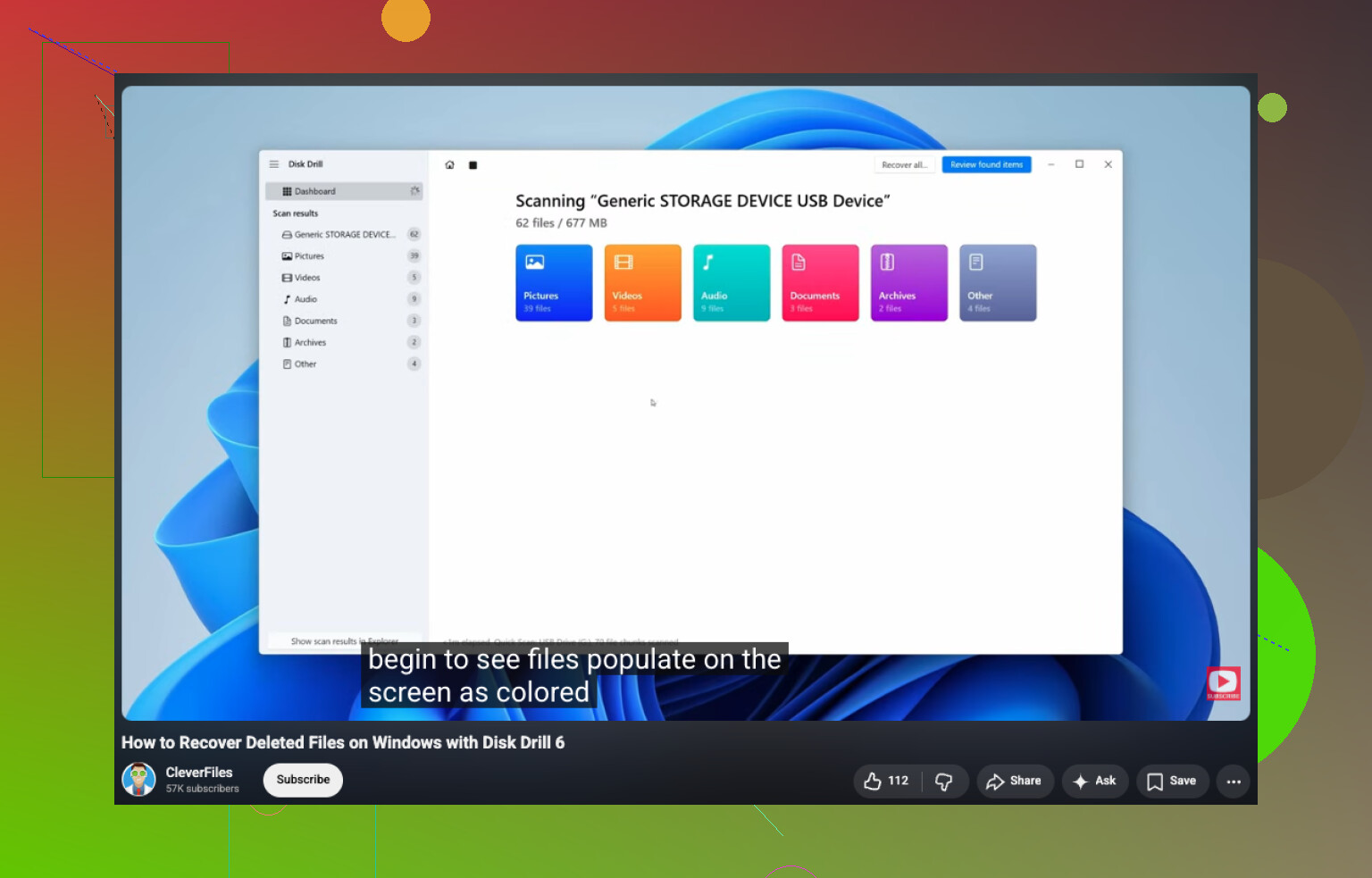
- Pick the RAW drive and start the Search for Lost Data scan.
- Let the scan finish. Don’t cut it short unless the drive is dying.
- Sort through the results by folders, file types, or filenames.
- Preview the files you care about.
- Recover them to another disk.
One thing I liked here, the Windows build gives you up to 100 MB of free recovery. More useful than that, in my opinon, is the fact that scanning and previews are not blocked. You get to see what it found before spending money.
The preview support is decent. Documents, PDFs, photos, videos, audio, archives, and a lot of RAW photo formats tend to show up fine. If a file opens cleanly in preview, I usually treat it as a good sign.
Why this tool tends to work on RAW volumes is pretty simple. It does not rely only on Windows being able to read the NTFS structure. If some NTFS metadata still exists, it tries to use it. If the file system is too far gone, it also scans by file signatures and looks for known file types directly. That helps on drives where the partition still exists but the file system is trashed.
If the first scan misses stuff, I would cross-check with UFS Explorer or DiskGenius. I’ve seen one tool miss folders another one picked up right away. Recovery software does not all behave the same.
Step 3: Rebuild the drive as NTFS
After your important files are somewhere safe, then I’d fix the drive.
The easy route:
- Open Disk Management.
- Right-click the RAW partition.
- Choose Format.
- Pick NTFS.
- Leave Quick Format on.
- Click OK.
If Format is grayed out or missing, delete the RAW partition, make a new partition, then format the new one as NTFS.
One last thing. If this is an SSD, or the drive keeps disconnecting, throws read errors, or gets slower each time you touch it, move fast on recovery. I had one SSD go from readable to dead over a weekend. If the disk turns RAW again after you format it, I would stop trusting it and replace it. For important storage, I wouldn’t give it a second chance.
1 Like
No. Formatting is the last step, not the first.
If the drive flipped from NTFS to RAW, Windows lost the file system map. Your data might still be there. @mikeappsreviewer is right about one thing, do not format first. I also agree with avoiding random ‘fix’ commands early on. Where I differ a bit, if the drive is stable and SMART looks clean, making a full byte-for-byte image first is smarter than working on the original disk. That gives you one safe copy to test with if things go bad.
What I would do:
-
Check SMART health with CrystalDiskInfo.
If health is bad, or you see pending sectors, stop messing with the drive and image it first. -
Clone or image the disk.
Use something like HDD Raw Copy Tool or ddrescue. Work from the clone, not the source. This matters a lot on older externals. -
Test the partition structure with TestDisk.
Sometimes RAW is only a broken boot sector or damaged partition entry. TestDisk has fixed NTFS partitions for me twice. No format needed. It is less pretty than Disk Drill, but worth trying before rebuilding. -
Recover files from the image or clone.
Disk Drill is a solid option here, esp if TestDisk does not restore the volume cleanly. It is good at pulling files from RAW drives and lets you preview what is recoverable before you commit. -
After data is safe, wipe and format back to NTFS.
If the drive turns RAW again, retire it. Dont trust it.
Also, if you want a simple guide for Windows file recovery, this helps: how to recover deleted files on Windows PC
Short version, no, formatting is not your only option. Recovery first. Repair second. Replace the drive if it acts weird agian.
No, formatting is def not the only option. Windows calling it RAW usually means it can’t read the file system, not that every file is gone. I agree with @mikeappsreviewer and partly with @viaggiatoresolare, but I’m a little less eager to try repairs before verifying the hardware side.
First thing I’d check is the enclosure, cable, and USB port. Seriously. I’ve seen externals show up as RAW just because the SATA-to-USB bridge was flaking out. If you can, try another cable, another PC, and if it’s a desktop-style external, another power adapter. Sometimes the drive is fine and the wrapper around it is the problem.
Also check Disk Management carefully:
- if the partition is still there with the correct size, that’s a better sign
- if capacity shows weirdly or as unallocated, different problem
- if it keeps disconnecting, stop poking at it too much
One place I slightly disagree with people online: TestDisk is great, but it can be intimidating if you’re not comfortable reading partition info. Easy to click the wrong thing when stressed and sleep-deprived. If the goal is just to recover files from a corrupted external hard drive, I’d start with a read-only scan using Disk Drill on another drive/computer setup and see what’s actually recoverable. That gives you a reality check before trying deeper fixes.
Important distinction:
- RAW due to file system corruption = often recoverable
- RAW because the drive is physically failing = recover what you can, then retire it
After your files are safe, then format back to NTFS. If it turns RAW again later, don’t trust it. At that point the drive is basicly telling you it wants to ruin your weekend twice.