I deleted apps, photos, videos, and cleared some cache, but my iPhone storage still shows almost the same amount used. I’ve restarted the phone and checked Recently Deleted, but nothing changed. What else should I check to actually free up iPhone storage?
Yeah, that’s maddening. I had almost the same thing happen on my 14 Pro about a month ago. I deleted something like 2,000 photos plus a bunch of long videos, then checked storage and the bar looked exactly the same. Makes you feel like you did all that cleanup for nothing.
The first thing I’d try is the boring one: restart the phone. The iPhone Storage screen in Settings is slow to catch up and often seems to show old cached info instead of the current state. Power it off, leave it for a minute, then turn it back on. I’ve had to do it more than once before iOS finally recalculated things properly.
Also check Recently Deleted in Photos. This is the big one people miss. Deleting photos or videos doesn’t actually free the space right away. iOS keeps them there for 30 days unless you manually remove them.
Go to Photos → Albums → Recently Deleted, then hit Delete All. If you deleted 5GB of videos and they’re still sitting in there, your used storage won’t really change.
One other thing: if you have Optimize iPhone Storage turned on, deleting photos may not free as much local space as you expect. In that mode, the phone often keeps smaller local versions while the full-size files live in iCloud. So you might only be deleting tiny thumbnails, not huge original files.
When my storage was stuck around 99%, the whole phone started acting awful. Apps opened slowly, swiping lagged, and it even restarted itself a couple of times. iOS needs some free space for temporary files, so once you’re totally packed, everything starts crawling.
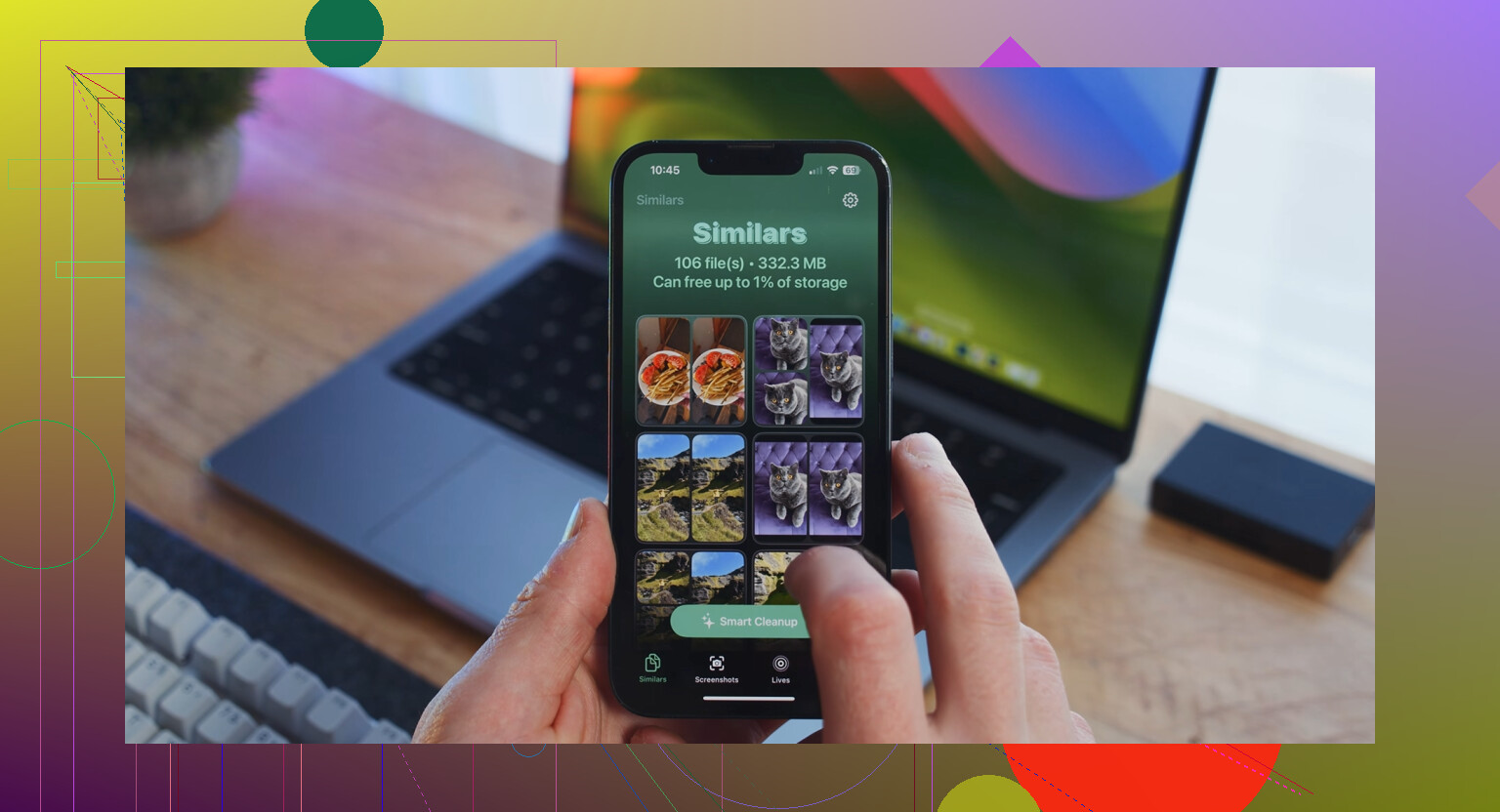
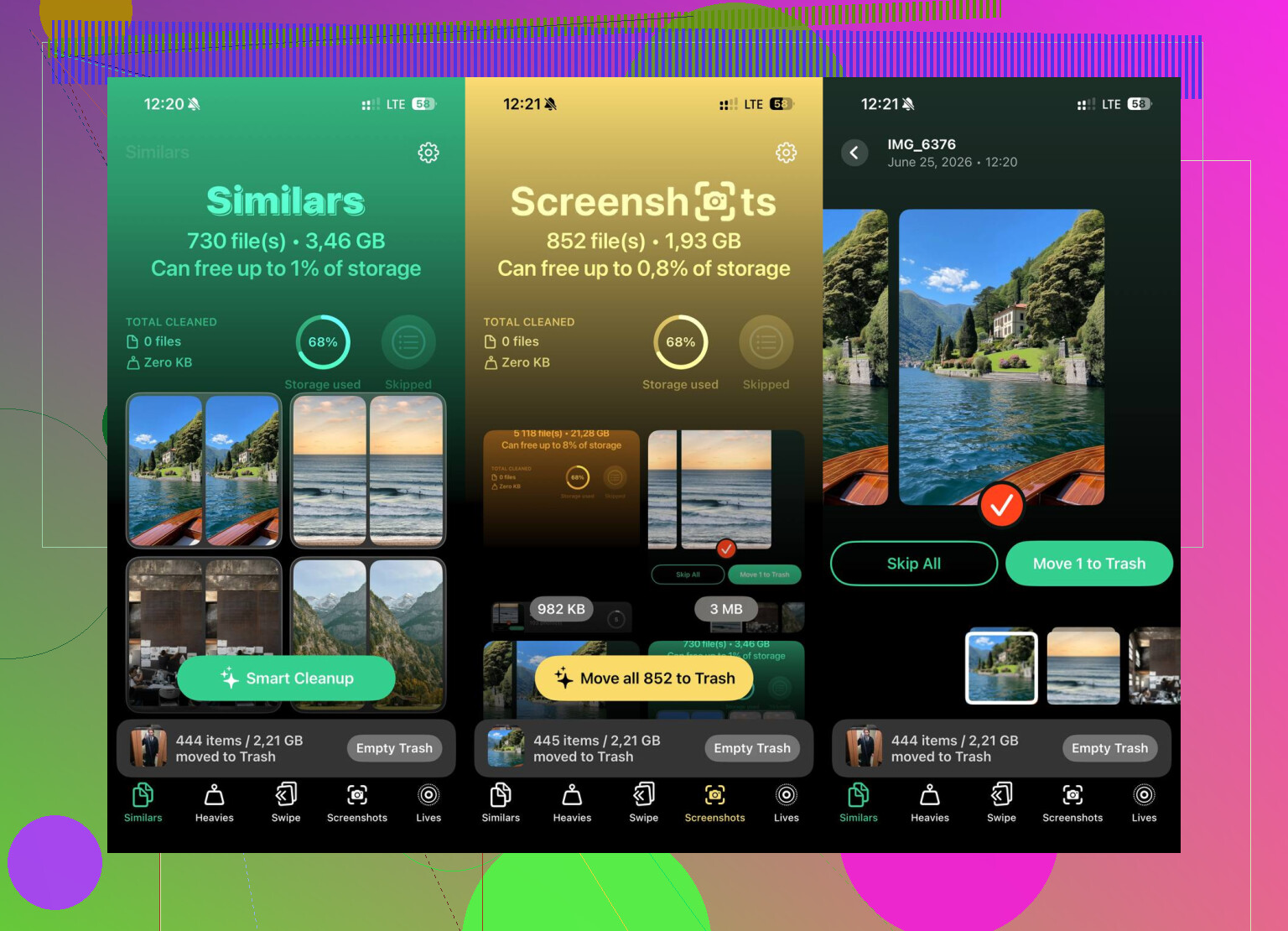
The built-in storage screen didn’t really help me find the actual problem files. It just showed broad categories. I tried a few cleanup tools and the one that actually helped was Clever Cleaner. I’m usually suspicious of cleaner apps too, but this one was free, with no ads, subscriptions, or paywalls.
The useful part for me was the Heavies section. It sorted my library by file size, biggest first. That’s how I found a few old 4K screen recordings that were around 4GB each. I never would’ve noticed them just scrolling through the camera roll. It also has a Similars tab that groups near-duplicate photos and picks a best shot, so you can delete the extra ones faster.
I also liked that it processes the photos on the phone instead of uploading them somewhere else. After clearing the huge videos and a pile of duplicate screenshots, I got about 15GB back and the phone stopped feeling so sluggish.
If the storage is still full after that, look at System Data, which used to be called Other. That can be app cache from stuff like TikTok, Instagram, Safari, and similar apps. Safari cache can be cleared in Settings. For social apps, offloading or deleting and reinstalling the app can sometimes clear out a ton of junk.
And if none of that works, it may be ghost files that iOS refuses to release. The annoying last resort is backing up to iCloud, erasing the phone completely, then restoring from the backup. It’s a hassle, but it does force the system to start clean.
I’d do it in this order: empty Recently Deleted, restart the phone, then use the cleaner app to sort by biggest files. There’s a good chance you’ve got a few massive videos or recordings hiding in there.
1 Like
The category shown under Settings > General > iPhone Storage matters more than the total number at first. If the space is sitting in Photos, then the deleted-items/iCloud sync stuff is the right trail. If it is sitting in Messages, Apps, or System Data, deleting camera roll items will barely move the needle.
Check Messages in particular. Go to Settings > General > iPhone Storage > Messages and look at large attachments, videos, GIFs, and conversations. People forget that old iMessage videos can be just as big as camera roll videos, and deleting them from Photos does nothing for that. Same with downloaded music, podcasts, offline Netflix/YouTube/Spotify content, and files saved in the Files app. Those often hide under the app’s storage rather than the obvious media category.
I’d be a little cautious about judging it immediately after cleanup too. The storage screen can lag, but if it still looks wrong after being plugged in, on Wi-Fi, and left alone for a while, then look at the biggest apps in the storage list rather than chasing the colored bar. If one app is huge and has no useful in-app cleanup option, offload it first, then reinstall if needed. That keeps documents for some apps, but clears the app itself. If you delete the app entirely, make sure you know whether its data is backed up or synced first.
A cleanup done while iCloud Photos is fully synced behaves differently from a cleanup done while Photos is paused or still uploading. Since you already restarted and checked Recently Deleted, open Photos, go to Library, scroll all the way to the bottom, and look at the sync status. If it says syncing paused, waiting for Wi-Fi, low power, or uploading items, plug the phone in, turn off Low Power Mode, connect to Wi-Fi, and let it sit locked for a while. I agree with @hoshikuzu that the storage category matters, but if the big category is Photos, this is the bit I’d check before chasing cleaner apps or doing a full erase. iOS can be weird about releasing photo storage until the cloud library finishes whatever job it thinks it is doing.
Offloading can look like cleanup while leaving the bulky part behind. If you used “Offload App” instead of actually deleting an app, iOS removes the app itself but keeps its documents and data. That means a 300 MB app with 8 GB of cached videos, projects, chats, or downloads may barely change your storage number.
Go to Settings > General > iPhone Storage and tap the biggest apps individually. Don’t only look at the colored bar at the top. On each app page, compare “App Size” with “Documents & Data.” If Documents & Data is huge, the fix is usually inside that app, not in Photos. Think WhatsApp media, Telegram cache, TikTok drafts, downloaded maps, GarageBand projects, iMovie files, Kindle books, podcast downloads, Spotify/Netflix/YouTube offline files, and stuff saved for offline use.
I agree with @hoshikuzu that Messages is a big suspect, but Files is another one people miss. Open the Files app and check On My iPhone, Downloads, and any app folders there. A video you saved from Safari or an email attachment may live there instead of Photos. Same with Voice Memos and Notes attachments. Those don’t disappear just because you cleaned the camera roll.
Another small thing to check: a downloaded iOS update. Sometimes Settings > General > iPhone Storage will show an iOS update file sitting there. If it’s already downloaded but not installed, it can take several GB. You can delete it from that storage list and download it again later if needed.
Clever Cleaner or any photo-focused cleaner can be useful if the problem is buried in your photo library, especially large videos or duplicates. But it won’t magically shrink System Data or clear another app’s private cache. If the storage page says System Data is the monster, I’d first try updating iOS if an update is available, then leave the phone plugged in and idle overnight. If it still refuses to shrink, a backup, erase, and restore is usually the cleanest fix, annoying as that is.