My iPhone has been lagging and apps take longer to open, so I deleted photos, apps, and other files to free up storage. It still feels slow even after clearing space and restarting. What else should I check to improve iPhone performance?
If your iPhone used to be quick and now feels sluggish, I’d start with storage before doing anything drastic. A factory reset is usually the last thing to try, not the first.
Free space matters more than people think
Having “some storage available” does not mean iOS has enough room to work properly. The phone needs free space for temporary files, system tasks, and virtual memory. A good target is roughly 10 to 20 percent of your total storage kept free.
So if you have a 256GB iPhone and only 5GB free, that is technically available storage, but it is not much working room. iOS has to keep moving data around just to do normal things like open apps, scroll, type, or load media. That shuffling is where a lot of the lag comes from.
Deleting a couple random apps or a few old photos usually is not enough. You want to clear enough space to get back into that safer buffer range.
The stuff worth deleting is usually not the obvious stuff
Manual cleanup sounds simple, but it is pretty inefficient. Most people scroll through Photos, delete some blurry pictures, and maybe get back 1 or 2GB. The bigger storage hogs are usually videos, old screen recordings, and piles of almost-the-same photos from bursts or repeated shots.
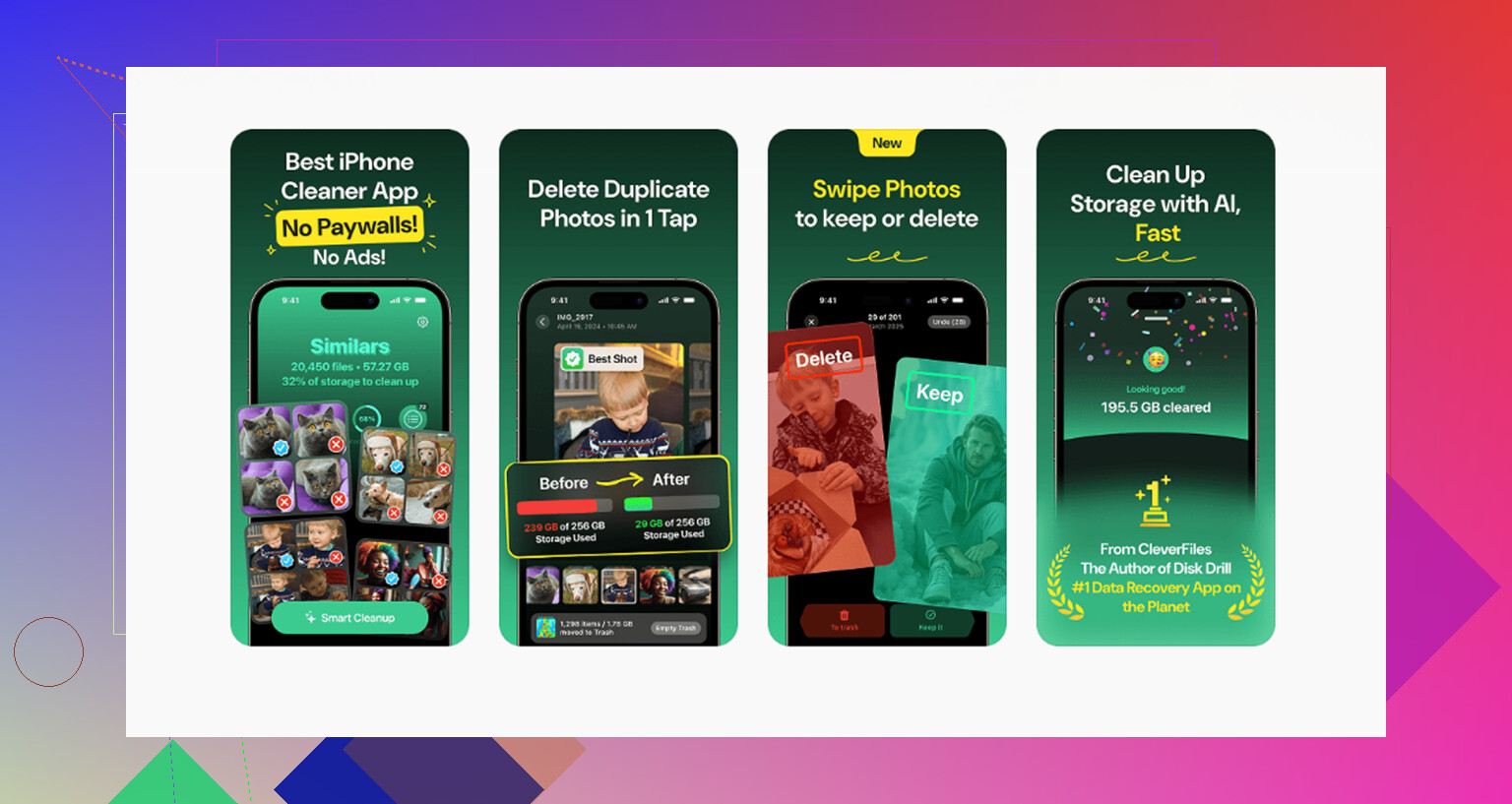
Clever Cleaner is useful for this because it finds those files automatically. It is free, with no ads or subscription.
The cleanup that usually makes an actual difference goes like this:
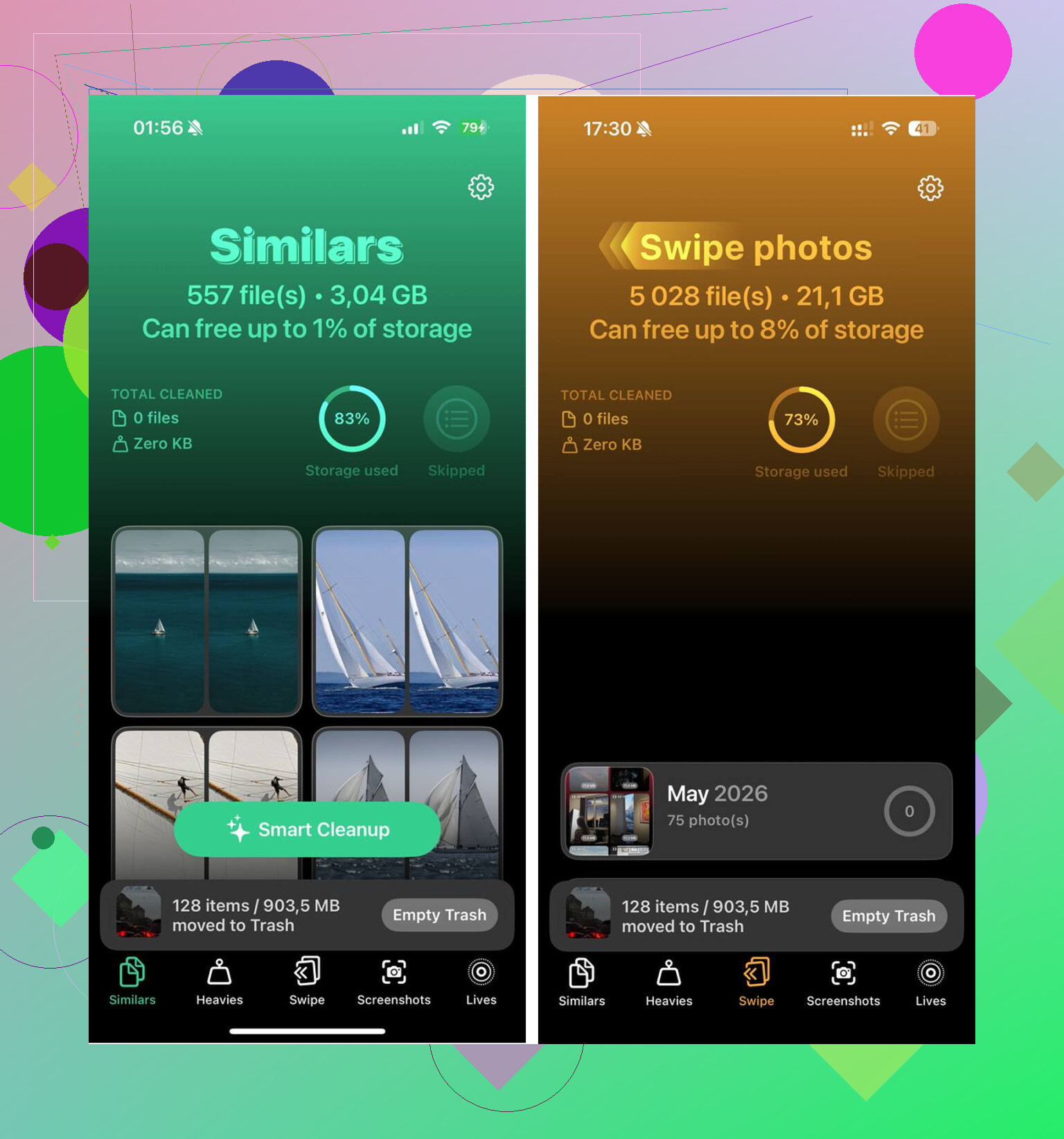
- Start with the Heavies tab. It sorts your media from largest to smallest and shows the exact file sizes. This is where you find the forgotten screen recording or giant video that is taking up several gigabytes by itself. Removing a few of those does more than deleting hundreds of normal photos.
- Then check the Similars tab. It groups photos that are basically the same shot, even if they are not exact duplicates. Think burst photos, repeated angles, and ten attempts at the same picture. It picks a Best Shot for each group, then you can clear the extras.
- After that, go to Photos > Albums > Recently Deleted > Delete All. This part matters. Deleted photos and videos still count against storage for 30 days unless you empty that folder. A lot of people clean up their library, see no improvement, and miss this step.
All of that processing happens on the device. Your media is not being sent out somewhere else.
If storage is fixed and it is still slow
Once you have enough free space, there are a few other things worth checking.
Recent iOS update: After a major update, the phone can spend 48 to 72 hours reindexing files, rebuilding databases, and scanning the photo library again. Plug it in, leave it on Wi-Fi overnight for a few nights, and give it time. This often clears up by itself.
Battery health: Go to Settings > Battery > Battery Health. If maximum capacity is below 80 percent, iOS may throttle performance to avoid unexpected shutdowns. No cleanup app or setting change fixes that. The real fix is replacing the battery.
Background App Refresh: Go to Settings > General > Background App Refresh and turn it off. Apps constantly updating in the background can eat into performance even when you are not actively using them.
Low Power Mode: If you leave Low Power Mode on all the time, the phone is intentionally limiting performance to save battery. Turn it off when you care more about speed than battery life.
Safari cache: Go to Settings > Safari > Clear History and Website Data. Safari’s cache can build up separately and make browsing or typing in Safari feel worse.
Keyboard dictionary: If the lag mostly happens while typing, try Settings > General > Transfer or Reset iPhone > Reset > Reset Keyboard Dictionary. Autocorrect data can get messy over time and cause input delay even when storage and battery are fine.
The practical order is: clear real storage first, check battery health next, then adjust the settings. Only think about a factory reset after all of that. Most of the time, you will not need it.
1 Like
Don’t ignore heat. If the phone is warm while charging, in a thick case, or sitting in the sun, iOS will slow things down no matter how much storage you cleared.
Take the case off, let it cool, then test the same apps again. If it only lags when hot, you’re chasing a thermal problem, not a storage problem.
Your iPhone model and current iOS version are the missing details here. If it’s an older iPhone running a newer iOS version, clearing storage may stop the worst lag, but it won’t make the phone feel like it did when it was new. Newer app versions can be heavier too, so the slowdown may show up most in apps like Instagram, Maps, Safari with lots of tabs, or anything using the camera.
I agree with the storage and heat points, but I’d check for a misbehaving app before resetting the whole phone. Go to Settings > Battery and look at the last 24 hours and 10 days. If one app has a weird amount of background activity or battery drain, remove it and reinstall it. Same with Safari: close a pile of old tabs if you have hundreds open. That can make the phone feel worse even when storage looks fine.
Before a factory reset, try Reset All Settings: Settings > General > Transfer or Reset iPhone > Reset > Reset All Settings. It does not delete your photos or apps, but it will wipe things like Wi-Fi passwords, wallpaper, privacy permissions, keyboard settings, and some system preferences. Annoying, but much less annoying than rebuilding the whole phone from scratch. If it’s still slow after that, with decent free storage and battery health, then you’re probably looking at either aging hardware or a clean restore as the next real test.