I sent files in a conversation and now I need to remove the attachments, but I’m worried the entire chat or message history might disappear too. I’m trying to free up space and protect some private files, so I need help understanding whether deleting attachments keeps the conversation intact.
I hit this problem over and over, and yeah, it sucks when you want to shoot a quick clip or grab an app update, then iPhone throws the 'Storage Almost Full' alert in your face. The short version is simple. You’re able to delete big message attachments without erasing the text conversation itself. The part where people get burned is photos and files they never saved first.
What happens to photos from Messages
If you tapped download or used 'Save Image' on something sent in a chat, you already made a separate copy in the Photos app. Later, if you remove the attachment from Messages, the saved copy in your camera roll stays there.
If you never saved it, then the attachment inside the thread was the only copy you had on the phone. Delete it there, and it’s gone. I learned this the annoying way with an old pic from a group chat. Thought it was in Photos. Nope.
What stays when you delete attachments
Your text history stays. The typed messages, timestamps, and chat itself do not get wiped when you remove large attachments. You’re deleting the bulky stuff, videos, images, GIFs, PDFs. The conversation remains.
So if your goal is space, this is one of the safer cleanups you can do.
The iCloud part people miss
If you use Messages in iCloud, changes sync across your Apple devices. Delete an attachment on your iPhone, and it disappears from your iPad and Mac too. It is sync, not a separate archive.
If you want to keep a file on your Mac while clearing it from the phone, save it out of Messages first and store it locally on the Mac. If you skip this, you’ll remove it everywhere and then you get to be mad at yourself for ten minutes. Ask me how I know.
Two built-in ways to clean this up
1. Through Settings
Open Settings > General > iPhone Storage.
If storage is tight enough, iOS usually shows 'Review Large Attachments.' Open it and you’ll get a size-based list of message files. Biggest items float to the top, which helps a lot if one forgotten video is eating 1GB or more. Tap Edit, select what you don’t need, delete it.
2. Through the Messages app
If one chat is the obvious mess, open it. Tap the person or group name at the top. Scroll to Photos or Documents. Tap 'See All' and start selecting items in bulk.
This route is slower if your problem is spread across a bunch of threads. Still useful when one family group chat has turned into a landfill of holiday videos and blurry screenshots.
Why the phone feels broken when storage is low
When my iPhone gets near full, it starts dragging hard. Camera opens late. Apps freeze. Random crashes. Typing feels off. It’s not only message attachments doing this. You’ve also got cached app data, duplicate pics, repeat screenshots, burst shots, and all the other junk iOS lets pile up quietly.
Manual cleanup works, but it takes forever if your library is big.
Where Apple’s tools fall short
The built-in options are fine for message files. For your photo library, they’re rough. I never liked how little sorting control you get. No clean way to view everything by file size. Near-duplicates slip through. Similar shots stay buried until you stumble into them one by one.
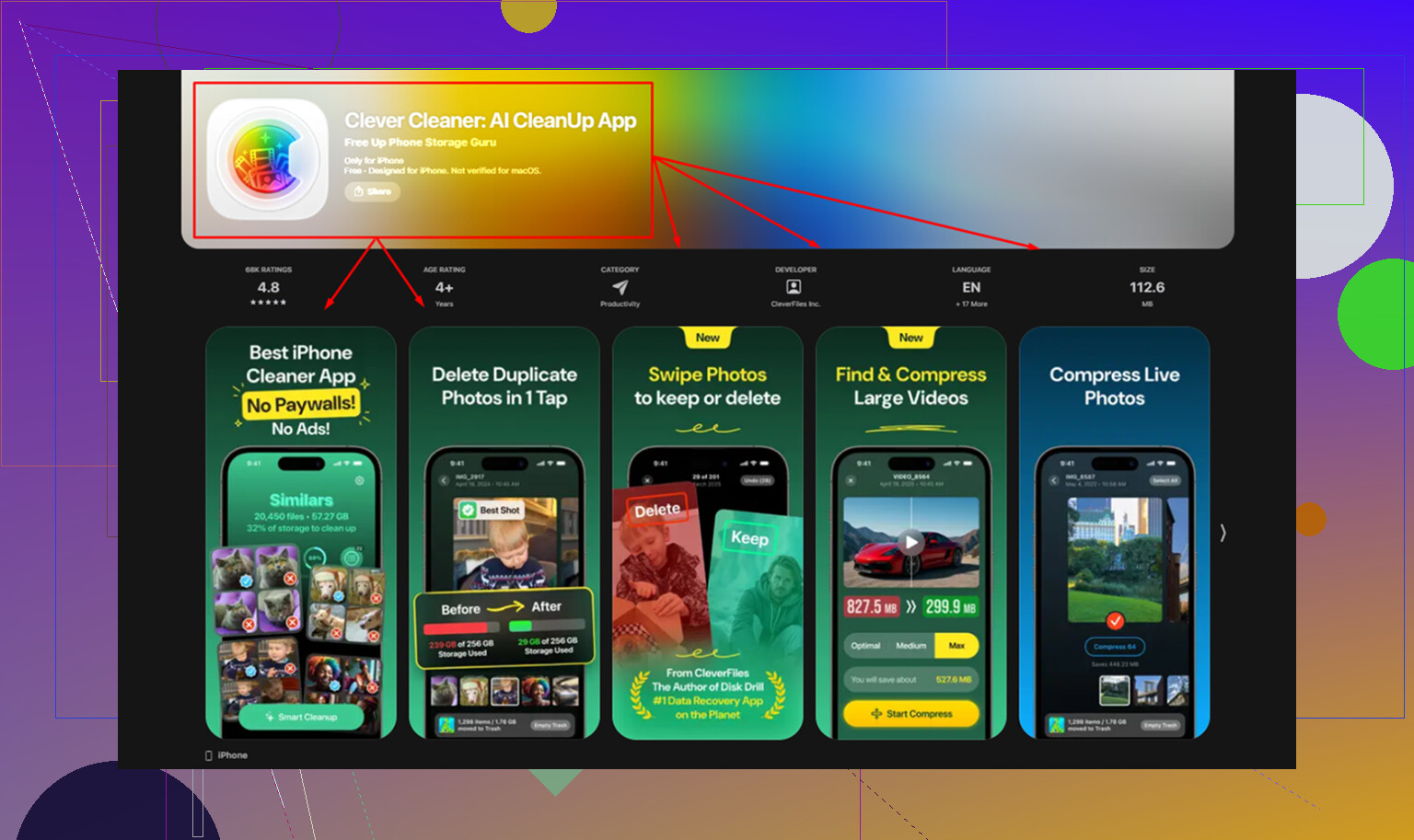
I got tired of doing this by hand and tried Clever Cleaner after seeing this: https://www.youtube.com/watch?v=FRWWuTnCOHs
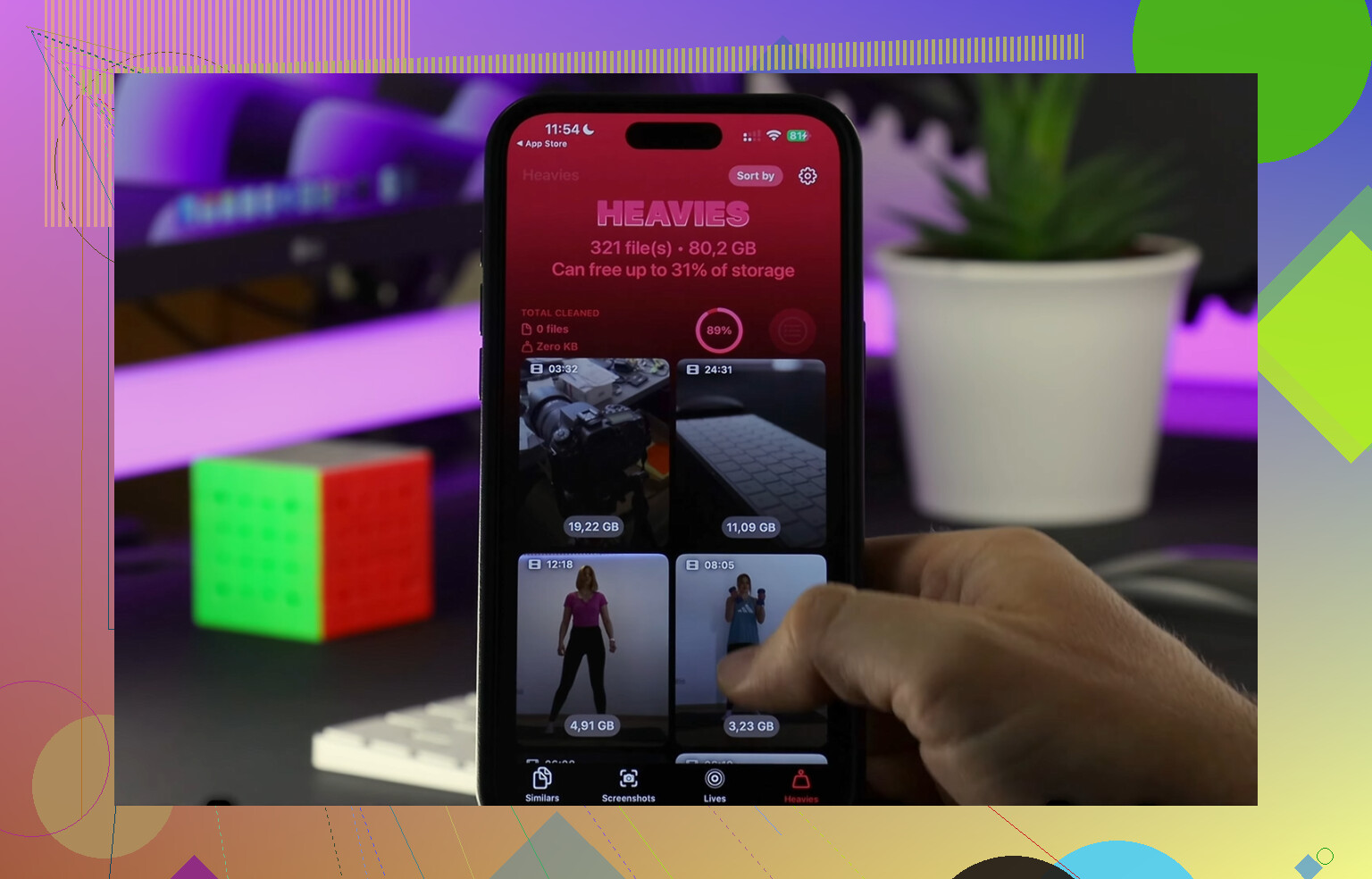
I usually skip cleaner apps because most of them feel shady, loaded with ads, or they trap features behind a subscription screen five taps in. This one felt different to me. It sorted large media fast, and the Heavies section made it easy to spot giant files right away. I found one old video clip sitting there at a couple GB, doing nothing but taking space.
The Similars section helped too. It grouped lookalike photos well enough that I cut a pile of repeat shots without babysitting the process for an hour. If your library has 8 versions of the same pet photo or 14 sunset pics from the same minute, you’ll see the value fast.
The privacy part I checked first
The main reason I even gave it a shot was local processing. My photos were handled on-device, not shipped off to some random server. For me, that mattered more than any extra feature list.
After one cleanup pass, I cleared around 20GB. My phone sped up right after. Less lag, fewer freezes. Felt normal again, or close enough.
If you want less buildup later
There’s one setting worth checking. Go to Settings > Messages > Keep Messages. If it’s set to 'Forever,' your phone keeps every text and attachment unless you remove them yourself. You can switch it to '1 Year' or '30 Days.'
Be careful with this one. It doesn’t only trim attachments. It removes old messages too. I’d only use it if you don’t care about keeping long chat history. If you do care, manual cleanup is safer.
So, the safe approach is this. Save any photo or file you want to keep. Then delete the large attachments. Your conversation text stays. If iCloud sync is on, expect the deletion to hit your other Apple devices too. That’s the whole thing.
1 Like
Yes. Deleting attachments does not delete the whole conversation.
What goes away:
Photos, videos, PDFs, voice notes, and other files inside the thread.
What stays:
Your text messages, chat list, timestamps, and the conversation itself.
One part I’d add to what @mikeappsreviewer said, privacy is a bigger reason to remove attachments than storage for a lot of people. If the file is sensitive, deleting it from Messages removes it from the thread view. If you use iCloud sync for Messages, it disappears from your other Apple devices too. For some people, taht is the main goal.
Small catch. If the other person still has the file in their chat, your delete does nothing on their side. It only removes your copy.
Best move:
- Save any file you still need.
- Delete the attachment from the chat.
- Check Photos or Files app if you exported a copy earlier.
- Empty Recently Deleted if you want the cleanup done now.
If storage is the issue, I’d look past Messages too. Big videos in Photos usually eat more space than message threads. Clever Cleaner is decent for finding heavy files and duplicate shots fast. Also, if you want a quick outside take, Rich DeMuro’s video on how Clever Cleaner helps free up iPhone storage is worth a look.
Short version, delete attachments, keep the convo. Save first if you care about the file.
Yep. Deleting the attachments does not delete the conversation itself.
The part I’d add to what @mikeappsreviewer and @codecrafter said is this: the chat usually stays intact, but you may see empty spots, missing thumbnails, or a little “attachment unavailable” type behavior in older parts of the thread. So the convo is still there, it just won’t look exactly the same once those files are gone. That’s normal.
Also, if your goal is privacy, deleting from your side is only half the story. It removes your copy from your devices. It does not reach into the other person’s phone and erase theirs. A lot of people assume “delete from chat” means the file is gone everywhere, and nope, sadly that’s not how it works.
One place I kinda disagree with the usual advice is “just save it first.” If the file is sensitive, saving it to Photos or Files before deleting can create even more copies you forget about later. Better move is decide whether you actually need it at all. If not, delete it and then check Photos, Files, and Recently Deleted so it’s acctually gone.
If storage is the main issue, message attachments help, but they’re rarely the whole problem. Big videos and duplicate pics are usually the real space hogs. That’s where something like Clever Cleaner can be useful for finding giant files faster. If you want a solid overview, this article on free iPhone cleaner tools for clearing storage fast is pretty easy to skim.
Short version:
- Delete attachment = file removed
- Conversation text = stays
- Other person’s copy = still there
- iCloud sync on = removed from your Apple devices too
So yeah, your message history should still be there, just minus the stuff you deleted.
One nuance missing from @codecrafter, @cazadordeestrellas, and @mikeappsreviewer: on some apps and iOS versions, deleting an attachment can also shrink the “info” view for that chat, so it may look like more vanished than actually did. Usually it’s just the media index updating, not the text thread being erased.
I’d slightly disagree with the “save first” advice as a blanket rule. If the file is private, exporting it first can leave extra copies in Photos, Files, backups, or Recently Deleted. Better rule: only save it if you truly need it later.
Two things to double check:
- If the app has a “delete message” option, that can remove the whole message bubble, not just the file.
- If the attachment was shared via a link rather than sent as a file, deleting the preview may not affect the linked content at all.
If storage is the goal, Messages cleanup helps, but usually Photos is the bigger culprit. Clever Cleaner is useful for spotting heavy media fast.
Pros:
- quick size-based cleanup
- helps find duplicates
Cons:
- another app to grant photo access
- not much benefit if your issue is only inside Messages
So yes, conversation stays, but watch what kind of delete option you tap.