My USB flash drive suddenly showed an error message and now my files won’t open or even appear correctly. It has important photos and work documents I really need, and I’m hoping someone can suggest safe ways to recover files from a corrupted flash drive without making the problem worse.
First thing I’d check before touching recovery tools
USB corruption is a vague label. I’ve seen it mean a broken file system, a dying flash controller, a loose connector, or a drive Windows half-sees and half-hates.
So before you throw software at it, I’d sort out what kind of failure you’re dealing with.
Quick checks that tell you a lot
Look at these first:
- Does the USB show up in Disk Management?
- Does Windows report the right size?
- Is the file system listed as RAW?
- Does Windows ask you to format it?
- Does the same drive show up on another computer?
- Does it disconnect on its own, crawl at weirdly slow speeds, or get hot?
Those answers matter more than people think.
If the drive appears in Disk Management and the capacity looks right, I’d usually treat it as a decent DIY case. If it keeps dropping out, never appears at all, feels hot, or the plug looks bent or damaged, I’d start thinking hardware trouble. Different problem, different risk.
I would pull the data first, not repair the USB first
This part trips people up.
If the drive is still detectable, I’d go after the files before trying CHKDSK, formatting, or any “repair” step. Corruption is often the visible symptom. The storage itself might be failing underneath. If you write to it, or if a repair tool starts changing structures on disk, recovery gets messier fast. I learned this the annoying way a while back on a cheap 64 GB stick. It mounted, then didn’t, then mounted as RAW. A repair attempt made the later scan worse. Not fun.
What I’d use
I’d start with Disk Drill.
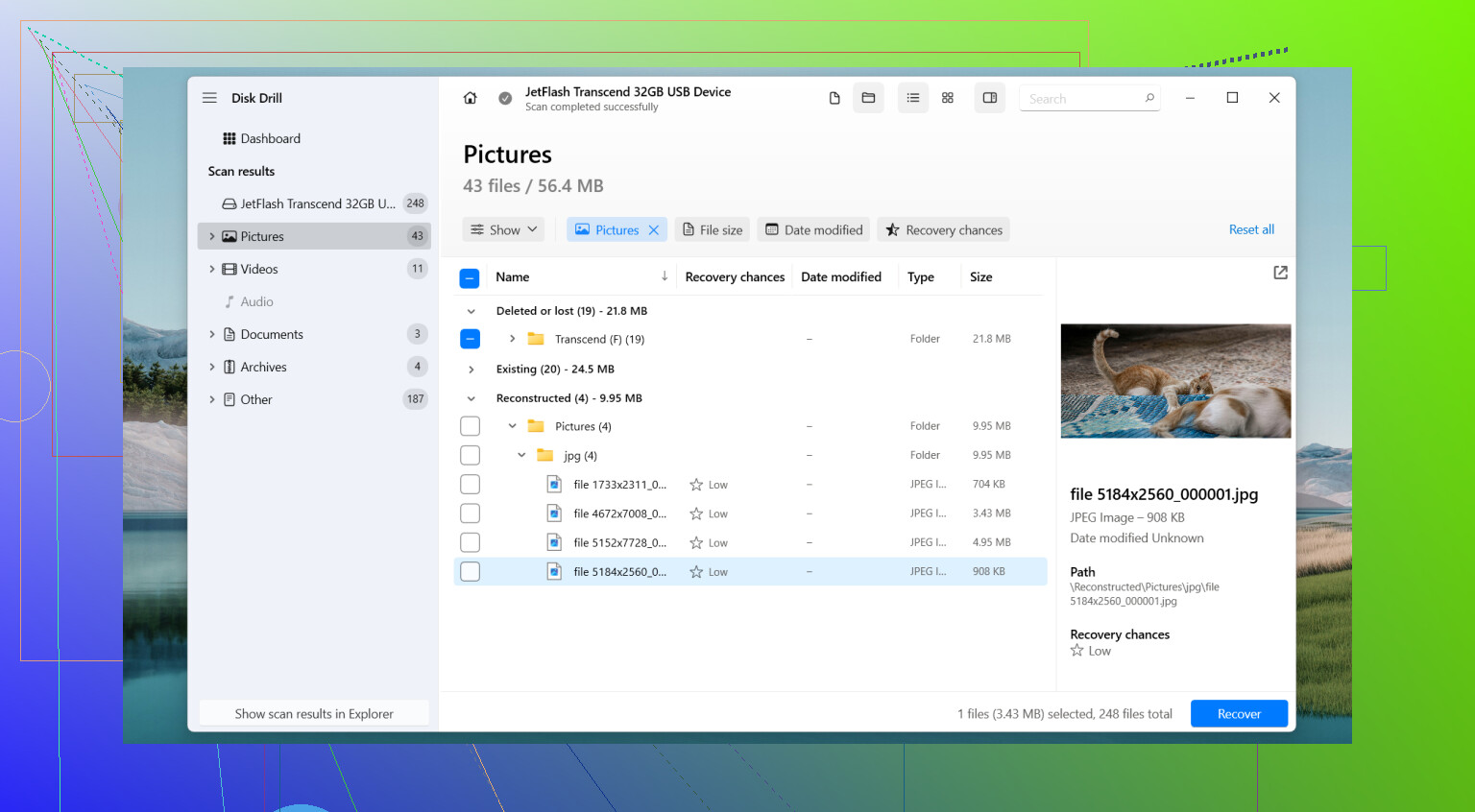
The reason is simple. It does not depend only on the existing file system being readable. When Windows refuses to open the drive, Disk Drill still has a shot at reading the device at a lower level and piecing files back together from raw data. In my use, it also did a better job than some other tools at keeping folder layout intact, and the preview function saved time because I could tell early whether the files were garbage or usable.
The part I care about most on unstable USB drives
Byte-to-Byte Backup.
If the drive feels unstable, I would not scan the physical USB over and over. I’d image it first, sector by sector, and work from the copy. That gives you a frozen snapshot of the drive as it exists right now. If the stick gets worse later, you still have something to work with.
That step matters a lot more on flaky hardware than people expect.
The order I’d follow
- Install Disk Drill on your PC.
- Plug in the USB.
- Open Disk Drill and pick Byte-to-Byte Backup.
- Save a full image of the USB to a different drive.
- Mount or attach the image inside Disk Drill.
- Scan the image, not the original stick.
- Preview what it finds.
- Recover the files you care about to another storage device.
Not back onto the same USB. I’ve seen people do this once. One time was enough.
After the files are safe, then I’d troubleshoot the USB
Only after recovery would I try fixing the device itself.
Depending on what you saw earlier, I’d look at:
- CHKDSK
- Assigning a new drive letter
- Reinstalling USB drivers
- Windows Error Checking
- Full reformat
If the corruption comes back after a format, I would stop trusting the drive.
When I’d stop doing DIY and hand it off
I’d think about a professional recovery service if any of this is happening:
- The system does not detect the drive at all
- The connector is damaged
- The drive drops offline during reads
- It gets unusually hot
- The data matters enough for work, legal records, or anything expensive to lose
Those are the cases where home recovery turns into file loss faster than people expect.
One last thing
You do not need to keep using the USB once the files are out.
If corruption showed up with no clear reason, came back after formatting, or the drive started behaving oddly in normal use, I’d replace it. Flash drives wear out. Some last years. Some go bad way earlier than they should. Once one starts acting sketchy, I stop giving it important files.
1 Like
Stop using the flash drive right now. Every new read or write cuts your odds.
I agree with @mikeappsreviewer on one big point, recover first. I disagree a bit on one thing though. I would skip CHKDSK entirely on a USB with important files until recovery is done. CHKDSK is fine for fixing a disk you do not care about. It is not my first move for saving photos.
What I’d do:
- Try a different USB port, then a different PC.
- Check if the files look normal in File Explorer, or if names turned weird.
- If Windows says RAW, unallocated, or asks to format, do not accept.
- Recover files to your computer’s internal drive, not back to the stick.
If the drive still mounts, copy the most important folders first by hand. Start with photos, docs, tax stuff, work files. Don’t waste time on replacable junk.
If manual copy fails, use Disk Drill. It’s one of the better options for corrupted USB flash drive recovery because it previews files before recovery. That saves time when the drive is half-broken. Scan the USB, sort by file type, preview a few JPG, DOCX, PDF files, then recover to another disk.
A few signs the flash drive is dying, not only corrupted:
- Capacity shows wrong.
- Transfer speed drops under 1 MB/s for small reads.
- Device disconnects mid-scan.
- Files copy with CRC errors.
- The body gets hot.
If you see those, do fewer scan attempts, not more. Repeated scans wear it down faster. Been there, made it worse, felt dumb after.
Also, if your photos show up but won’t open, recover the originals first. Repair tools for JPG or DOCX come after recovery, not before.
If you want a short visual walkthrough, this Instagram video on USB data recovery steps covers the basic flow.
If the drive is not detected in Disk Management at all, or the connector is loose, stop the DIY stuff. That’s lab territory.
I’d do one thing a little differently than @mikeappsreviewer and @techchizkid: before any full scan, try a non-destructive file copy pass with a tool that can skip bad sectors. Sometimes a corrupted USB is still readable enough that a simple tolerant copy gets the most important stuff off faster than a deep recovery session.
My order would be:
- Stop using the flash drive.
- Plug it directly into the PC, no hub.
- Try copying only the most critical files first.
- If normal copy throws errors, switch to recovery software.
If the drive shows folders but files won’t open, that can mean partial corruption, not total loss. In that case, Disk Drill is worth trying because it can recover deleted/lost partitions and damaged-file-system data without writing back to the same USB. Recover everything to your internal drive or another external disk, never the flash drive itself. Seriously, dont do that.
One small disagreement with the “scan immediately” crowd: if the USB is clicking, overheating, disconnecting, or vanishing randomly, fewer reads are better. That’s when I’d stop messing around and consider pro recovery.
Also useful reading here for USB flash drive recovery after errors, corrupted files, and unreadable storage: best ways to recover files from a faulty USB drive
If Windows says “format disk,” hit cancel. Every time.
One thing I’d add to what @techchizkid, @andarilhonoturno, and @mikeappsreviewer said: check Event Viewer and Disk Management before doing anything heavy. Not for recovery, just diagnosis. If Windows logs I/O or controller resets, that points more to hardware flakiness than simple file system corruption.
I slightly disagree with the “copy manually first” advice in one case: if opening folders already hangs Explorer, I would avoid browsing around too much. Explorer can trigger lots of retries on a bad stick. Better to use a recovery tool or image the device once and work from that.
About Disk Drill:
Pros
- Good preview for photos/docs
- Can recover from damaged file systems
- Interface is easier than most recovery apps
- Useful if the partition went weird or files vanished
Cons
- Deep scans can take a while
- Preview is not a guarantee the recovered file will be perfect
- Best features are less useful if the USB is physically failing hard
- Not my first pick if the device disconnects every few seconds
My take: if the drive is visible and stable enough, image it if possible, then try Disk Drill on the image. If the drive keeps dropping, gets hot, or reports the wrong size, stop DIY. That usually turns into a hardware case fast. After recovery, retire the flash drive. Once a USB starts throwing corruption errors, I don’t trust it again.