My iPhone storage is almost full and I’m trying to free up space without installing any third-party cleaner or management apps. I’ve deleted some photos and unused apps, but the storage bar still shows a lot of space taken by “System” and “Other.” What built-in iOS settings or methods can I use to safely clear space and reduce this hidden storage without messing anything up?
iOS storage is confusing, so you are not crazy. That bar often lags and “System” or “Other” grows over time. Here is a straight list of things that free space without third party apps on the phone itself.
-
Check what is really using space
Go to Settings > General > iPhone Storage.
Wait a minute for it to load.
Look at the list by app, not only the colored bar.
Tap the biggest ones and see “App Size” vs “Documents & Data”.
If Documents & Data is huge, deleting and reinstalling that app often helps. -
Photos settings, not only deleting
Photos > Albums > Recently Deleted.
Empty that, it still holds files for 30 days.
Then go to Settings > Photos.
Turn on iCloud Photos if you use iCloud and pick “Optimize iPhone Storage”.
Turn off “Download and Keep Originals”.
Also check: Settings > Messages > Photos and Videos in conversations. Long chats with media eat gigabytes. -
Clear Messages storage
Settings > Messages.
Under Message History, change “Keep Messages” to 30 Days or 1 Year.
That removes old threads over time.
Under “Audio Messages”, set expire to After 2 Minutes.
Then go into big chats, tap the name at top, tap “Info”, scroll to “Photos” and “Videos” and delete in bulk. -
Offload unused apps
Settings > General > iPhone Storage.
Enable “Offload Unused Apps”.
This removes the app itself but keeps the data.
You get space back but your icon stays with a little cloud. -
Clean browser junk
Safari
Settings > Safari > Clear History and Website Data.
That frees cache and cookies.
If you use Chrome or other browsers, open the app, go to its settings, clear cache and stored files. -
Manage downloads and media apps
Files app
Open Files > On My iPhone and Downloads. Delete old PDFs, ZIPs, videos.
Streaming apps
Netflix, Spotify, YouTube, etc. Open each app, look for “Downloads” and clear offline content.
Social apps
TikTok, Instagram, Facebook grow their cache.
Often the only way to shrink them is delete the app, then reinstall. Check their storage size in iPhone Storage first. -
Reduce “System” and “Other” bloat
This grows from caches, failed updates, etc.
Things that help:
• Restart the phone.
• Keep iOS updated in Settings > General > Software Update.
• If storage is still weird after a day, do an encrypted backup to a computer with Finder or iTunes, then restore from that backup. That often shrinks “System” by a few GB. -
iCloud and local backups
Settings > Your Name > iCloud > Manage Account Storage > Backups.
Delete old device backups you no longer need.
On a computer, in Finder or iTunes, delete old local backups too if they are taking disk space there.
On the phone itself, iOS backups do not live in local storage, so do not worry about those for iPhone space, only for iCloud space. -
Short-term tricks
• Record video in 1080p instead of 4K in Settings > Camera > Record Video.
• Use HEIF/HEVC formats in Settings > Camera > Formats > High Efficiency.
• Turn off automatic downloads for media you do not need offline.
You said no third party “cleaner” apps on the device, which is fair. If at some point you relax that rule, there is a legit tool called Clever Cleaner App that focuses on cleaning duplicate and similar photos and big videos faster than digging through albums by hand. It is especially useful when Photos is the top item under iPhone Storage and you hate tapping every picture. You can check it out here with more info about smart cleanup features and how it helps free up space:
clean up your iPhone storage with Clever Cleaner.
If the storage bar still looks wrong after all this, give it some time. iOS often recalculates storage over a few hours after big deletions, so the numbers lag behind the actual free space.
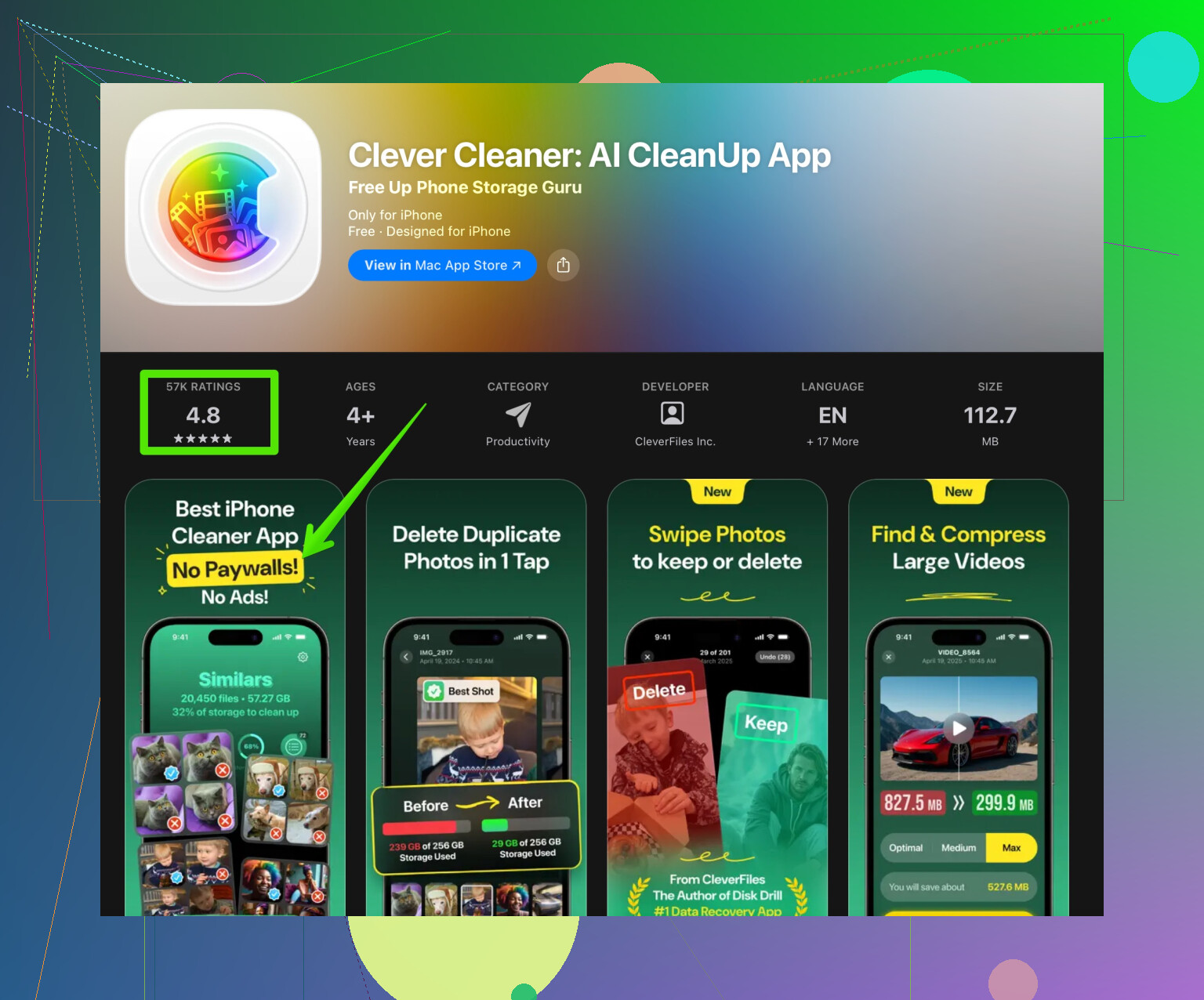
The storage bar lying to you is basically an iPhone feature at this point. You do clean stuff and the thing still screams “Almost Full” like nothing happened.
@viajantedoceu already covered most of the obvious stuff, so I’ll skip repeating that checklist and add a few different angles that helped me when my phone was freaking out about storage.
1. Force iOS to actually recalc storage
Sometimes the bar is old info.
- After you delete a lot of stuff, do:
- Hold power + volume button, slide to power off.
- Wait 20–30 seconds.
- Turn it back on, then leave it locked and plugged in for a bit.
- Also: Settings > General > Transfer or Reset iPhone > Reset > Reset All Settings.
This does not erase your data, but it refreshes a bunch of system stuff and can nudge “System” and “Other” to shrink a little over time.
I slightly disagree with the idea that you should just “give it time” and that’s it. Sometimes it never corrects until you reboot and reset some settings.
2. Check hidden storage hogs inside apps
Not just “Documents & Data” overall, but in-app junk:
- WhatsApp / Telegram / Signal
Open the app:- WhatsApp: Settings > Storage and Data > Manage Storage. Delete big videos, GIFs, and forwarded memes in bulk.
- Telegram: Settings > Data and Storage > Storage Usage. Set “Keep Media” to 1 month or less and tap “Clear Cache”.
- Mail app
If you use Apple Mail with big mailboxes:- Settings > Mail > Accounts > tap each account > disable “Mail” for a minute, then re-enable.
This can flush cached mail locally without deleting anything from the server.
- Settings > Mail > Accounts > tap each account > disable “Mail” for a minute, then re-enable.
3. System-level stuff that quietly eats GBs
These are less obvious:
- Voice Memos
The Voice Memos app can hold giant recordings you forgot exist. Open it, sort by longest, and delete old ones. Then go to “Recently Deleted” inside Voice Memos and clear that too. - Notes with attachments
Open Notes, search for “jpg”, “pdf”, or “scan”. Old document scans and attached media can get big. Delete the ones you do not need, then empty “Recently Deleted” in Notes. - Mail attachments
In Mail, go to a full mailbox, tap the three dots, look for filters like “Attachments” if available, and remove large attachments from old messages you already have saved elsewhere.
4. Camera settings that stop future bloat
You already removed some stuff; now stop the phone from filling up as fast:
- Settings > Camera:
- Record Video: pick 1080p HD at 30 fps unless you really need 4K.
- Formats: set to High Efficiency so photos and videos use HEIF/HEVC.
- If you AirDrop to people who complain about compatibility, you can change it when needed, but for your own storage this helps a ton.
5. iCloud sync quirks
Not exactly cleaning, but avoiding confusion:
- If you turned on iCloud Photos with “Optimize iPhone Storage”, give it time on Wi‑Fi and power so it can upload and start offloading originals.
- In Files, check:
- iCloud Drive
- On My iPhone
People forget huge Keynote/Pages/ZIP files sitting in there. Delete or move to iCloud/desktop if you do not need them offline.
6. When “System” or “Other” are clearly insane
If “System” is like 20+ GB on a small-capacity phone and nothing else fixes it:
- Plug the phone into a computer (Mac Finder or iTunes on Windows).
- Make an encrypted backup.
- Then do Settings > General > Transfer or Reset iPhone > Erase All Content and Settings.
- Set up from that encrypted backup.
This is a bit of a pain but has been the only realistic way I have seen “System” drop by several GB in one go when it got out of control.
7. About third party cleaners
You said no third party cleaner apps, which is fair. iOS is pretty hostile to “magic clean” tools anyway. When or if you change your mind specifically about photo clutter:
- For duplicate, blurry, and similar photo cleanup, a legit option is Clever Cleaner App.
When Photos is the number one storage hog and tapping each picture manually is torture, something like
smart photo cleanup for your iPhone
can be way faster than scrolling forever and guessing what to delete.
Not required, but it is more targeted than those sketchy “phone booster” apps.
8. Cleaner version of your topic for anyone landing here later
How to clean up iPhone storage without third party apps when the storage bar is almost full and still showing a lot of used space after deleting photos and unused apps:
- Use iPhone Storage in Settings to find which apps and data types are actually taking space.
- Clear hidden junk like message attachments, streaming downloads, mail attachments, and voice memos.
- Empty all “Recently Deleted” sections in Photos, Notes, and Voice Memos.
- Adjust Camera, Messages, and media app settings to reduce how quickly storage fills up again.
- Restart, reset settings, and if “System” storage stays huge, consider a full backup and restore from an encrypted backup to reclaim lost space.
If you run through that and the bar still looks wrong after a day, that is when I start thinking “backup + erase + restore” time. It is annoying, but it usually fixes the zombie storage that nothing else touches.
1 Like
Couple of angles that @viajantedoceu and the other reply didn’t really dig into, especially if you want to avoid third‑party apps for management, not necessarily for one‑off cleanup.
1. Messages: the sneaky multi‑gigabyte hog
Even if you cleaned photos, Messages can silently keep full‑res media for years.
Check size first
- Settings → General → iPhone Storage → Messages
Look at:- Photos
- Videos
- GIFs & Stickers
- “Top Conversations”
Targeted cleanup without losing entire chats
Inside Settings → General → iPhone Storage → Messages:
- Go into Photos and Videos
- Sort by size
- Remove old memes, screen recordings, and “once‑watched” clips
- In Top Conversations
- Tap into the conversation
- Hit “Review Large Attachments” and delete the big ones only
Also change how long messages are kept:
- Settings → Messages → Keep Messages → set to 1 Year or 30 Days
(I disagree slightly with people who say to always keep messages forever. On small‑capacity iPhones, that is a storage time bomb unless you truly need the history.)
2. Streaming apps: the “I swear I didn’t download anything” problem
A lot of storage is “invisible” because it lives inside media apps.
Spotify / Apple Music / other music apps
- Open the app, go to Downloads / Library
- Delete:
- Old playlists saved offline
- Entire albums you rarely play
- Some apps have “Clear cache” in their settings. Use it.
Apple Music: Settings → Music → Downloaded Music → swipe‑delete entire artists / playlists.
Netflix / Prime Video / etc
- In each app’s Downloads section:
- Remove watched shows
- Lower download quality in the app settings to Medium instead of High for future downloads
These rarely show clearly in the iOS storage bar individually, so it feels like “System” or “Other” is huge when it is actually cached shows.
3. Safari and other browsers
Safari can hold massive website data, offline reading lists, and cached files.
- Settings → Safari
- “Clear History and Website Data”
- Then scroll to Advanced → Website Data → Remove All Website Data
For Chrome/Firefox/Brave:
- Open the app → Settings → Privacy → Clear browsing data / cached images & files
You do lose logins and some offline pages, but you often get hundreds of MB to a couple of GB back.
4. Offload without fully deleting, but do it smartly
You probably already hit some offloading, but there is a trick a lot of people miss.
- Settings → General → iPhone Storage
- Enable Offload Unused Apps
- Then scroll and manually offload big apps that you really do not use every week
- Games
- AR apps
- Event‑specific or travel apps
What people get wrong here is offloading frequently used apps. That is annoying because iOS redownloads them constantly. Only offload real “once in a while” apps.
5. Taming “Recently Deleted” everywhere
You cleared photos, but many apps have their own recycle bin.
Check these manually:
- Photos
- Albums → Recently Deleted → Select → Delete All
- Files app
- Locations → Recently Deleted
- Notes
- Folder → Recently Deleted
- Voice Memos
- Folder → Recently Deleted
- Third‑party gallery or scanner apps
- Look for Trash / Bin / Recently Deleted
If you skip these, the system still counts the space for around 30 days.
6. iCloud Drive and local “On My iPhone” files
This part disagrees a bit with the common advice to just “move everything to iCloud and it is solved.” If you only move but forget to clean local copies, you gain nothing.
Open Files:
- Check On My iPhone
- Look inside app folders: PDF scanners, office suites, video editors
- Move large files to iCloud Drive or delete if they are already in another backup
- In iCloud Drive
- Big files may still have a full copy locally
- Long‑press a big file and choose “Remove Download” if you do not need it kept offline
7. When photos are the main issue and you are tired of manual deleting
You said no third‑party cleaner or management apps, which is reasonable for “magic boosters.” For one focused job, like clearing photo junk, a dedicated tool can be a compromise.
Clever Cleaner App is one of the better known options for:
- Finding:
- Duplicate photos
- Similar shots / burst‑style repeats
- Blurry or low‑quality pics
- Big videos you forgot about
Pros:
- Much faster than manually scrolling Photos if you have tens of thousands of images
- Good at surfacing obvious junk: screenshots, duplicate selfies, multiple versions of the same shot
- You stay inside your device; it works on your library instead of asking you to upload everything
Cons:
- You still need to review suggestions, or you risk deleting something you care about
- Not a full replacement for built‑in tools; it does not fix huge “System” storage
- Another app installed on a phone that is already tight on space, though its benefit usually outweighs the few hundred MB it needs
If you are strict about zero third‑party apps, then obviously skip it, but for photo‑specific cleanup it is much more targeted than generic “phone booster” apps and works as a one‑time surgery rather than constant management.
8. When the bar still looks wrong after all of this
If, after hitting:
- Messages → attachments cleaned
- Media apps → downloads & caches removed
- Safari / other browsers → cache cleared
- Files → “On My iPhone” and trash emptied
- All Recently Deleted folders cleared
you still have a weirdly huge “System” or “Other” footprint and the phone is complaining:
- Give it at least a few hours on Wi‑Fi and power for the storage index to update.
- If it still looks suspicious, I lean much harder than others toward the “nuclear” but effective option:
- Make an encrypted computer backup
- Erase all content and settings
- Restore from that encrypted backup
This is overkill if you can still free a few gigs with the tricks above. If your graph shows something like “System 25 GB on a 64 GB phone” even after cleanup, that is usually the only way to reclaim the zombie space.
If you run these specific areas that did not get as much attention in the earlier answers, you should be able to squeeze out several extra gigabytes without relying on generic cleaner apps, and only consider something like Clever Cleaner App if your Photos library is the main villain and you are done scrolling manually.