My iPhone photo library has turned into a mess with screenshots, family pictures, travel photos, and random downloads all mixed together. I’ve tried using albums, but I’m not sure of the best way to organize iPhone photos into groups that are easy to find later. I need help creating a simple system that actually works.
Photo libraries get out of hand fast
I let mine pile up for years. Tens of thousands of photos, random screenshots, duplicate pet pics, short videos I forgot I took. At some point the phone felt clogged. Opening Photos dragged. Switching apps felt off. Finding one decent picture from a trip turned into scrolling punishment.
You do not need to wipe everything. You do need to cut harder than feels comfortable at first.
No, you should not keep all twelve tries
What worked for me was using the old camera mindset. One moment, one keeper. Maybe two if one has a different purpose. The rest goes.
When I started treating my library like a contact sheet instead of a storage bin, the whole thing got easier. Less noise. Fewer fake choices. The photos left behind meant something again.
Why a bloated library slows the phone
This part surprised me less after I saw my storage stats. Years of photos, videos, saved memes, screenshots, and screen recordings had eaten most of the free space. Once storage gets tight, iPhones tend to drag. Apps take longer to open. Scrolling gets choppy. The system needs room for temp files and normal background stuff.
So this is not only about tidying up. If your storage is near full, cleaning photos helps the phone feel less cramped.
The fastest way I found to clear space
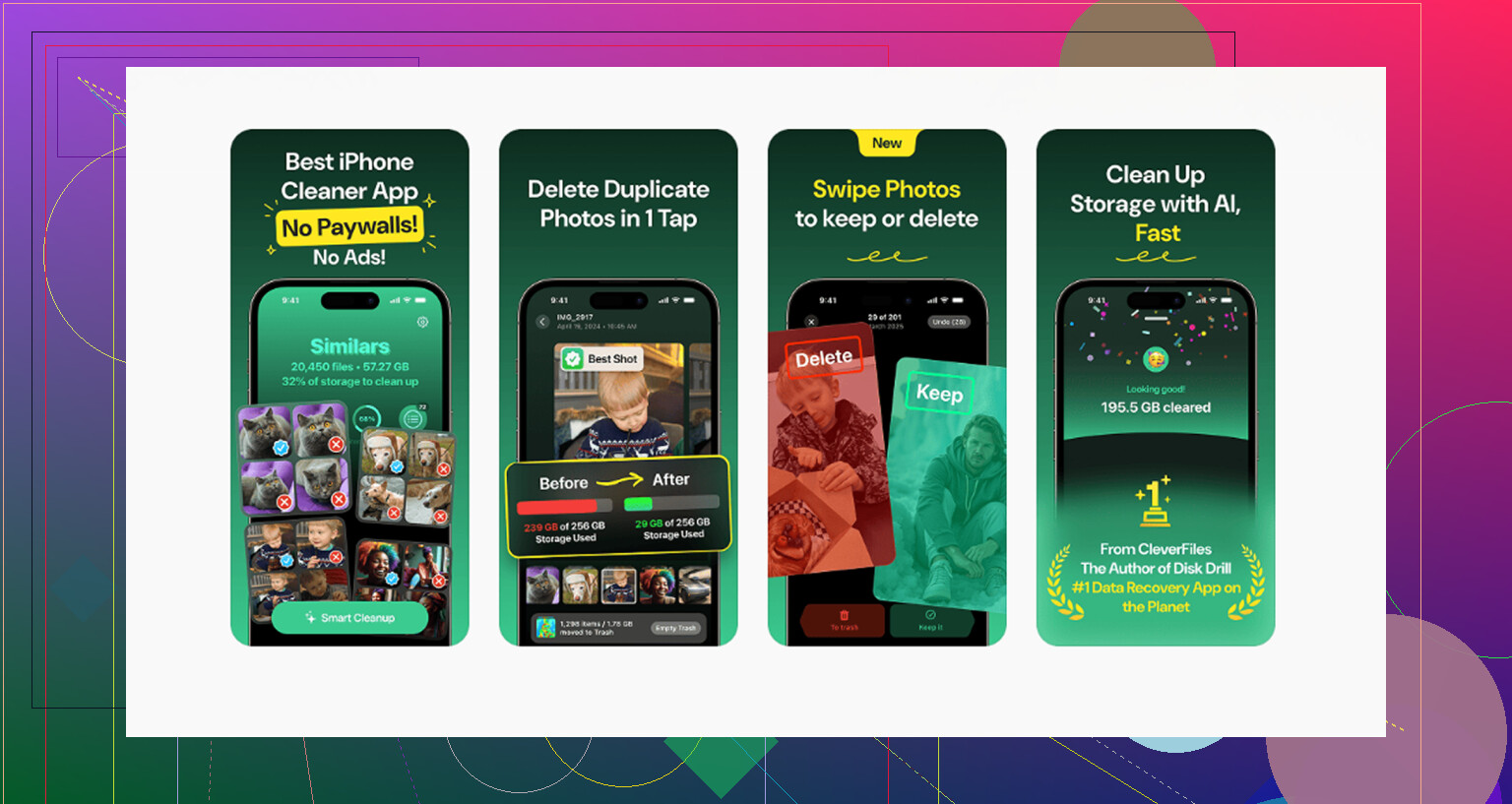
Deleting one photo at a time is a bad use of your evening. I used Clever Cleaner because it handled the ugly part for me. No ads, no subscription, free when I used it.
What I did first:
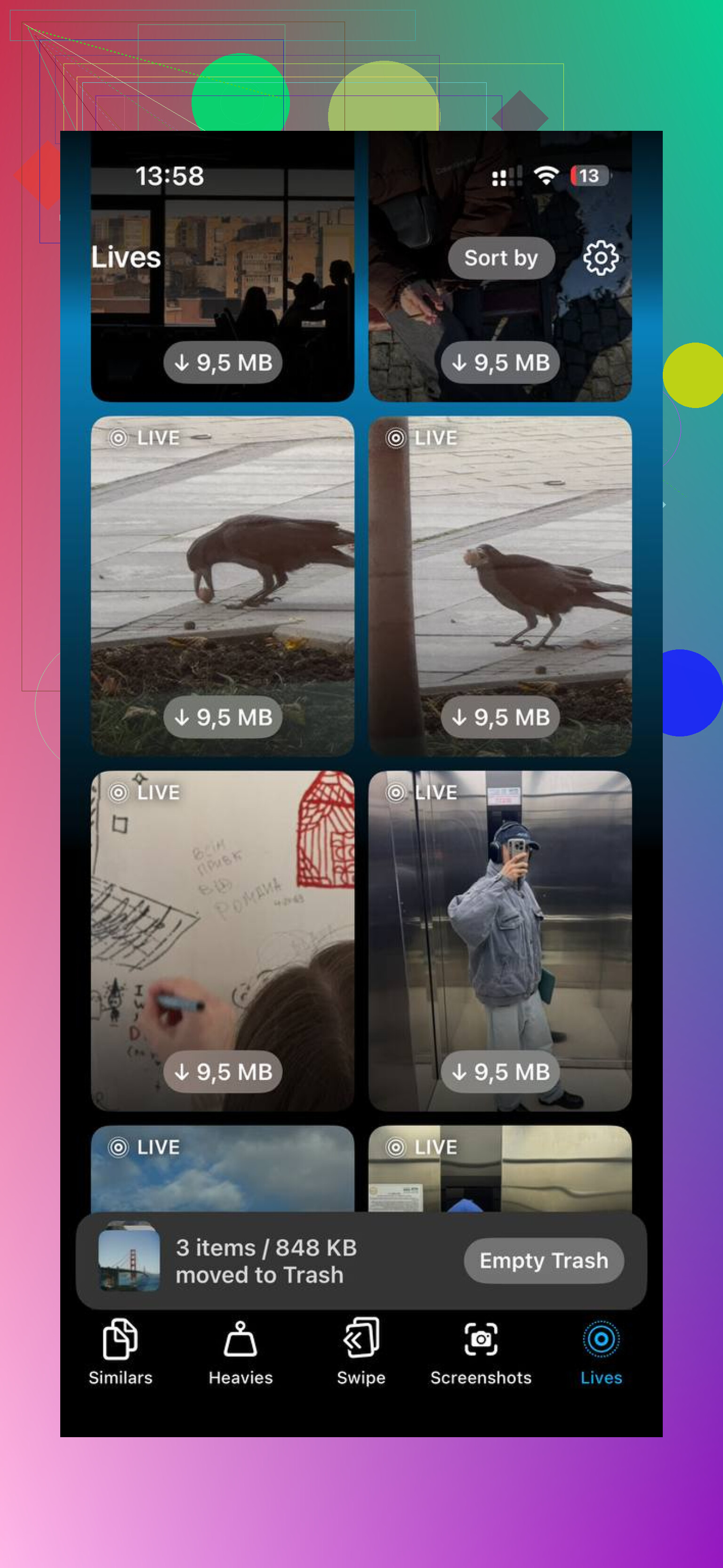
- Opened the Heavies tab. This is where the biggest files show up first, with sizes listed. For me, old videos and accidental screen recordings were the main storage hogs. A few giant files freed more space than deleting hundreds of normal photos.
- Went to the Similars tab. It grouped near-duplicates, burst shots, repeated attempts, and those almost-identical angles you swear you will sort later. It picked a Best Shot on its own. I kept the winner and dumped the rest.
- Checked Screenshots. Seeing the file size next to each one made the decision easy. Old boarding passes, shopping confirmations, random settings screens, junk. A few GB gone there.
- Used Swipe mode for older months. Left to delete, right to keep. Month-by-month felt doable. Looking at the whole library at once did not.
One thing I liked, all the scanning stayed on the phone. Nothing got sent somewhere else. For personal photos, I care about that.
After I cleared about 10GB, the difference was not subtle. The phone felt snappier, and the library stopped feeling like a landfill.
A folder system I did not quit after three days
I had to stop pretending I would maintain some giant tagging structure. I never do. What stuck was simpler.
I treat Recents like an inbox. New stuff lands there and waits. Once a week, I spend around ten minutes sorting it.
This is the setup:
- Year folders
- Inside each year, month folders
- Inside months, only event albums when needed, like a birthday, trip, concert, or holiday
- One Reference album for useful non-memory stuff, recipes, serial numbers, screenshots worth saving, notes from parking lots, docs I photographed in a rush
The main win is separation. Memory photos stay separate from utility junk. You stop digging through screenshots to find pictures of family.
Keeping storage low without buying more iCloud
I stopped treating the phone like an archive.
Every few months, plug it into a computer and move organized folders off the device. On Mac, Image Capture works fine. On Windows, plain USB transfer does the job. Once the files exist on two separate drives, then delete them from the phone.
That two-drive step matters. I did not trust one copy. You shouldnt either.
If you want cloud backup without paying Apple more, Google Photos is the easier option for a lot of people. It gives 15GB free, compared with iCloud’s 5GB. For me, keeping the best photos backed up there while trimming local storage felt like the least annoying compromise.
The part people skip
Do small cleanup sessions. Do not wait for a six-hour rage purge.
Ten minutes a week kept mine under control way better than one giant cleanup every few months. If you keep Recents short, sort screenshots often, and kill duplicates early, the mess never gets the same momentum again.
That was the only routine I managed to keep. It worked.
1 Like
Albums fail when you use too many of them. The fix is fewer buckets, smarter names, and search.
My setup on iPhone is this:
-
Inbox album
Everything new gets reviewed first. I move keeper photos here from Recents. If it stays in Recents only, it is temp stuff. -
Life albums
Family, Friends, Pets, Home. Broad groups. No tiny niche albums. -
Event albums
Only for stuff with a date or place. Example, “2026-06 Chicago Trip” or “2026-12 Christmas”. The date-first format sorts cleanly. -
Utility album
Screenshots, receipts, serial numbers, docs, inspo. Keep this seperate from memory photos. Huge difference. -
Delete album
For stuff you think you want, but dont. Review once a month, then trash it.
I disagree a bit with @mikeappsreviewer on heavy folder trees. Year, month, event gets rigid fast on a phone. iPhone Photos is better when you let search do some work. Search by person, city, beach, dog, food, text in screenshot, date. Apple’s search is better than most people use.
Also use favorites for your top 5 percent only. If you favorite 2,000 photos, favorites becomes junk too.
If your library is bloated, Clever Cleaner helps with duplicates and screenshot clutter before you organize. Do cleanup first, then sort. Otherwise you’re filing garbage, lol.
For a solid walkthrough, watch Kevin’s iPhone photo organization video guide. It’s easy to follow and covers a clean setup without overdoing it.
Best rule I found, if you won’t remember where you filed it in 3 seconds, your system is too complex.
I’d actually push back a little on both @mikeappsreviewer and @stellacadente here. Not because they’re wrong, but because a lot of people over-organize photos and then quit a week later.
What worked for me was organizing by purpose, not by date tree.
My setup:
- Memories: family, pets, friends, holidays
- Trips: only real travel
- Useful Stuff: receipts, screenshots worth keeping, documents, serial numbers
- Downloads: memes, inspo, random saved images
- To Sort: temporary holding pen
That’s it. Five buckets. If you make 37 albums, your brain just says “nah” and dumps everything back into Recents.
Also, use iPhone’s built-in search way more. Search is weirdly good now. Type “beach,” “dog,” “text,” “car,” or a city name and it usually finds stuff fast enough that you don’t need hyper-specific albums.
One thing I do agree on: cleanup first, then organize. Otherwise you’re just neatly filing garbage. Clever Cleaner is pretty useful for that part, especially if your library is full of duplicates, giant videos, and screenshot clutter. It’s faster than pretending you’ll manually fix 18,000 photos on a Sunday afternoon.
I also keep zero sentimental attachment to blurry duplicates. If I took 9 nearly identical photos, 8 are gone. Brutal, but effective lol.
If you want a decent walkthrough, this Clever Cleaner review and iPhone photo cleanup guide is pretty solid.
Biggest rule: if a system takes more than 10 seconds to decide where a photo goes, the system kinda sucks.