My iPhone photo library has gotten out of control with duplicates, screenshots, and random saved images. I keep trying to clean it up, but it feels endless and I’m worried about deleting important pictures. What’s the easiest way to organize and clean up iPhone photos without spending hours on it?
If your iPhone photo library is already huge, don’t try to clean it all by just scrolling from top to bottom. That’s what made it feel impossible for me. I had more than 20,000 photos and videos built up, and once I finally forced myself to deal with it, it ate up almost a whole Saturday.
What helped was splitting the cleanup into different kinds of mess. Screenshots are one thing. Duplicate shots are another. Big videos are another. Treating everything the same just makes the job drag on.
Start with the easy stuff in Photos
I’d still begin with Apple’s Photos app before installing anything else. It’s good for the obvious junk you already know you don’t care about.
- Open Photos and go through albums instead of the full camera roll.
- Use the swipe-to-select gesture so you can grab a bunch of photos quickly.
- For albums like screenshots, use Select All when it’s available, then deselect anything you want to keep.
That gets rid of the low-effort clutter first. Old screenshots, accidental pictures, blurry shots, stuff like that.
Use an app for the boring repetitive part
The manual cleanup only got me so far. A lot of the wasted space was from similar pictures, duplicates, Live Photos, forgotten videos, and screenshots I didn’t even remember taking.
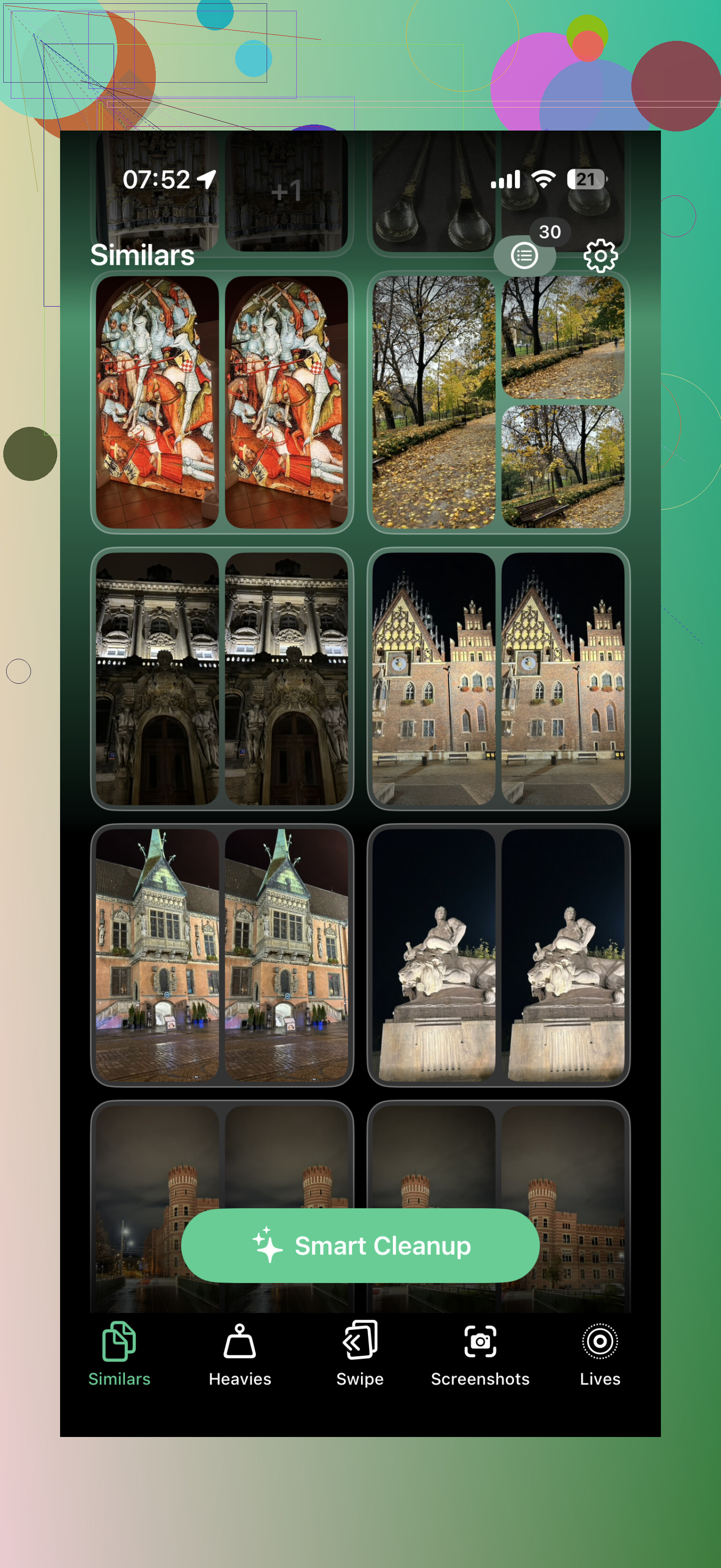
After the first pass, I used Clever Cleaner. The useful part is that it sorts things into groups, so you’re not making the same tiny decision thousands of times in a row.
My process was pretty simple:
- Run Clever Cleaner.
- Look through the similar-photo groups.
- Delete duplicates and near-identical shots I didn’t need.
- Clear out old screenshots.
- Sort through the biggest videos.
- Convert Live Photos to still images where the motion part wasn’t worth keeping.
That saved way more time than comparing every photo by hand. It’s much easier to decide between a few related images than to keep asking yourself whether each random photo deserves to stay.
Empty Recently Deleted when you’re done
This part is easy to miss. Deleting photos doesn’t always free the space right away because they sit in Recently Deleted for a while.
- Open the Recently Deleted album.
- Check it once more so you don’t wipe anything important.
- Empty it.
If you’re doing this because your iPhone or iCloud storage is full, that last step matters.
Also, if iCloud Photos is turned on: remember that it’s one synced library. If you delete something from your iPhone, it also gets deleted from iCloud and from your other Apple devices using the same Apple Account. That may be exactly what you want, but it’s worth keeping in mind before deleting a huge batch.
After going through that once, I stopped letting it pile up as much. Now it’s more like ten minutes a week deleting new screenshots, blurry pictures, and extra copies. That’s a lot less painful than waiting until the library is a complete mess again.
The Photos app is fine for a quick first pass, but once your library is in the tens of thousands, I wouldn’t rely on manual cleanup alone. For duplicates, similar photos, screenshots, Live Photos, and large videos, using something like Clever Cleaner makes the whole thing much less tedious.
1 Like
Don’t start by mass-deleting from Recents until you know what’s actually backed up. The scary part of photo cleanup is not the screenshots, it’s finding out later that your “extra copy” was the only copy. Before doing a big purge, I’d make sure iCloud Photos, a computer backup, Google Photos, external drive, or whatever you use is in the state you think it is. If you have truly important stuff, export that first instead of trusting memory.
I agree with the earlier point about not scrolling through the whole library, but I’d be a little more cautious with automated cleanup. Clever Cleaner or any similar app can be useful for finding lookalikes and junk faster, but I would treat its suggestions as a shortlist, not a verdict. Similar photos are where mistakes happen: one picture has better focus, another has the better expression, another is the one someone else cares about.
The least overwhelming method is to stop trying to “finish” the whole library. Pick one disposable category per session: screenshots from last year, screen recordings, memes, blurry bursts, saved receipts, downloads from Messages. Do 10 or 15 minutes, then stop. After that, fix the source of the mess too: turn off auto-saving in apps where possible, delete screenshots right after using them, and favorite important photos when you take them. Cleanup gets much easier when the new junk slows down.
The fastest cleanup methods are also the easiest way to make a bad deletion feel safe. When an app or album view shows you a neat pile of “similar” photos, your brain starts treating the whole pile as trash, and that’s where the mistake usually happens.
If your main fear is deleting something important, I’d flip the job around: don’t start by finding what to delete. Start by marking what you absolutely care about.
Go through the library in small chunks and favorite the obvious keepers first. Family photos, trips, pets, documents, sentimental stuff, anything you’d be upset to lose. You do not have to organize them perfectly. Just give them a flag. You can also make a plain album called Keep or Important if Favorites feels too broad.
Then cleanup becomes less emotional because you’re mostly dealing with the leftovers. It changes the question from “Is this photo important?” to “Is this unmarked screenshot/video/meme/random save worth keeping?” That’s a much easier decision.
A trick that helps is using search instead of scrolling. In Photos, search for things like:
- Screenshots
- Screen recordings
- Receipts
- Whiteboard
- Menu
- Notes
- TikTok
- Safari
- Messages
- Parking
- QR code
Some of those will be useful, some will be junk, but they bring up the kind of clutter that gets buried in Recents. You can clear a lot without touching your actual camera memories.
I slightly disagree with doing “Select All” too casually in Screenshots, though. Screenshots are junk until they are not. They can include addresses, order numbers, medical info, school schedules, repair quotes, recipes, confirmation pages, or some random thing you saved because it mattered for five minutes and then forgot. I’d still delete aggressively there, but I’d scan by month first. Old screenshots from 2021 are usually much safer to nuke than screenshots from last week.
Clever Cleaner or a similar app makes sense after that, especially for duplicates and near-duplicates, but I’d use it only after you’ve already protected the obvious keepers. Let it speed up the boring comparison work, not make the final decision for anything sentimental. If it shows ten nearly identical shots from a birthday, don’t assume the sharpest one is the best one. Sometimes the keeper is the one with the weird expression because that’s the actual memory.
Another low-stress option is to do a “quarantine” cleanup. Delete a batch, then don’t empty Recently Deleted right away. Leave it there for a week or two. If you suddenly remember something, you can recover it. If you never think about that batch again, empty it later. That buffer makes the process feel less like defusing a bomb.
And if you have access to a Mac, iPad, or iCloud Photos in a browser, use the biggest screen you have. Cleaning a giant library on the iPhone itself is annoying because everything looks equally tiny and disposable. On a larger screen, it’s much easier to compare faces, read text in screenshots, and spot the photo you actually meant to keep.
I’d set a boring rule like this: 20 minutes, one category, stop when the timer ends. Today screenshots from 2023. Tomorrow large videos. Another day duplicates. Don’t make “clean my photo library” the task, because that task has no edges. Make the task small enough that you can actually finish it.
Cleaning 800 screenshots is a different job from judging 800 pictures of people you care about. Treating those two cases the same is what makes the whole thing feel heavier than it needs to be.
The trick I’d use is to make deletion rules before you start tapping. For example: screenshots older than 6 months go unless they show a receipt, address, recipe, ticket, medical thing, or login/recovery info. Random saved images from apps go unless you actually know why you saved them. Blurry photos of objects go, blurry photos of people get a second look. That sounds basic, but it stops every single image from becoming a fresh emotional decision.
I agree with @mikeappsreviewer that marking keepers first is safer, but I wouldn’t spend too long building albums as if that fixes the mess. Albums can help you find things, but they don’t reduce storage and they can become another unfinished project. Delete junk, favorite the obvious important stuff, and leave “organizing” for later if you still care.
Clever Cleaner or any duplicate finder is useful once you have rules, not before. Otherwise it just gives you faster ways to hesitate. Use it for the mechanical stuff: exact duplicates, five copies of the same saved meme, huge videos you forgot existed. For anything with people in it, slow down. The “best” photo according to an app may not be the one you’d want back.