My iPhone Photos app is full of old screenshots, and I want to remove them without accidentally deleting my regular pictures. I’m not sure the safest way to do this, especially with iCloud Photos turned on, and I need help clearing up storage without losing important photos.
Most people start in Photos, and for screenshots, I think that still makes the most sense. iPhone already groups them for you, so you do not need to dig through camera shots, memes, receipts, and ten blurry pet pics by mistake.
- Open the Photos app.
- Tap Albums, or Collections on some versions.
- Scroll to Media Types and open Screenshots.
- Hit Select in the top right.
- If you want to clear the lot, use Select All. If you only want some gone, drag across rows and mark them fast.
- Tap the trash icon, then confirm.
One part trips people up. Deleting them here does not give storage back right away. iOS moves them into Recently Deleted, down near the bottom under Utilities or Albums depending on your version. They sit there for 30 days. If you want space back now, open Recently Deleted, tap Select, then Delete All.
The bigger mess route
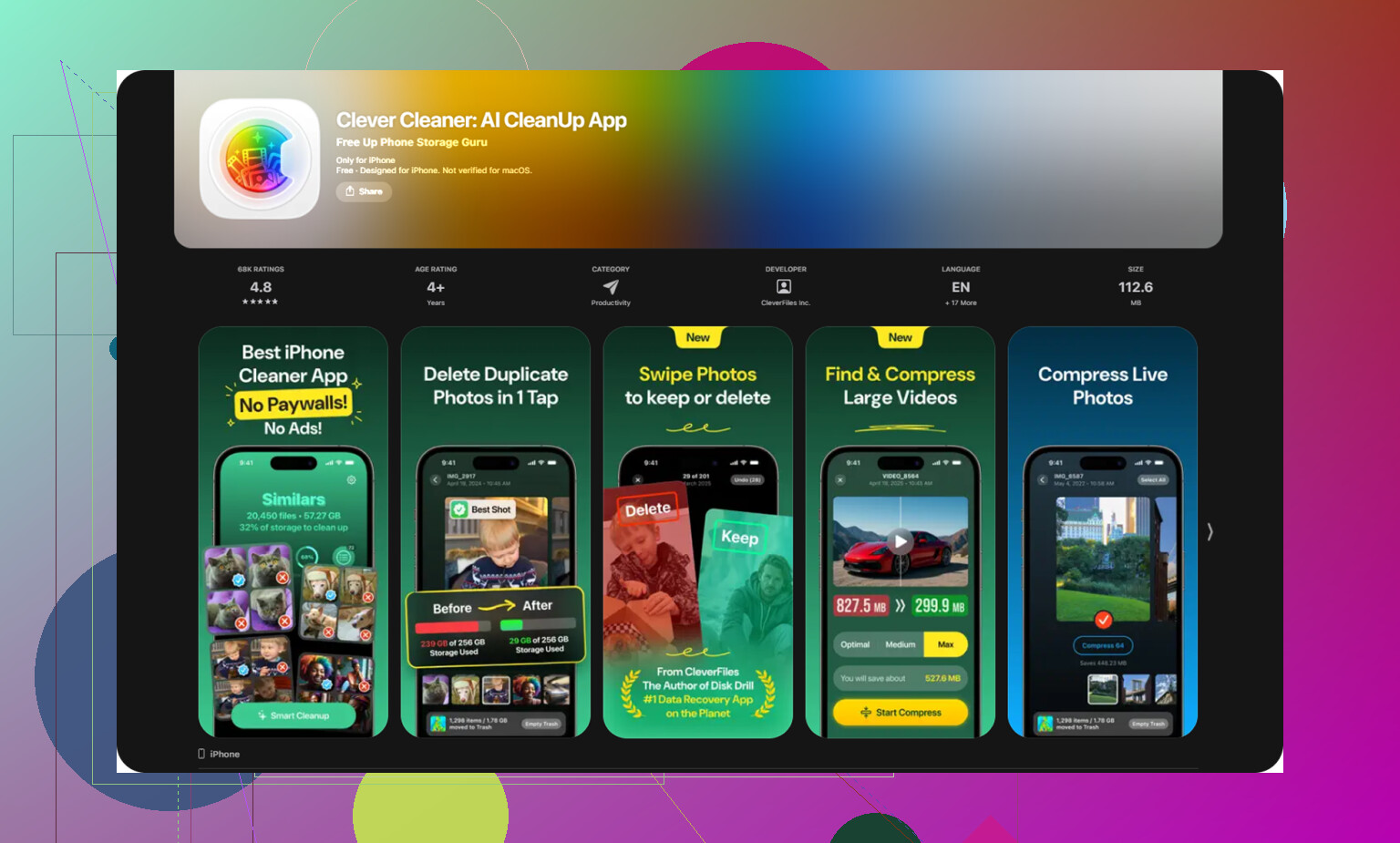
If screenshots are only one piece of the problem, the manual cleanup gets old fast. I ran into this when my phone had screenshots, duplicate pics, old screen recordings, and giant videos all piled together. I tried a few cleanup apps, and Clever Cleaner felt like the least annoying one.
What stood out to me was the lack of ads and paywalls, at least when I used it. Most of these apps nag you within 30 seconds. This one was simpler.
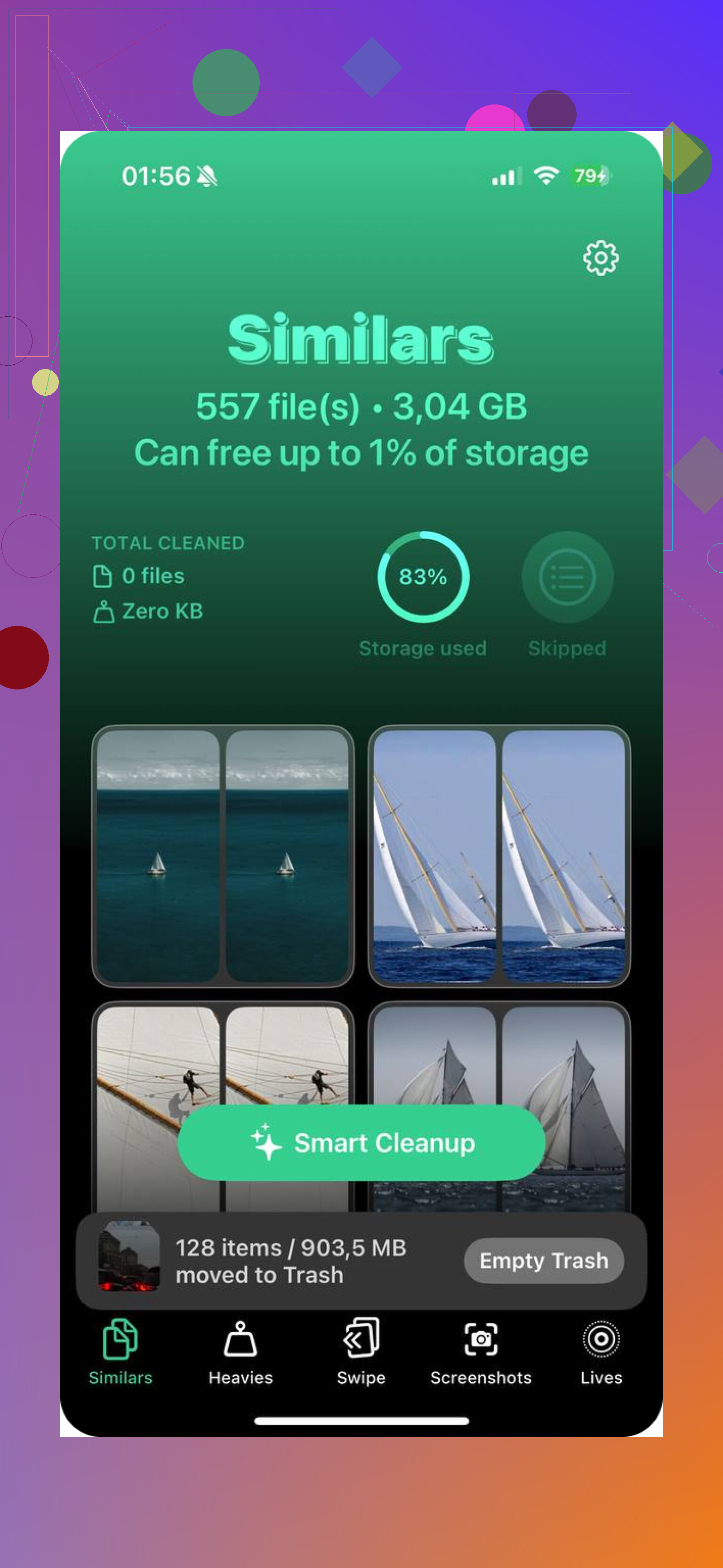
Inside the app, there is a Screenshots section, and it shows file sizes for each image. That helped me spot which ones were eating space instead of deleting blind. There is also a swipe setup. Left to remove, right to keep. Sounds small, but it made the job less miserable.
A few other parts were useful too:
- Heavies sorts media by file size, biggest first. Photos does not do this, which is kind of wild.
- Similars groups near-duplicate shots so you keep one and toss the extras.
- Live Photo Converter removes the motion part from Live Photos, which cuts storage use a lot if you have years of those.
Check the places people forget
Not every screenshot lives in Photos. I learned this after hunting for storage and finding random PDFs in Files.
If you take a Full Page screenshot in Safari, iPhone often saves it as a PDF in Files instead of as an image in Photos.
- Open Files.
- Check On My iPhone or Downloads.
- Search for “screenshot”.
You might find some chunky PDFs sitting there. A few of mine were way larger than normal screenshots.
Notes is another one. If you sent a screenshot into a note, deleting the original image from Photos does not remove the copy inside the note. I missed this for way too long.
If you want less buildup later
There is no built-in auto-delete option for screenshots. Still, you can patch something together with Shortcuts.
I set up a shortcut once to grab the newest screenshot, copy it so I could paste it into a message, then remove it from Photos right after. Bit janky, yeah, but it stopped the pile from growing. If you share screenshots all day for work or troubleshooting, this helps more than you’d think.
If you delete the wrong one
This part matters. Sometimes you delete a screenshot, then two weeks later you need it because it had a code, address, order number, or some work note on it.
If it is still inside Recently Deleted, restore it from there. Easy.
If you already emptied Recently Deleted, recovery gets harder. At that point, data recovery software is the route people usually try. I would keep that in mind before doing a huge cleanup, esp if your screenshots include stuff you use as temporary memory.
After I cleaned mine out, the storage warning finally backed off. Felt good, not gonna lie.
2 Likes
If iCloud Photos is on, delete with a little care. Screenshots deleted on your iPhone also disappear from iCloud and your other Apple devices. So the safest move is this.
First, back up anything important before a big cleanup. If a screenshot has a code, receipt, map, or convo you still need, save it to Files or move it into a note or shared album first. I do this becuase screenshots are often “temporary” until they are not.
One small disagreement with @mikeappsreviewer. I would not rush to empty Recently Deleted right away unless you need storage today. That 30-day buffer is your safety net.
A cleaner route is search. In Photos, tap Search and type “screenshot”. You’ll get filtered results fast, and you avoid touching your regular camera photos. After deletion, review Recently Deleted once more before wiping it.
If your library is huge, Clever Cleaner for iPhone photo cleanup is worth a look. It sorts screenshots and other junk without mixing them into your normal photo stream. This thread on a truly free iPhone cleaner with no ads gives a decent idea of what it does.
Also check Settings, your name, iCloud, Photos. Make sure Sync this iPhone is on, so deletions stay consistent and you do not get weird mismatches later.
I’d be a little more cautious than @mikeappsreviewer on the “delete a bunch, then empty Recently Deleted” plan. If iCloud Photos is on, deletion syncs everywhere, so one sloppy cleanup can turn into a mini disaster on your iPad and Mac too.
Safest move is this: before deleting, scroll through your screenshots and favorite or move any important ones into a separate album first. Albums don’t duplicate the file, but they do make it way easier to sanity-check what you’re keeping. Then delete only from the Screenshots category, not from Recents. That’s the part that keeps your normal camera photos out of the blast radius.
Also, small but important detail: if you use Shared Albums, deleting a screenshot from your main library does not always remove the copy that was shared there. So check that if you’re worried about privacy, not just storage.
I agree with @voyageurdubois that the 30-day Recently Deleted buffer is worth keeping unless your storage is critically cooked. Don’t rush it.
If your library is a mess, Clever Cleaner is actually useful for separating screenshots from duplicates and other junk without mixing up your regular pics. Less tapping, fewer oops moments.
And if you want a clearer visual guide, this step by step iPhone screenshot cleanup tutorial is easier to follow than poking around menus blind. Kinda saved me when my Photos app was a total dumpster fire tbh.
I’d do one extra safety check that @voyageurdubois, @kakeru, and @mikeappsreviewer only touched on lightly: make sure you are deleting from the Screenshots media type, then immediately use Hide for any screenshot you are unsure about before you trash anything. Hidden photos stay in your library, but they’re out of the way. That’s a nice middle ground if you’re nervous.
Also, slight disagreement with the “separate album” idea as a safety system. Albums are just pointers, not copies. If you delete the original, it disappears from that album too. Better protection is:
- save must-keep screenshots to Files
- send key ones to Notes
- or export them to a Mac/PC first
Another overlooked trick: on iPhone, screenshots usually have different dimensions than camera photos, so if Search feels messy, use Filters inside Photos results and sort by older dates first. That helps you mass-delete the ancient junk while leaving recent useful screenshots alone.
If your library is chaotic, Clever Cleaner is decent for separating screenshots from the rest.
Pros
- easy screenshot grouping
- helps spot large junk fast
- less chance of deleting normal photos by mistake
Cons
- still needs human review
- any cleaner app plus iCloud means deletions sync everywhere
- some people prefer staying only inside Apple’s Photos app
So yes, delete screenshots safely, just avoid treating albums like backups. That’s the part that burns people.