I’m trying to free up iPhone storage, but deleting photos one by one is taking forever. I have a lot of old pictures in the Photos app and need help finding the quickest way to select and delete multiple photos at once.
Yeah, trying to clean up 15,000 photos one tap at a time is miserable. The quickest path is to knock out the obvious junk first, then deal with duplicates and similar shots separately.
If you want to stay inside Apple Photos, don’t work from the full “All Photos” view the whole time. Pinch out to Months or Years so you’re looking at bigger chunks instead of endless daily scrolling. From the Months view, tap “Select” and drag across groups of photos. It’s much faster when you want to clear out a whole trip, event, or old stretch of random stuff without touching everything else.
Start with the easy categories
Go to the Collections tab and look for Media Types. Apple already separates things like Screenshots, Bursts, and Screen Recordings, which makes cleanup a lot less painful.
Screenshots are usually the best first target. Open that album, tap “Select,” then use “Select All” if you really want to wipe them. It’s one of the few spots in the Photos app where you actually get a real select-all option, and it can clear a surprising amount of junk fast.
Use Clever Cleaner for duplicates and near-duplicates
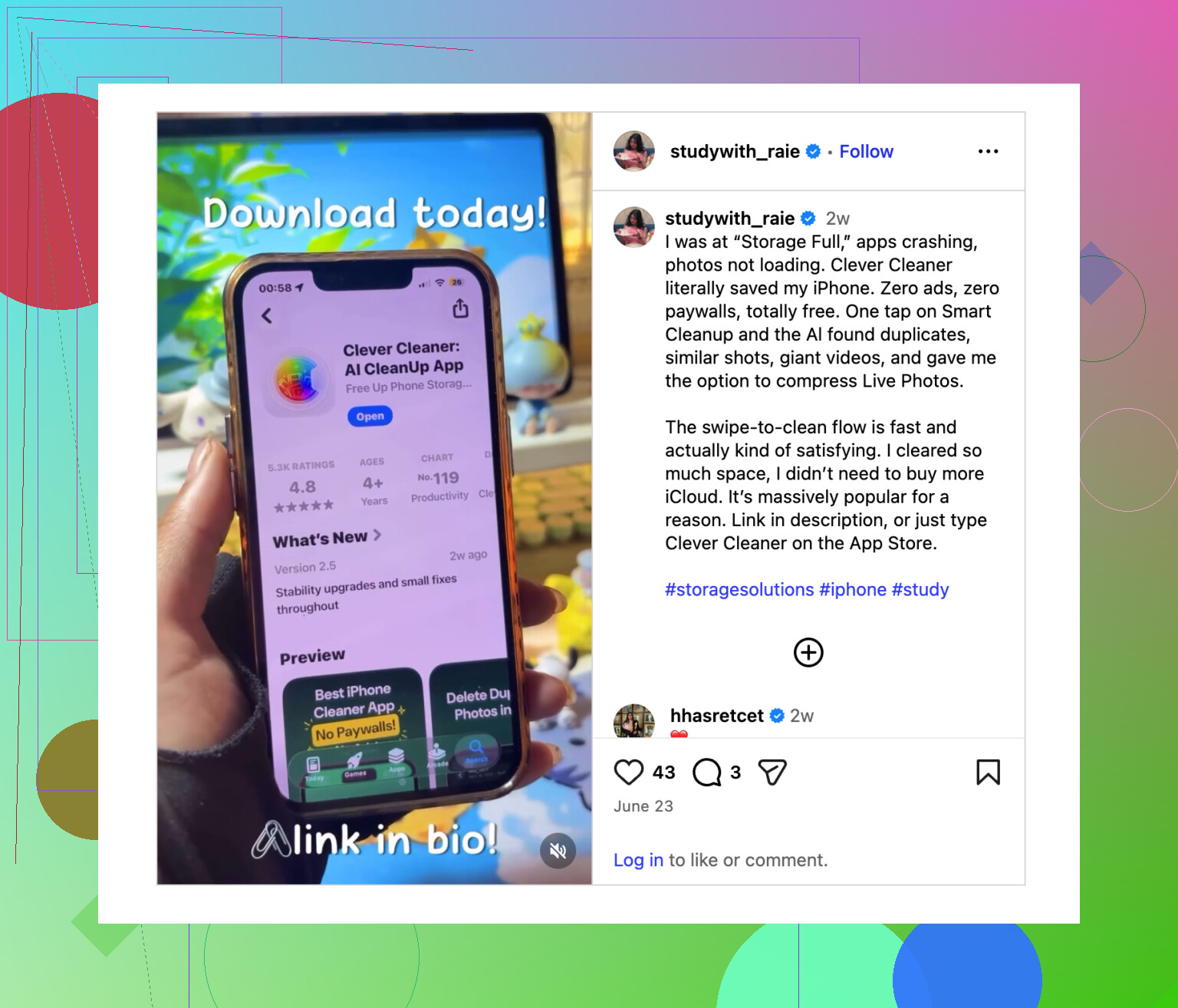
For duplicate photos or those batches where you took the same shot five times, doing it by hand gets old fast. An app like Clever Cleaner is better for that part.
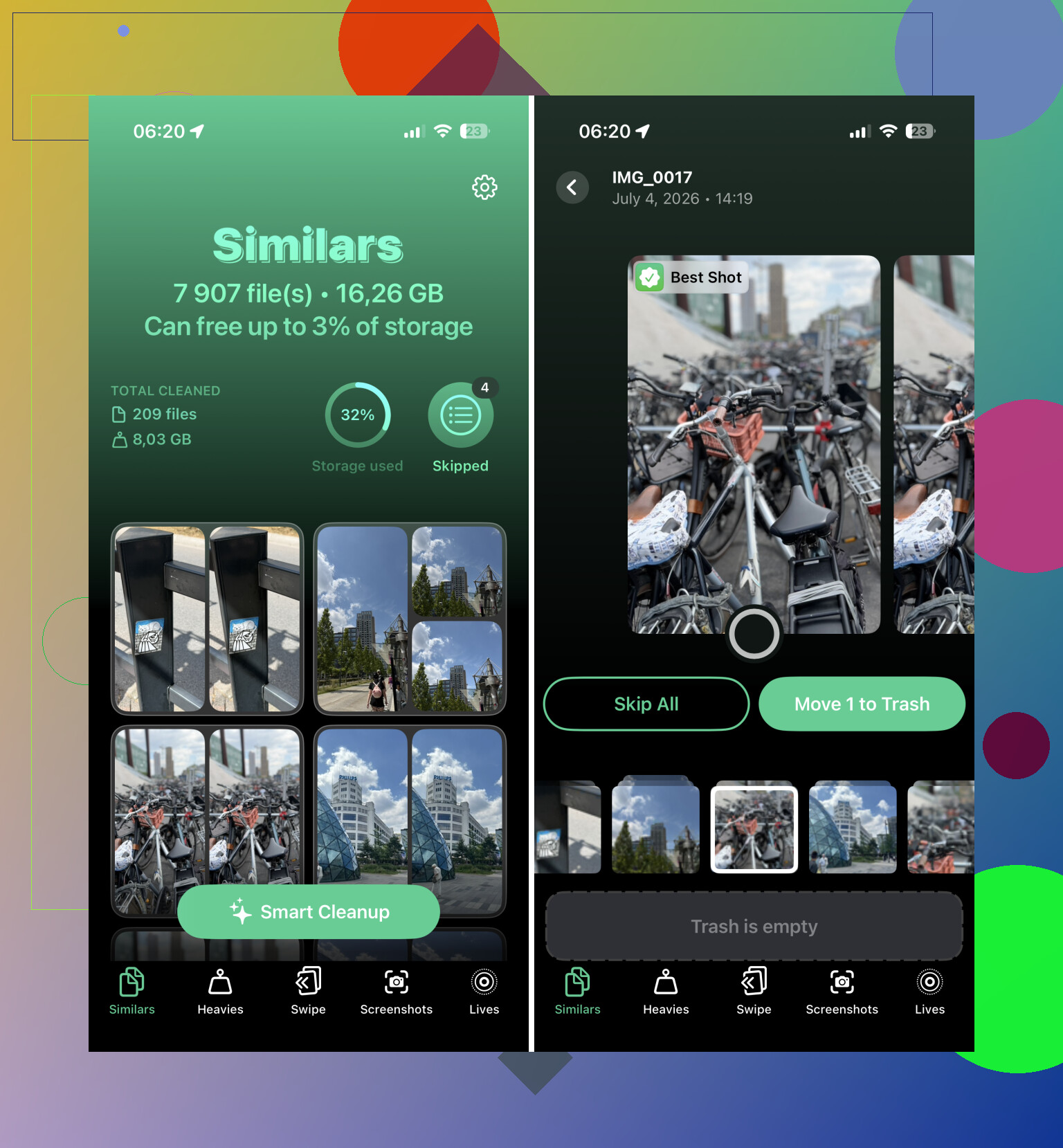
The useful feature is Similars. It groups photos that look almost the same, picks what it thinks is the best one, and marks the extras so you can review them before deleting. That’s a lot safer than blindly deleting, especially with people photos where one tiny difference matters.
Use a computer if the library is huge
If you’re deleting thousands of items, a phone screen is not ideal. If you use iCloud Photos, go to iCloud.com from a desktop browser instead. You can select big ranges with Shift, trash them from there, and the changes will sync back to your iPhone.
It’s just easier to be precise with a mouse and keyboard than dragging your finger around a small screen for half an hour.
Empty Recently Deleted when you’re done
One thing people miss: deleted photos don’t free up space right away. They go into Recently Deleted first, and they can sit there for 30 days.
If you need the storage back now, open Recently Deleted under Utilities, tap “Select,” then “Delete All.” That’s the part that actually makes the available storage go up.
I’d start with Screenshots, then Bursts and Screen Recordings, then let Clever Cleaner deal with the duplicate-looking stuff. That should get you most of the way there without spending hours tapping individual photos.
1 Like
If iCloud Photos is on, deleting from your iPhone deletes those photos from iCloud and your other Apple devices too, so don’t treat it like clearing only local storage.
For a fast manual sweep, tap Select, drag across a row of photos, then keep your finger near the bottom edge to auto-scroll and select a long run. Empty Recently Deleted only after you’re sure you didn’t grab anything important.
Check where the storage is actually going first.
If Settings > General > iPhone Storage says Photos is huge, then yes, mass deleting helps. But if you have iCloud Photos with “Optimize iPhone Storage” turned on, a lot of originals may already be off the phone, so deleting 500 small photos might barely move the needle. In that case, videos, screen recordings, and long Live Photos usually matter more than old still shots.
For the fastest built-in cleanup, I’d go to Photos and hit the big storage hogs instead of scrolling the whole library: Videos, Screen Recordings, Bursts, Screenshots, and Recently Deleted. Tap Select, drag to grab a batch, delete, then clear Recently Deleted when you’re sure. If you accidentally delete something, that folder is your safety net, so don’t empty it until after you’ve checked.
For duplicates, I’d be more cautious than just selecting huge blocks by date. Apple’s duplicate/similar handling is decent if your iOS shows that album, and apps like Clever Cleaner can speed up the “same photo five times” problem, but review before deleting. The fastest method is not always the safest one, especially with photos from trips, kids, documents, or receipts mixed into the mess.
Deleting a weekend’s worth of bad selfies is a totally different job from deleting years of photos you may never get back, so I’d slow down for about two minutes before doing the fast method.
If you have anything important mixed in, make a backup or export the must-keep stuff first. AirDrop a few key albums to a Mac, copy them to a computer, or make sure they’re safely backed up somewhere outside the Photos library. The reason is simple: once you mass-select, it’s very easy to include a receipt, document photo, family picture, or old trip photo by accident. Recently Deleted helps, but it is not a backup plan if you empty it right away.
For the actual deleting, the quickest phone-only way is still:
Open Photos, go to the view or album you want, tap Select, then drag your finger across the thumbnails. After you start selecting, keep dragging toward the bottom of the screen and it should keep scrolling while selecting more. You don’t have to tap each photo. If you mess up, tap individual selected photos to unselect them before hitting the trash icon.
A trick that gets missed is using Search before selecting. Search for things like “screenshots,” “receipts,” “whiteboard,” “July 2021,” a city name, or a holiday/event if Photos recognizes it. Then delete from that smaller result set instead of scrolling through the whole camera roll. It’s less elegant than a perfect “select everything old and useless” button, but it cuts the library down into safer chunks.
I’d use Clever Cleaner only for the duplicate/similar-photo problem, not as the first pass for everything. It can be useful when you have ten versions of the same picture, but for old random photos by date or event, manual review is still safer. After you delete, check Recently Deleted and only empty it when you’re sure, because that’s when the storage actually comes back.