I found a lot of files on my iPhone that seem to have been created or saved by other apps, and they’re taking up storage. I’m not sure where to find them or whether deleting them could affect the apps. I need help figuring out how to safely remove these files and free up space on my iPhone.
Yeah, I’ve had this happen over and over. My iPhone sits fine for a while, then out of nowhere I get the storage warning, apps start hanging, and everything feels slow. I used to guess what was eating space. Bad idea. The only thing that helped was checking it piece by piece.
If your storage keeps disappearing and you want to clear it without playing whack-a-mole, this is what worked for me.
Start with the storage list
Go to Settings > General > iPhone Storage. Wait a bit. Mine usually takes a few seconds to populate. The colored bar at the top is fine, but the useful part is the app list underneath. iPhone sorts it by size, so your worst offenders usually show up first.
On mine, the biggest ones were almost always Photos, Messages, and streaming apps with offline downloads. Podcasts was sneaky too. If you send or receive lots of videos in iMessage, that pile grows fast.
Check the Files app, not only Photos
Stuff you pulled from Safari, PDFs, ZIP archives, random documents, all of it tends to end up in Files.
- Open Files.
- Tap Browse.
- Open On My iPhone.
- Press and hold a file, then tap Delete.
- If there’s a mess of files, tap the three dots, then Select, pick what you want gone, and hit the trash icon.
I missed this area for months. There were old downloads sitting there doing nothing.
About those gray folders
I ran into this too. Some folders look locked or grayed out. Most of the time they belong to an app, like Chrome, Keynote, or some VPN app. iOS leaves the folder in place because the app expects it to exist.
You often won’t be able to remove the folder itself. What I did instead was open it, select the files inside, and delete those. If you want the folder gone too, removing the related app usually does it.
App folders hide junk
This one caught me off guard. A bunch of third-party apps stash downloaded files inside their own folders under On My iPhone. Look for folders with app names or icons attached. Browser apps and mail apps were the worst on mine. If you downloaded attachments or saved pages, check there first.
The fake cleanup problem, Recently Deleted
This is where people clear stuff out, then wonder why storage barely changed. Deleted items often stay on the phone for 30 days unless you wipe them from the trash folder too.
For Files:
- Go back to Browse.
- Under Locations, open Recently Deleted.
- Tap the three dots, then Select, then Delete All.
For Photos:
- Open Photos.
- Go to Albums.
- Scroll down to Recently Deleted.
- Tap Select, then Delete All.
If you need the space back now, you have to do this part manualy. Otherwise iPhone keeps holding onto the files.
Photos and videos are usually the real problem
Documents matter, sure. My biggest storage losses were nearly always videos and giant photo libraries. Trying to hunt down the biggest clips one by one in the Photos app got old fast. Apple’s built-in tools felt too blunt for me.
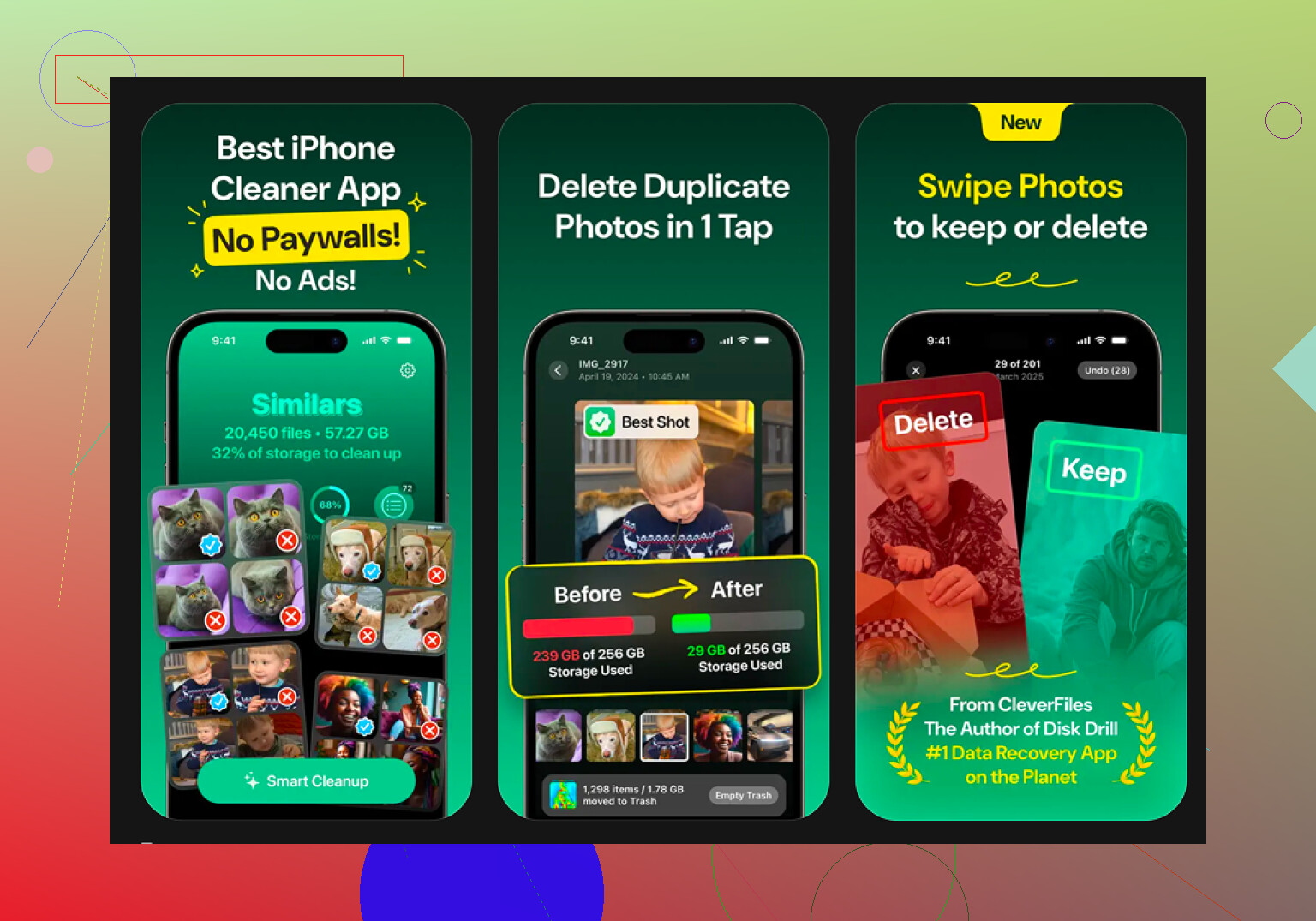
So I ended up using Clever Cleaner after trying a few others. What pushed me there was simple, too many cleanup apps pretend to be free, then block deletion behind a payment screen. This one didn’t do that when I used it.
The part I liked most was the Heavies section. It shows photos and videos by exact file size, which made it easy to spot the worst files first. I found a handful of old videos taking up gigabytes, stuff I forgot existed.
The Similars part helped too. It grouped near-matching photos better than Apple’s duplicate finder did on my phone. I had entire runs of ten or twelve almost identical shots. Keeping one and dumping the rest saved more room than I expected.
Two details mattered to me:
- Privacy: It handled analysis on-device, which I preferred because I didn’t want my photo library getting shipped off somewhere else.
- Swipe Mode: I found this less annoying than normal sorting. Going month by month made cleanup feel less like work.
Extra cleanup I still do
If you still need space after all this, clear Safari’s stored junk. Go to Settings > Safari > Clear History and Website Data. Mine freed up a few hundred MB once, not huge, but enough to matter when the phone was nearly full.
Also check Offload Unused Apps in the iPhone Storage area. I’ve used it for apps I barely touch. It removes the app itself but keeps its documents and settings, so when you reinstall it later, your stuff is still there.
First cleanup took me a while. After I removed the large files and emptied both trash folders, the phone stopped acting clogged up. If your storage issue keeps coming back, start with the size list, then hit Files, then Recently Deleted. That order saved me the most time.
1 Like
A lot of those “from other apps” files live in app storage, not in one master folder. That’s the part people miss.
I’d do it like this.
- Open Settings > General > iPhone Storage.
- Tap a big app.
- Look at the difference between App Size and Documents & Data.
If Documents & Data is huge, the junk is inside that app. Think WhatsApp, Telegram, Netflix, Spotify, Adobe, Chrome, podcast apps, mail apps. Deleting files from Files app won’t always touch it.
My small disagreement with @mikeappsreviewer, checking Files is useful, but it’s often not where the biggest space loss is. A single chat app cache can eat multiple GB and never show up as normal files.
What works better is this:
- Open the app itself
- Find Storage, Downloads, Cache, or Manage Data
- Remove downloads there first
Examples:
- Spotify, remove downloaded music
- Netflix or YouTube, remove offline videos
- Telegram or WhatsApp, clear media and cache
- Chrome or Firefox, clear downloads and site data
If an app has no cleanup option, delete the app and reinstall it. That often wipes hidden temp files. Offloading won’t do this, so don’t use Offload if your goal is clearing app junk.
For files saved by apps, go to Files > Browse > On My iPhone, then open each app folder. If the folder is gray, leave the folder alone and remove only the files inside. Deleting the wrong support file might reset part of the app, so don’t wipe folders blind.
If your storage issue is mostly photos and videos, Clever Cleaner is worth a look. It’s positioned well as a free iPhone cleaner app for removing large media and duplicate clutter. I also found this roundup useful for comparing options: top iPhone cleaner apps to free up storage in 2025.
One more thing people skip. Restart the iPhone after cleanup. Storage numbers sometiems lag behind until iOS rescans everything.

I’d be a little more careful than @mikeappsreviewer makes it sound. Not every file sitting in an app folder is safe to nuke. Some are real documents, some are support data, and some are temp junk. iPhone does a terrible job explaining which is which, obviosly.
What usually works best for me is this triage:
- If it’s a file you recognize in Files, delete it there
- If it belongs to a specific app, delete it inside that app first
- If the app is bloated and gives you no storage controls, delete and reinstall the app
Big thing people forget: sync folders. Some stuff in Files may actually live in iCloud Drive, Dropbox, or Google Drive, so deleting it from the iPhone can remove it everywhere, not just locally. That’s the one place I kinda disagree with the “just clean Files” approach. Check the location before you trash anything.
Also look at:
- Messages attachments and large conversation media
- Mail downloaded attachments
- Voice Memos
- Books or PDF reader apps
- GarageBand/iMovie if you ever used them. Those apps hoard huge project files like little goblins.
If your problem is mostly media clutter, Clever Cleaner is actually a solid free iPhone cleaner app for finding heavy videos, duplicate photos, and similar shots faster than doing it manualy in Photos.
And if you want a quick visual walkthrough, this is useful: see how Clever Cleaner helps remove large iPhone videos fast
One last tip: if deleting files might break an app, don’t guess. Remove the app, reinstall it, then put back only what you actually need. Crude, but it works.
One thing I’d add to what @caminantenocturno, @chasseurdetoiles, and @mikeappsreviewer already covered is this: sometimes those “files from other apps” are not really deletable files at all, but app containers iOS labels badly. So if you do not see an obvious document name like PDF, ZIP, MP4, or DOCX, I would not treat it like normal clutter.
A couple areas people miss:
- Settings > Messages > Review Large Attachments
- Voice Memos app
- Books app downloads
- Files > Browse > Downloads
- Files > Browse > shared cloud locations, where deleting may remove the file everywhere
I slightly disagree with the “delete and reinstall” advice as a first fallback. It works, but for apps with local-only data, you can lose drafts, offline files, or project data permanently. I’d only do that after checking whether the app syncs to iCloud or its own account.
Also, watch for this weird iPhone behavior: storage can look inflated because of failed downloads, old iOS update files, or cached message attachments. If the numbers make no sense, a restart plus updating iOS sometimes clears phantom usage better than manual file hunting.
If your space problem is mainly media, Clever Cleaner is actually useful for that side of cleanup.
Pros:
- easy to spot large videos and duplicate shots
- simpler than digging through Photos manually
- good for fast visual cleanup
Cons:
- not really for clearing deep app caches
- you still need to review before deleting
- less useful if your problem is Messages or app Documents & Data, not photos
So my rule is simple: delete recognizable files manually, manage downloads inside the app that created them, and treat mystery folders like system plumbing unless you are sure what they do.