I imported a large batch of photos from my iPhone to my computer, but they’re still taking up space on my phone. I need a quick way to delete only the already imported photos in bulk without removing anything I still need. What’s the easiest and safest way to do this?
If you want imported stuff off the iPhone in bulk, and you want the storage back, there are a couple gotchas. I ran into most of them the hard way.
Do videos get deleted too?
Yep. The same import-and-remove flow hits videos and photos alike. In my case, the videos were the real storage hogs. Clearing those made the biggest dent fast.
Why the delete checkbox vanishes after import
On Mac Photos and the Apple Devices app on Windows, the option to delete after import disappears once iCloud Photos is on. Apple seems to hand control over to iCloud and hides manual removal.
What worked for me was this:
- Open Settings on the iPhone
- Go to Photos
- Turn off iCloud Photos for a bit
- Reconnect the phone to your computer
After I did that, the delete checkbox showed up again.
Deleting already imported photos from iPhone with a Mac
If Photos keeps throwing errors or acts read-only, I would skip it and use Image Capture. It felt less fussy.
- Plug the iPhone in with USB
- Open Image Capture from Applications
- Pick the iPhone in the sidebar
- Press Command + A
- Click the delete icon, the circle with a slash
Image Capture treats the phone more like a plain camera. Because of that, it often avoids the weird lockouts Photos gives you when sync stuff is involved. At least it did for me.
Deleting imported photos in bulk on the iPhone itself
If you want to do it on-device, the Imports album is the quickest place to start.
- Open Photos
- Tap Albums
- Scroll down to Utilities
- Open Imports
- Tap Select
- Drag across thumbnails to grab a big batch
- Delete them
Small catch. Deleting them there does not free space right away. iOS moves them into Recently Deleted, and they sit there for 30 days still taking storage.
You need to finish the job:
- Go to Albums
- Open Recently Deleted
- Tap Delete All
Skip that step and your storage number barely moves. I did once, thought the phone was bugged, then noticed everything was still parked in trash. Annoying, but yeah.
How to make sure the files are gone
Check this path after you empty Recently Deleted:
Settings > General > iPhone Storage
Look at the Photos section. If the number dropped, the cleanup went through. If it still looks off, restart the iPhone and check again. I had storage figures lag behind once or twice.
Why the phone still feels slow after deleting imports
When storage is packed, iOS starts acting bad. Apps hang, the camera hesitates, stuff freezes for no clear reason. Imported photos are often only part of the mess. Burst sets, duplicate shots, giant videos, old screen recordings, all of it piles up.
I ended up finding a bunch of leftover large files after the import cleanup. Those were doing more damage than I expected.
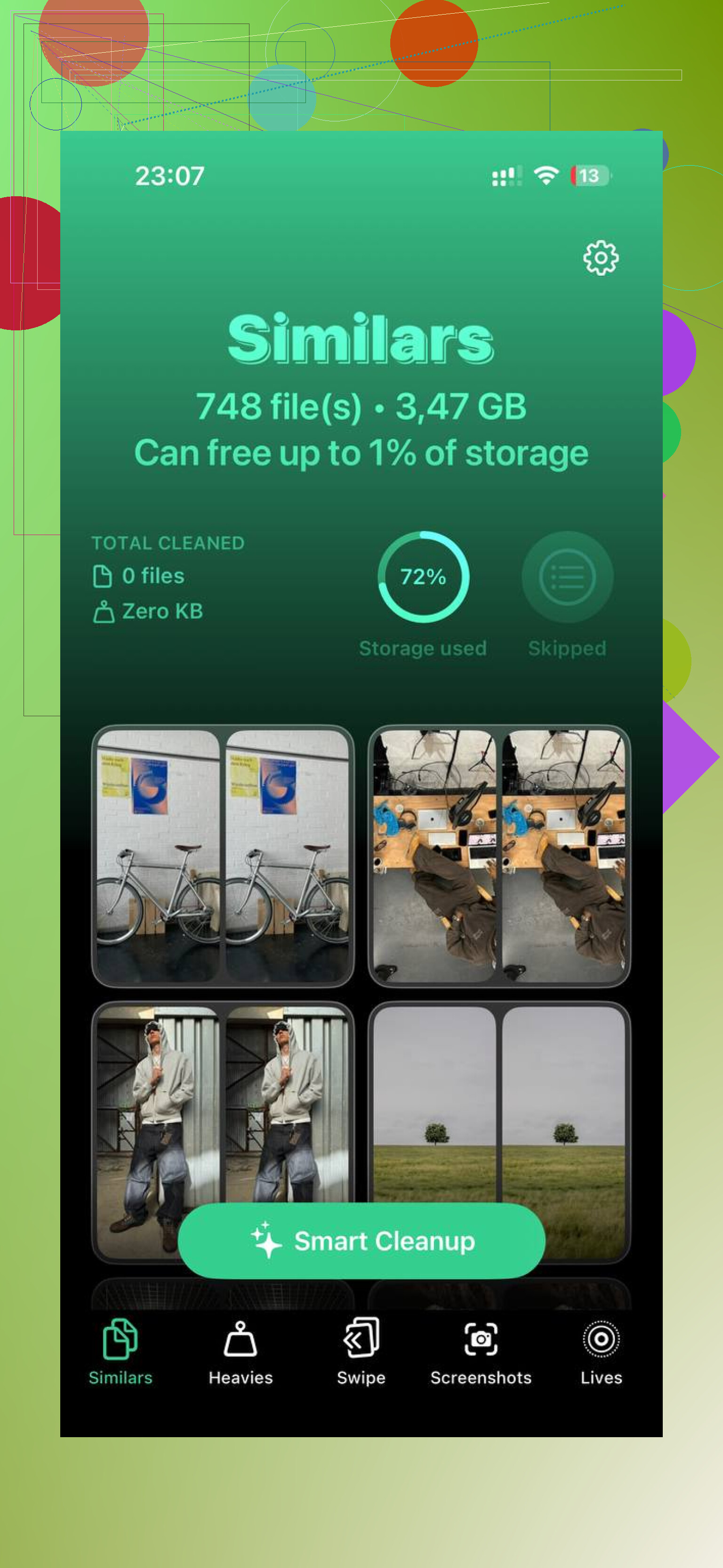
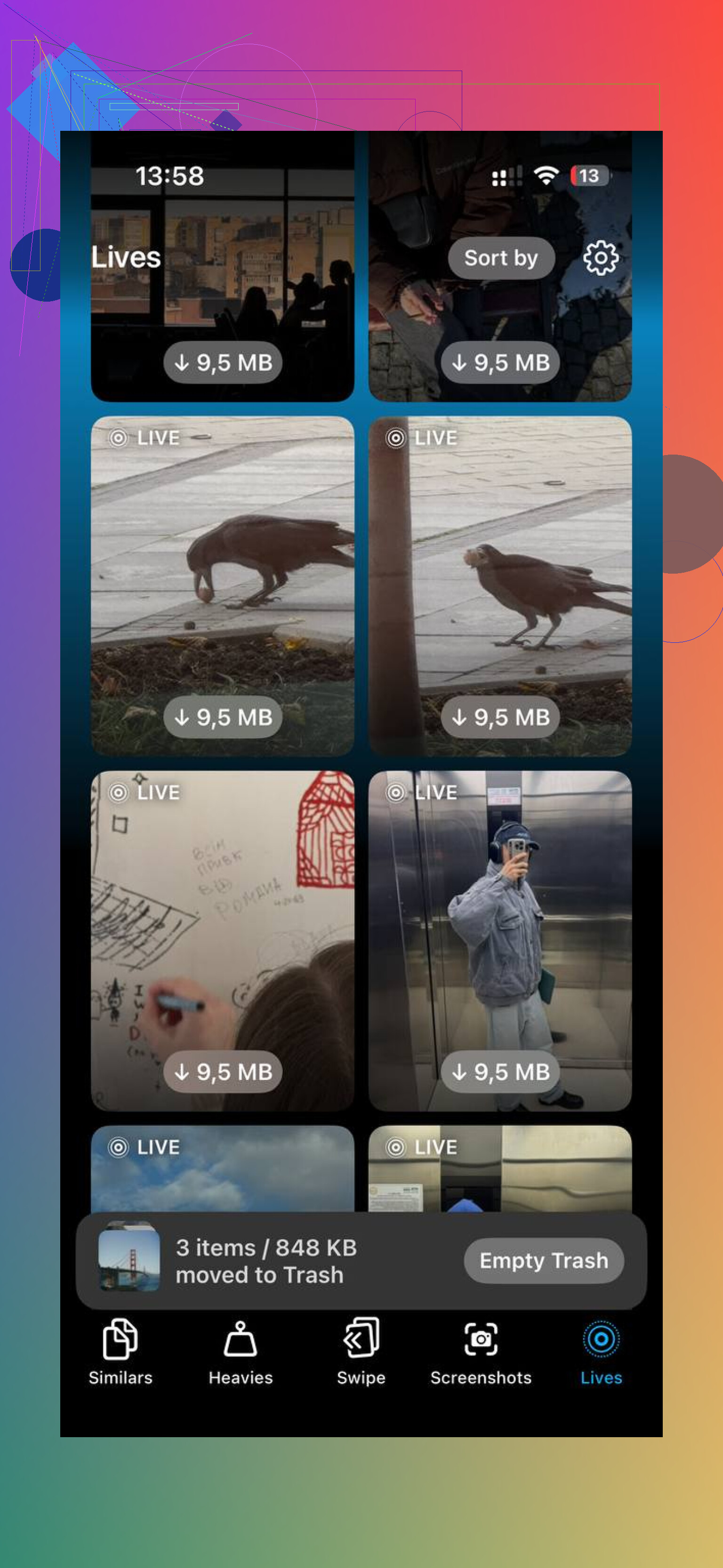
One tool I used was Clever Cleaner. What stood out for me was the file sorting. The Heavies tab puts the biggest files first with sizes shown, so large videos and screen recordings jump out fast. The Similars tab groups near-matching photos and marks a Best Shot, which helped me clear burst junk without picking through every frame. It also shows file sizes before deletion, and the processing stays on the device.
After I cleared about 20GB with Clever Cleaner on top of the import cleanup, the lag on my phone stopped. It felt normal agian.
1 Like
If you want to delete only stuff you already imported, the cleanest bulk method is on your computer, using a date range instead of trying to trust Apple’s “imported” logic.
On Windows, open File Explorer, go to your iPhone, then Internal Storage, then DCIM. Sort by Date. If you imported everything up to, say, June 1, delete folders or files older than that date. It’s fast, and you control what goes. Same idea on Mac with Finder image import tools, though I don’t fully agree with @mikeappsreviewer on turning off iCloud first every time. For a lot of people, date filtering is safer than messing with sync settings.
Two things matter:
- Make sure your computer backup is complete first.
- Empty Recently Deleted on the iPhone or storage won’t come back right away.
If your library is messy, Clever Cleaner helps sort large videos, duplicates, and similar shots after the bulk delete. That saves time if your import batches overlapped or got mixed up.
For more user reports on iPhone photo cleanup and storage recovery, see Apple users asking about Clever Cleaner and photo cleanup.
One more thing, if iCloud Photos is on, deleting from the phone removes them from iCloud too. Double check befor you mass delete.
I’d actually avoid the “delete after import” workflow entirely. @mikeappsreviewer and @mike34 covered the usual routes, but in my experince Apple’s import status is not something I trust with a mass delete.
What’s safer is using a Smart Album on the iPhone or the search/filter tools in Photos to isolate what you imported by timeframe.
Try this on iPhone:
- Open Photos
- Tap Search
- Search by month/year you already backed up, like “May 2026”
- Tap Select
- Use “Select All” if shown, or drag-select a whole screen at a time
- Delete
- Then empty Recently Deleted
Why I like this better: you’re deleting by a date range you personally recognize, not by whatever Apple decides counts as “imported.” Less magic, fewer oops moments.
If you imported to a Mac, another pretty clean option is making an album before deletion:
- In Photos, filter your library by import date
- Confirm the batch exists on the computer
- Then remove the same date range from the phone
Also, check whether those files were copied into your computer’s actual storage and not just referenced in some app library. A lot of people think the import is done, then find out later the files weren’t where they thought. Kinda brutal.
If your storage is still mysteriously full after that, it’s usually videos, duplicates, or giant random clips. That’s where Clever Cleaner is useful, especially for sorting similar shots and large files fast. If you want a more readable breakdown, this Clever Cleaner review for faster iPhone storage cleanup explains it better than most.
And yeah, one last gotcha: if iCloud Photos is on, deleting from the iPhone deletes everywhere. Double-check that befor you go nuclear.
I’d skip the computer-side folder deleting that @mike34 leans on unless you really like manual file management. It works, but it’s easy to nuke the wrong batch if Live Photos, edits, or mixed dates are involved.
A different bulk method is using a shortcut workflow:
- On iPhone, open Photos and filter by a month or media type you already imported
- Select that batch
- Share it to Files or confirm it’s already backed up on the computer
- Then delete that same visible batch from Photos
- Empty Recently Deleted
What makes this safer is you’re working from the actual Photos library view, not the DCIM mess underneath.
Also, one thing @nachtschatten and @mikeappsreviewer touched on but I’d stress harder: edited photos and originals do not always behave the way people expect after import. If you imported with a Windows app or just copied DCIM files, check whether your edits, portraits, and Live Photo motion parts came over properly before mass deletion.
If your library is chaotic after that, Clever Cleaner is decent for cleanup after the main import purge.
Pros:
- fast duplicate and large-file scanning
- helps find huge videos quickly
- simpler than digging through Photos manually
Cons:
- not really an “imported photos only” tool
- you still need to verify backups yourself
- similar-photo suggestions can be too aggressive sometimes
So my take: bulk delete by visible date ranges inside Photos first, use Clever Cleaner only for leftover junk, not as the primary import-delete method.