I imported a large batch of older iPhone photos and realized many of them are saved as Live Photos. They’re taking up extra storage and making it harder to manage my photo library. I need help finding the fastest way to mass turn off Live Photos on older iPhone pictures without editing them one by one.
I get why you’d want to keep the photo and ditch the motion part. I did the same thing after noticing my library was full of Live Photos I never watched twice. Most of them were plain snapshots with a couple seconds of movement and audio glued on. Nice idea, bad storage habit.
Live Photos take more room because they are two things in one file set, a still image plus a short clip. If you’ve got a few hundred, the wasted space gets ugly fast. Mine ate up gigabytes before I bothered checking.
If your goal is to turn them into regular images, I’d do it one of these three ways, depending on how many you have and how much manual cleanup you’re willing to put up with.
Best route if your library is a mess
If you’ve got a big camera roll, doing this inside Apple Photos feels slow. I tried the manual route first. It got old fast. Scrolling, selecting, duplicating, then deleting the originals, nope.
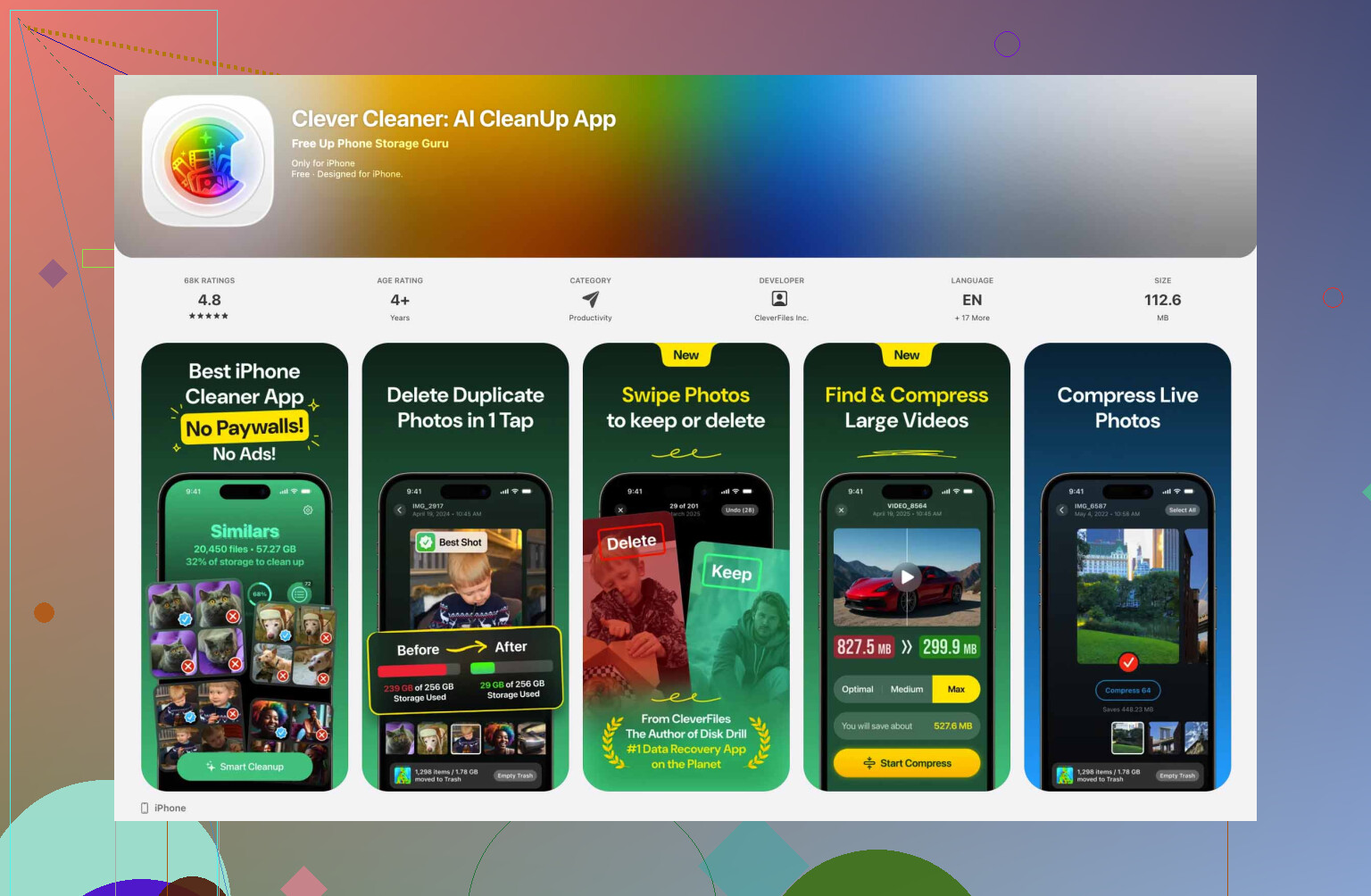
The app I had the least friction with was Clever Cleaner. What stood out for me was simple stuff. No ads popping up. No paywall slapped over the one feature you opened it for. It also separates Live Photos into their own area, which saves a lot of dumb tapping.
This is the flow I used:
- Install Clever Cleaner and allow photo access.
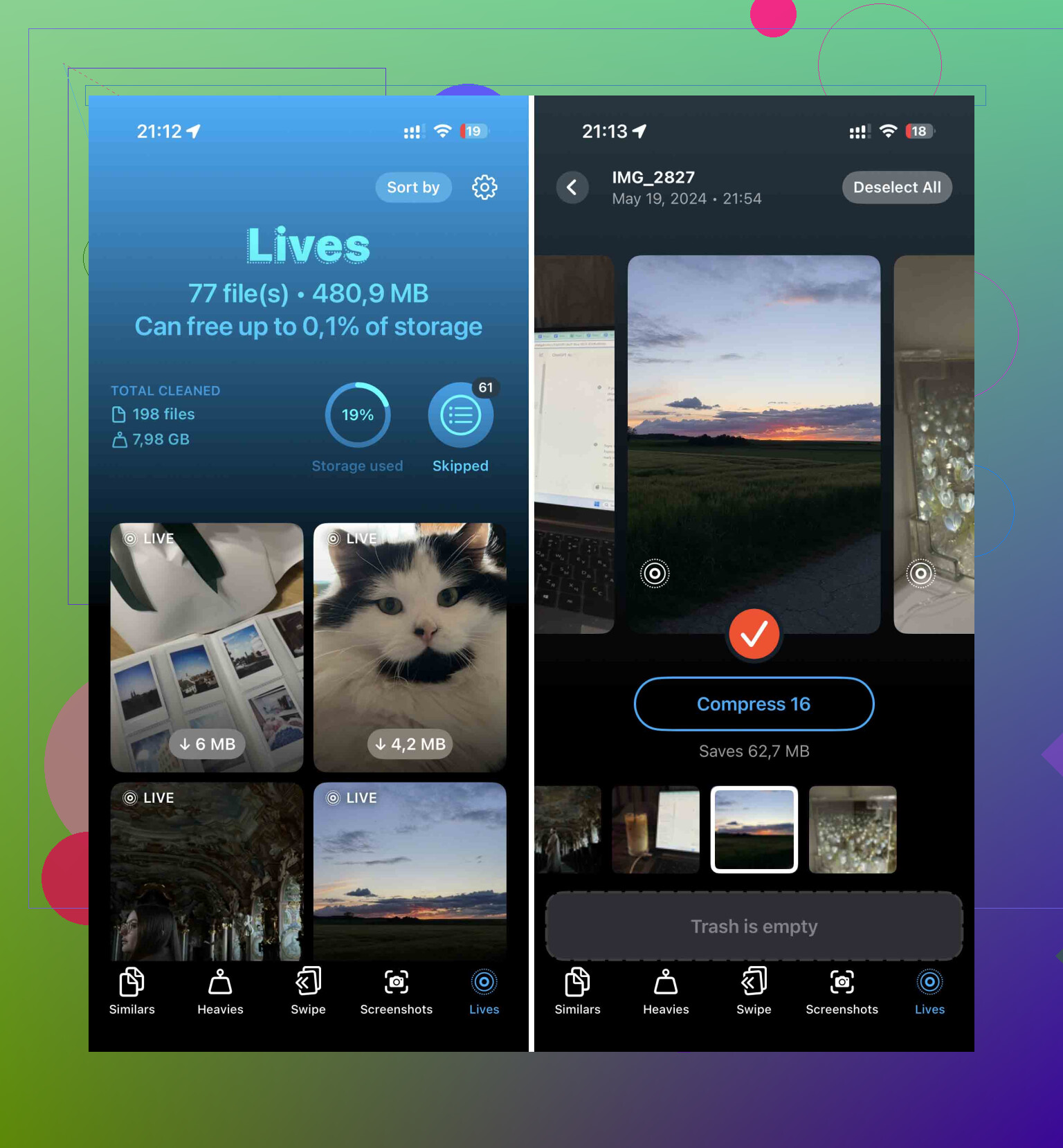
- Open the Lives section.
- Sort by size or date if you want to target the worst offenders first.
- Pick everything, or choose a batch yourself.
- Hit Compress.
The label says “Compress,” which threw me off at first. What it does in practice is strip out the motion part and keep the still image in good quality. Then it asks what to do with the original Live versions. I liked this part because I didn’t have to hunt them down later. Less cleanup after the cleanup.
If you want to stay inside Apple’s tools
I messed with Shortcuts too. It works. It’s more setup, more fiddly, and a bit nerdier, but if you don’t want another app on your phone, it gets the job done.
Here’s the shortcut setup:
- Open Shortcuts and tap the + icon to make a new shortcut.
- Add Find Photos.
- Set the filter to Photo Type is Live Photo.
- Add Repeat with Each.
- Inside the repeat block, add Convert Image.
- Pick JPEG or PNG.
- Add Save to Photo Album.
- Run it.
The catch is simple. Shortcuts saves the still copies, but it leaves the original Live Photos sitting there. So if storage is your problem, you still have one more step after. Go back into the Live Photos album and remove the originals by hand. A little annoying, yeah.
Fine for a small batch
If you only need to fix a handful, the Photos app itself is enough. No setup. No extra install. It’s slower, but for ten or twenty files, who cares.
- Open Photos.
- Go to the Live Photos album.
- Tap Select.
- Choose the ones you want.
- Tap the three-dot menu.
- Tap Duplicate.
- Choose Duplicate as Still Photo.
One thing people miss here, this makes a second file. For a bit, your phone uses more storage, not less, because both copies stay there. If you want the space back, delete the original Live Photos after you confirm the still versions saved right.
What I changed after cleaning mine up
After I finished, I turned off future Live Photos so I wouldn’t end up doing the same cleanup again three months later.
Go to Settings > Camera > Preserve Settings, then turn Live Photo on there. After that, open the Camera app and tap the Live Photo icon so it’s off.
Yeah, the wording feels backwards. I thought I messed it up the first time too. What it does is tell the iPhone to remember your last choice. So once you switch Live Photo off in Camera, it tends to stay off.
1 Like
Fastest path, if you want storage back, is batch convert then delete the Live originals. Turning Live off inside the Photos app does not remove the video part from old files. It only stops playback for one photo at a time, so I disagree a bit with people who treat it like a storage fix. It is not.
If your library is big, use Clever Cleaner. @mikeappsreviewer already covered one route, so I’ll add the part people miss. After export, check Recently Deleted too. iPhone keeps deleted Live Photos there for 30 days, so your space won’t free up untill you empty it.
Also check iCloud Photos. If sync is on, changes hit all devices. Great if you want one cleanup. Bad if you wanted a test run first.
Best order:
- Back up first.
- Batch convert Live Photos to stills.
- Verify a few random images.
- Delete original Lives.
- Empty Recently Deleted.
For future imports, filter by file type first. Live Photos often come in as HEIC plus motion data, which adds up fast. A few thousand files can eat gigabytes.
If you want more cleanup tips, this Clever Cleaner iPhone photo cleanup walkthrough is worth a look. It covers other Clever Cleaner features too.
Small warning from me, do a test batch of 20 or 30 first. Saves headaches if somthing imports weird.
You can’t truly “turn off” Live Photos in the old library in one sweep inside Apple Photos. That’s the part I kinda disagree on when people imply there’s a hidden toggle somewhere. There isn’t. Old Live Photos stay Live until you convert or replace them.
Since @mikeappsreviewer and @cazadordeestrellas already covered the obvious batch-convert angle, I’d add this: use Albums and smart triage first so you don’t waste time converting junk you’ll delete anyway.
What worked for me:
- In Photos, open the Live Photos album.
- Sort through the worst stuff first, bursts, blurry shots, accidental pocket pics.
- Delete trash before converting anything.
- Then batch-convert the keepers to stills with Clever Cleaner if you want speed.
- Empty Recently Deleted, otherwise the storage numbers look fake for a while.
Honestly, deleting bad Live Photos first saved me more space than converting all of them. A lot of people skip that step and do extra work for no reason.
Also, if you want a solid roundup on iPhone cleanup apps, this is worth reading: best iPhone cleaner apps for freeing up storage. A lot of users consider Clever Cleaner one of the best iPhone cleaner apps because it makes photo cleanup less anoying.
One more thing people forget: if these were imported from another device or backup, some Live components may not shrink exactly how you expect untill iCloud sync catches up. So test on a small batch first, then go bigger.