My iPhone storage is almost full and it’s slowing everything down. I’ve already deleted a bunch of photos and unused apps, but I’m still getting “storage almost full” warnings. What are the most effective ways to clear out hidden files, caches, or large items I might be missing so I can free up a lot of space without losing important data?
This happens a lot. Photos and apps are only part of the mess. iOS hides a ton of junk in “Other/System Data,” message attachments, and app caches. Here is what usually frees the most space fast.
- Check what is actually large
Settings > General > iPhone Storage.
Wait for it to load. Look at:
• Top apps by size
• “System Data”
• Messages
Focus on the biggest numbers first.
-
Clean Messages storage
Messages eats storage with photos, videos, and old chats.
Go to Settings > Messages:
• Set “Keep Messages” to 1 Year or 30 Days.
That deletes old conversations in bulk.
Then in Messages app:
• Tap a big conversation > contact name > Info.
• Scroll to Photos and Videos.
• “See All” > Select > delete large chunks at once. -
Offload or nuke app data hogs
In Settings > General > iPhone Storage:
• Tap big apps like Instagram, TikTok, Facebook.
Check “Documents & Data.” If it is huge:
• Use “Offload App” if you want to keep its data but free some storage.
• Use “Delete App” if you do not care about logging back in and losing local cache.
For social apps, deleting and reinstalling often clears multiple GB. -
Clear Safari and browser junk
Settings > Safari > Clear History and Website Data.
If you use Chrome or others, open the app > settings > privacy > clear cache and data. -
Optimize Photos correctly
Settings > Photos:
• Turn on “iCloud Photos” if you pay for iCloud.
• Turn on “Optimize iPhone Storage.”
Then open Photos app, stay on Wi‑Fi, and keep it plugged in. It takes time to shrink local copies.
Also use:
Photos > Albums > Recently Deleted > delete all there to free the space for real. -
Remove downloaded media
• Apple Music or Spotify: remove downloaded playlists and albums.
• Netflix, YouTube, Disney+: delete downloaded shows.
These often sit at several GB each.
Check each app’s Downloads section. -
Clean large files in Files app
Open Files > On My iPhone and iCloud Drive. Sort by size. Delete big items like old videos, ZIPs, PDFs you no longer need. -
Reduce System Data bloat
System Data grows from caches, updates, and temp files. To shrink it:
• Restart your iPhone. Simple, but it sometimes drops a few GB.
• Make a temporary backup to a computer with Finder or iTunes, then restore from that backup. This often resets System Data to a smaller size.
• If it is totally out of control and nothing works, a clean backup, full erase, then restore from backup helps most. -
Use a cleaning tool to speed this up
If you do not want to dig through every app, a helper tool saves time.
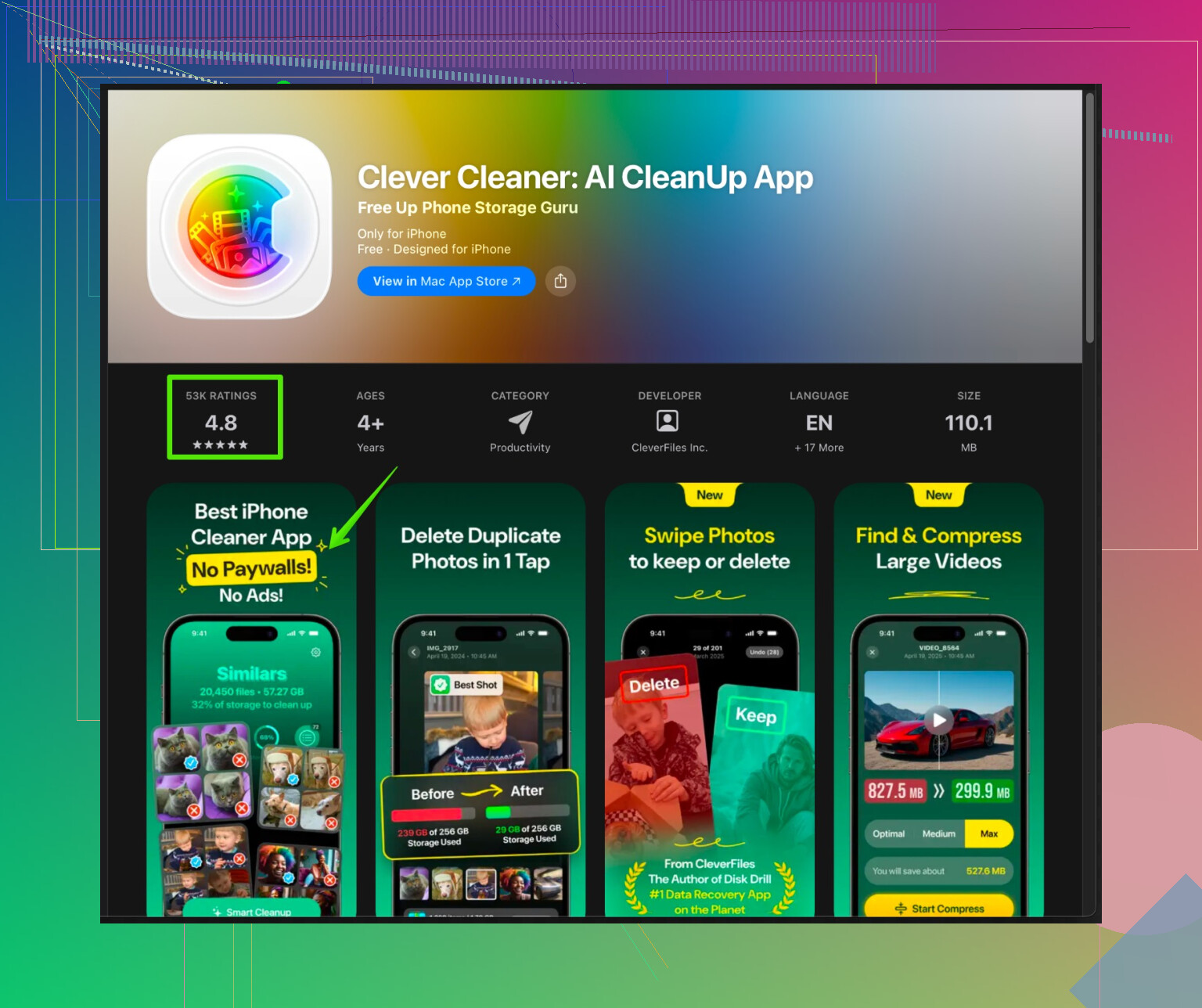
The Clever Cleaner App for iPhone uses AI to sort and remove duplicate photos, similar shots, blurred images, and large videos in batches. It also helps clean contacts and junk files so you get fast storage relief without hunting manually through each album.
You can check it here:
Clever Cleaner smart iPhone space optimizer -
Last resort, full reset
If storage still looks weird or “System Data” takes a huge chunk:
• Backup to iCloud or computer.
• Settings > General > Transfer or Reset iPhone > Erase All Content and Settings.
• Restore from backup.
I usually free 5 to 15 GB doing: Messages cleanup, deleting downloaded video, reinstalling big social apps, and running a cleaner like Clever Cleaner. That combo fixes the “storage almost full” spam for most people.
1 Like
You’re already doing the obvious stuff (photos + unused apps) and @nachtdromer covered a ton of the manual cleanup. I’ll throw in some different angles that usually help when storage is still mysteriously full even after you “deleted everything.”
- Stop iOS from filling up again
Go to Settings > App Store:
- Turn off “Automatic Downloads” for Apps and App Updates.
- Turn off automatic video autoplay in App Store & Photos (saves cache growth over time).
Some apps keep preloading junk in the background; this slows the phone and regrows “Other” data.
- Turn off hidden “download hoarding” in apps
You already killed unused apps, but check how the used ones behave:
- YouTube / Spotify / podcast apps: turn off “Download on Wi‑Fi automatically” for new episodes or liked songs.
- WhatsApp / Telegram / Messenger: disable auto-download for photos/videos in their Settings. Otherwise your phone is just a media dumpster for group chats.
- iCloud trick that actually frees local space
If you have iCloud storage:
- Settings > Your Name > iCloud > iCloud Backup: make sure your last backup is recent.
- Then in Settings > Your Name > iCloud > Manage Account Storage, tap “Backups” and see if there are old device backups from phones you no longer use. Delete those.
This does not clear local storage directly, but it keeps Apple from nagging and lets iOS offload more stuff more aggressively. It also keeps you from thinking “I can’t erase anything, I’ll lose it.”
- Stop Mail from caching your whole life
The Mail app can quietly cache a ridiculous amount:
- Settings > Mail > Accounts > tap your main account.
- Temporarily turn Mail off for that account.
- Force-quit Mail, reboot phone, then turn Mail back on.
This often shrinks the Mail cache and “System Data.” If you use Gmail app instead, go inside it > settings > clear cached images/files.
- Handle Voice Memos & “small but evil” stuff
People forget these:
- Voice Memos: long recordings are huge. Open the app, sort by length, delete any you can live without.
- WhatsApp / Signal / Telegram: inside each app, there is usually a “Storage and Data” or “Data and Storage” section where you can bulk delete large videos, GIFs, and docs.
These are separate from regular Photos, so deleting from Photos does nothing here.
- Photos: stop deleting randomly, target the real hogs
Instead of just scrolling and rage-deleting:
- In Photos, go to “Albums” > scroll down to “Media Types.”
- Open “Videos” first. Sort by “Largest” if your iOS supports it, or just eyeball. Deleting 10 long 4K clips can free more space than deleting 500 random photos.
- Then check “Screen Recordings” and “Live Photos.” Turn off Live Photo for future shots if you don’t need the motion.
- Big one: local iOS update packages
Sometimes an iOS update file is half your remaining space:
- Settings > General > iPhone Storage.
- If you see an iOS update listed as “iOS 17.x” with a GB size, tap it and hit Delete Update.
You can always re-download it later when you actually want to update.
- Be careful with the constant “delete & reinstall” advice
I half-disagree a bit with the “just reinstall big social apps” approach @nachtdromer mentioned. It works, but:
- Some apps immediately re-download caches once you log in again.
- If you’re on slow or limited data, this is annoying.
Use this mostly for apps with known heavy caches like TikTok / Instagram. For banking or 2FA, I’d avoid constant reinstalling.
- If “System Data” is absurd and you’re sick of babysitting it
When “System Data” is, like, 20+ GB and you’ve tried everything:
- Connect to a computer, do an encrypted backup through Finder / iTunes.
- Then Settings > General > Transfer or Reset iPhone > Erase All Content and Settings.
- Restore from that backup.
Clunky, but it’s the only thing that has ever taken my System Data from “what the hell” back down to normal.
- If you’re tired of manual triage
If combing through albums and chat threads sounds like a life sentence, this is where a tool can actually make sense. Instead of only relying on iOS suggestions, try something like the Clever Cleaner App which can automatically surface:
- duplicate photos
- near-duplicates and bursts
- blurred or low quality shots
- large videos you forgot about
It saves time versus doing it manually in Photos. There is a detailed description and download option here:
smart iPhone storage cleaner for photos and junk files
I’d personally:
- Nuke auto-downloads in chat/media apps,
- Delete update files & massive videos,
- Reset Mail / other bloated apps,
- Run a targeted clean with a tool like Clever Cleaner App,
before going nuclear with a full erase.
Cutting straight to what hasn’t been fully covered yet and that usually moves the needle when iOS still screams about storage after you’ve done the obvious.
1. Kill “hidden duplicates” from edits & imports
Everyone mentions deleting photos, but not the way iOS quietly creates more:
- When you Edit a photo, iOS keeps the original inside the same item. Lots of heavy edits (especially RAW / Portrait) can bloat the library.
- In Photos > Albums > scroll to Imports and RAW (if present) and clean older sets you know you do not need.
- If you repeatedly imported from a camera / WhatsApp / AirDrop, you can end up with near-identical series.
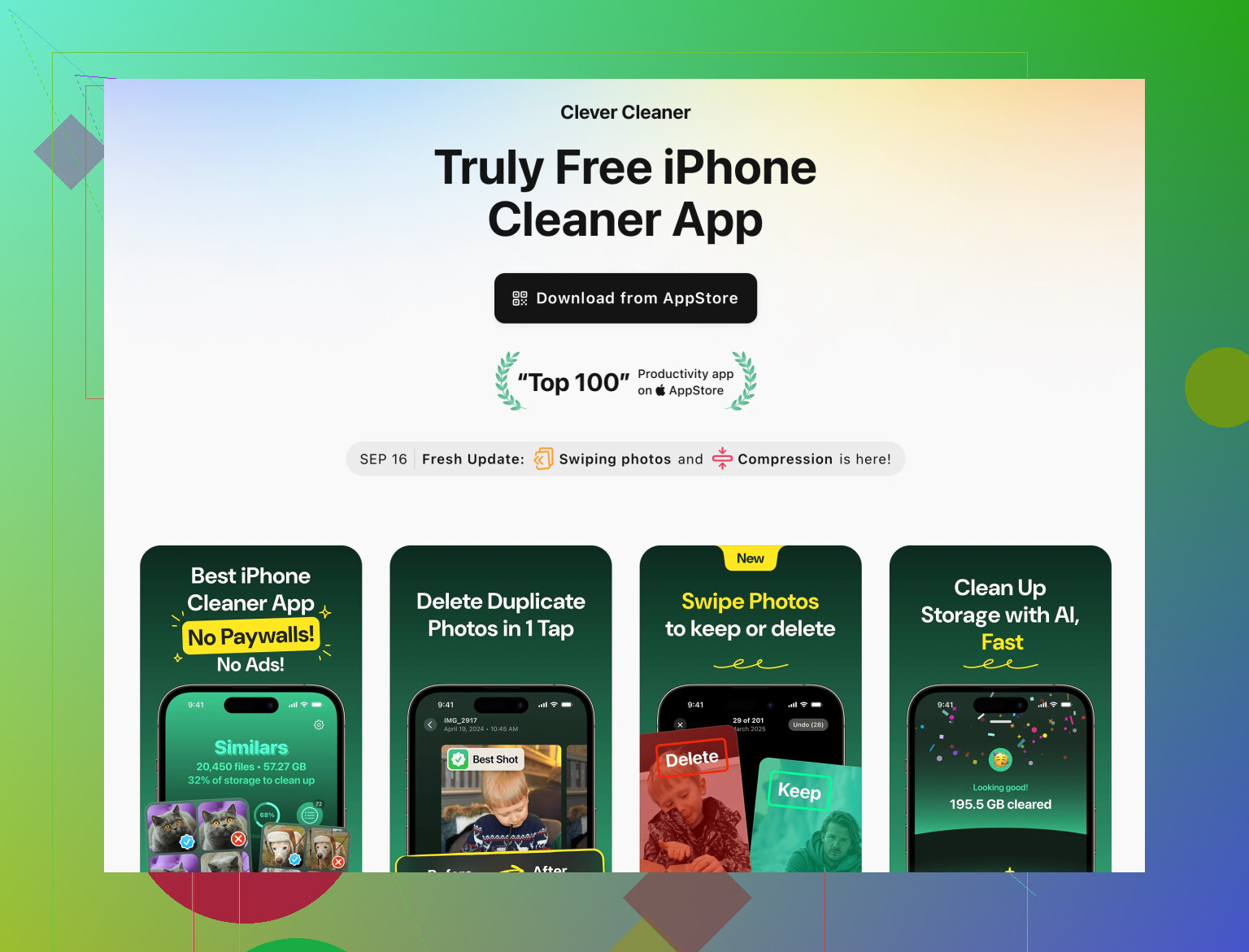
- This is where a tool like the Clever Cleaner App is actually useful: it groups true duplicates and near-duplicates, bursts, blurred shots and lets you bulk-remove them instead of manual hunting.
Pros of Clever Cleaner App
- Very fast way to clear dozens or hundreds of similar photos.
- Surfaces large videos you forgot existed.
- Simple interface if you are not in the mood to micro-manage storage.
Cons of Clever Cleaner App
- You still need to review before deleting or you might lose something you liked.
- Works mainly on photos / junk files, so it does not solve huge “System Data” issues by itself.
- Another app on the phone, so you want to run it, clean up, then decide if keeping it installed is worth the space.
@nachtdromer focused more on manual iOS paths, @sternenwanderer on behavior tweaks. Using Clever Cleaner App fills the gap for people who do not want to scroll through thousands of thumbnails.
2. Deal with “Photos in other apps”
You can delete half your camera roll and still be full because media is cached elsewhere:
- Social apps: Instagram Reels drafts, TikTok drafts, Snapchat memories and filters can build up.
- Open each app’s settings and look for Downloads, Cache, or Storage. Clear from there.
- Messaging backups inside apps:
- WhatsApp: Settings > Storage and Data > Manage Storage and delete large items by chat.
- Telegram / Signal: same idea under their data/storage menus.
These live outside the main Photos app, so normal photo deletion does nothing here.
3. Stop iCloud Drive & “On My iPhone” from hoarding
People forget the Files app entirely:
- Open Files > On My iPhone. Sort by size where available or eyeball big folders: video editors, document scanners, PDF apps. Delete old exports and scans.
- In productivity apps (Notability, GoodNotes, Word, etc.), clear old local backups and huge PDFs. Those can quietly eat gigabytes.
I slightly disagree with relying too much on reset / restore just to fix storage. It usually works, but it is overkill if half your space is just video projects, scans and downloads sitting in Files and app folders.
4. Tame “pro” or creative apps
If you use:
- Video editors (CapCut, VN, iMovie, LumaFusion)
- Audio / music apps (GarageBand, DAWs, sample libraries)
- Photo editors (Lightroom, VSCO, Snapseed)
then those project files and imported media are often the real monsters.
Action plan:
- Open each such app.
- Export anything you truly need to iCloud or a computer.
- Delete old projects from inside the app.
- Only if needed, delete & reinstall to purge leftover caches.
5. Slim down built‑in stuff people ignore
- Keyboards: Third party keyboards sometimes store big language packs, stickers, GIFs. If you do not use them constantly, remove the keyboard app.
- Stickers & iMessage apps: In Messages, disable sticker packs / iMessage apps you never use. Small gains each, but they add up on very low-capacity devices.
- Downloaded maps:
- In Google Maps or Apple Maps, remove offline maps you do not need anymore.
6. Create a maintenance routine so it does not fill right back up
Once you clear space, avoid the “full again in 2 weeks” cycle:
- Once a month:
- Open iPhone Storage, look at top 5 apps, clean from inside those apps.
- Run Clever Cleaner App to catch new duplicate photos and bloopers before they pile up.
- After any trip or event:
- Delete bad shots and extra takes immediately instead of letting thousands accumulate.
- Check media apps:
- No auto-download for giant podcast backlogs or every WhatsApp photo.
If you combine what you already tried with the deeper app/media cleanup here and the targeted duplicate removal from Clever Cleaner App, you should see a meaningful drop in storage use without needing a full factory reset.