My iPhone keeps showing the storage almost full warning, and it’s slowing everything down and preventing me from updating apps or taking photos and videos. I’ve already deleted a few apps and old photos, but the storage bar still looks maxed out and I’m not sure what’s actually taking up space. Can someone walk me through the best ways to clear storage on iOS, including any hidden files, cached data, or settings I might be missing?
Had the same “storage almost full” loop on my iPhone. Here is what helped, step by step, without wasting time.
-
Check what is eating space
Settings > General > iPhone Storage.
Look at the top bar. Photos, Apps, System, iOS. Focus on Photos and Apps first. -
Clear Messages junk
Messages keeps tons of photos and videos.
Settings > Messages > Keep Messages > set to 1 Year or 30 Days.
Then go to Messages > tap a heavy convo > info > review and delete big videos and photos. -
Offload unused apps
Settings > General > iPhone Storage.
Tap “Offload Unused Apps”.
iOS removes app data from storage, keeps icons and documents. When you open the app again, it downloads.
This frees multiple GB if you have games or social apps you rarely use. -
Delete offline downloads
Check these one by one:
• Photos > Albums > Recently Deleted, empty it.
• Photos > Albums > Videos, Screen Recordings, Live Photos, Bursts, delete what you do not need.
• TV / Netflix / Disney+ / Spotify / Apple Music, remove downloaded shows and playlists.
• WhatsApp > Settings > Storage and Data > Manage Storage, delete large items. -
Clean Safari and mail cache
Safari: Settings > Safari > Clear History and Website Data.
Mail: If you use a big email account, remove the account in Settings > Mail > Accounts, then add it again. This resets local cache. -
Optimize Photos with iCloud
If you use iCloud Photos:
Settings > Photos > turn on iCloud Photos.
Turn on “Optimize iPhone Storage”.
Your phone keeps smaller copies, full size stays in iCloud. This often frees 5 to 20 GB over time, depending on your library. -
Use a storage cleaner app
For quick wins, a cleaner tool helps remove duplicates and similar junk that is hard to spot.
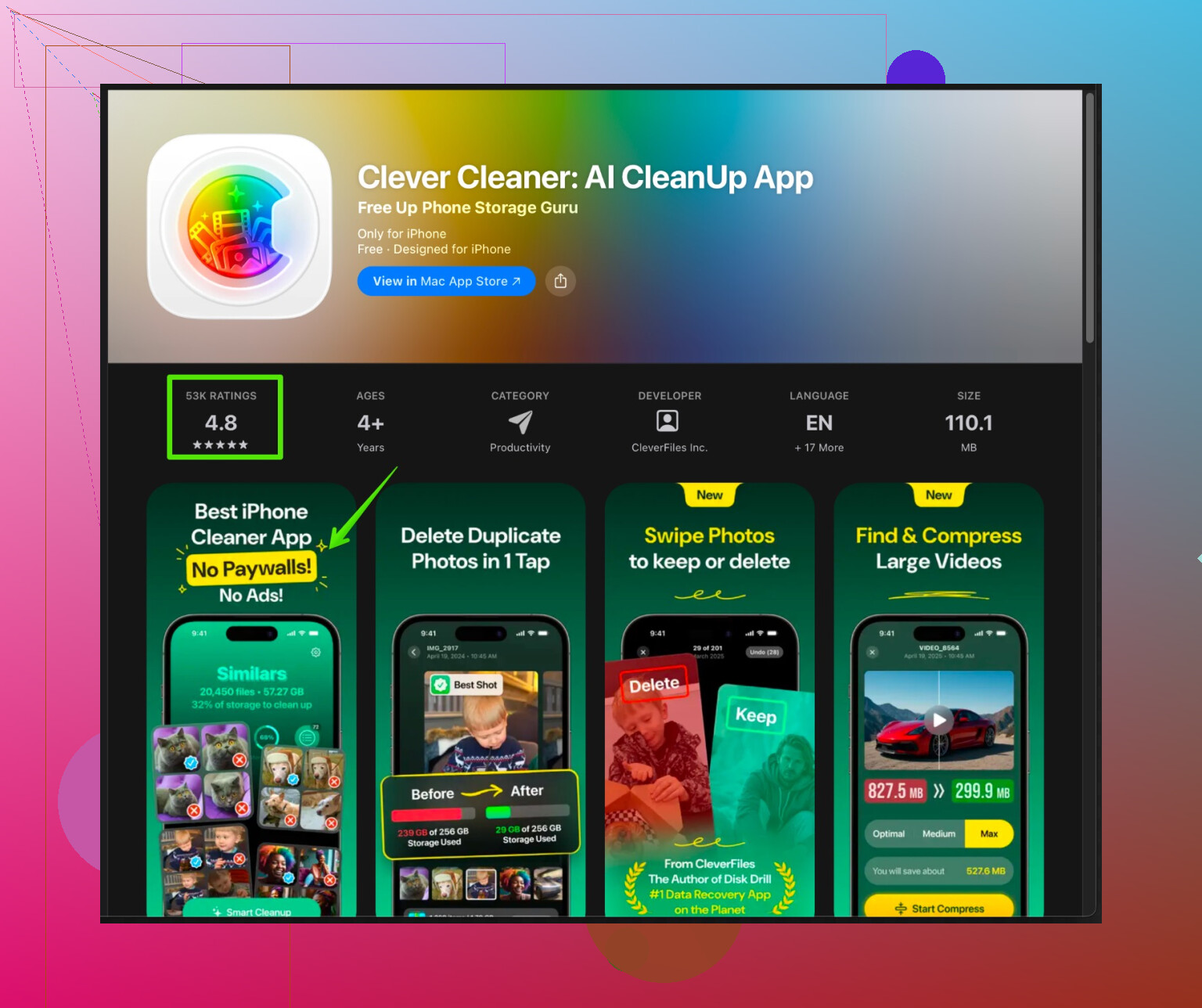
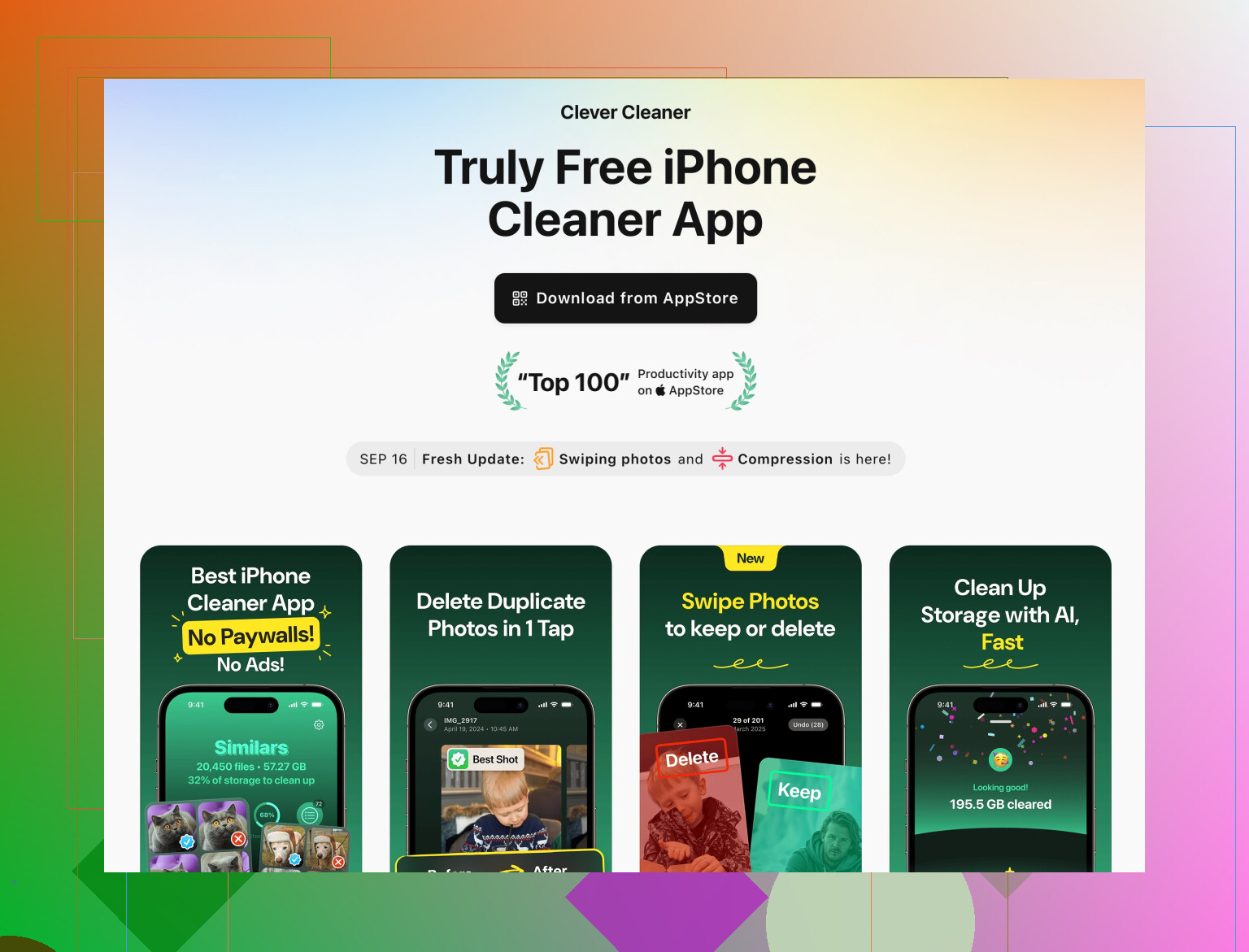
The Clever Cleaner App for iPhone searches for duplicate photos, similar shots, blurred images, big videos, and useless screenshots, then helps you bulk delete them with a few taps.
You can check it here: smart iPhone storage cleaner for photos and videos.
I removed over 3 GB in like 10 minutes from clones and old screenshots alone. Missed a typo in a folder name but did not miss those extra gigabytes. -
Last resort options
• Offload large games and editing apps you barely use.
• Move original videos to a computer or cloud, then delete them from the phone.
• If “System Data” is huge, a full backup to iCloud or computer then restore often shrinks it.
Do the Messages cleanup, Photos cleanup, and a pass with a cleaner app first. Those usually free enough space for updates and new photos without much pain.
1 Like
Yeah, that “storage almost full” pop‑up is the iPhone version of a panic attack. Since @stellacadente already covered the usual suspects pretty well, here are some other moves that help a lot and don’t just repeat their list:
-
Check for “phantom” storage
Sometimes iOS misreports or holds onto space.
• Go to Settings > General > iPhone Storage.
• Wait a full minute for it to recalc.
If it suddenly jumps after you delete stuff, that’s normal. If it barely changes, you probably have cached junk or “System Data” bloat. -
Kill huge app caches the blunt way
Some apps hoard GBs of cache with no simple “clear cache” button.
Instead of offloading, actually delete and reinstall the worst offenders:
• TikTok, Instagram, Facebook, Reddit, YouTube, Spotify, podcast apps, etc.
Check their size under iPhone Storage: if the “Documents & Data” part is massive, delete the app completely, then reinstall fresh from the App Store. This can easily free a few gigs, no joke. -
Podcasts and voice memos are sneaky
People forget these all the time.
• Podcasts: Apple Podcasts > Library > Downloaded > remove old episodes (sort by “Downloaded” or “Shows”).
If you use another app, open its settings and disable auto download or limit episodes.
• Voice Memos: Open the app, sort by size and delete long recordings. Then empty its Recently Deleted folder too. -
Stop apps from re-filling your storage
Cleaning once is pointless if stuff just piles back up.
A few quick limits:
• Settings > Podcasts > Automatically Download > turn off or keep only a couple episodes.
• Settings > Music > Optimize Storage and set a low max or turn off automatic downloads.
• In social apps, disable “save to camera roll” for every meme and story. -
Get brutal with 4K and slow‑mo video
If your camera is set to 4K or high FPS, each clip is huge.
• Settings > Camera > Record Video and drop it to 1080p 30 fps if you don’t need 4K.
• Do the same for slo‑mo.
Future videos will be way smaller, so you don’t end up in this mess again in two weeks. -
Move stuff off the phone properly
You already deleted photos, but a lot of people half‑do this and keep duplicates:
• Plug into a Mac or PC, import ALL photos and videos.
• Verify they’re there, then on the iPhone select big videos and old albums and delete.
• Go to Photos > Recently Deleted and clear it.
I know iCloud is easier, but if you’re close to your iCloud limit or don’t want to pay, old‑school export to computer is still the most reliable. -
System Data too big? Try this, but only if you’re patient
If “System Data” in iPhone Storage is like 10+ GB, that’s usually logs and caches that iOS refuses to explain.
Most consistent fix:
• Backup to iCloud or your computer.
• Settings > General > Transfer or Reset iPhone > Erase All Content and Settings.
• Set up your phone again from the backup.
Tedious, yeah, but it often cuts System Data in half. -
Use a smarter cleaner for photos & videos
I actually disagree a bit with relying only on built‑in Photos cleanup like @stellacadente suggested. Apple’s tools are ok, but they suck at finding near‑duplicates, bursts, and all those 17 slightly different selfies.
A dedicated cleaner is faster here. The Clever Cleaner App is solid for this: it finds duplicate and similar photos, blurry shots, giant videos, and random screenshots you forgot existed so you can bulk delete.
If you want something more discoverable and easy to skim, try this link:
smart iPhone cleanup tool for duplicate photos and big videos
Did a pass with it on mine and freed multiple GB without having to scroll my camera roll like a maniac.
If you need quick relief so you can update apps and take pics today, I’d do this order:
- Delete and reinstall the top 3 heaviest social / streaming apps.
- Nuke offline downloads in streaming and podcast apps.
- Run a pass with Clever Cleaner App for photos / videos.
- Clear Recently Deleted in Photos and Voice Memos.
That combo usually gets you enough space in 10–20 minutes without having to live like a digital minimalist monk.
If what @viaggiatoresolare and @stellacadente suggested still leaves you stuck in that “almost full” loop, you’re probably fighting three less obvious culprits: invisible leftovers, background syncing, and bad habits that refill space right after you clear it.
Here is a different angle, without rehashing their steps.
1. Stop iCloud from silently ballooning “System” and “Photos”
If you use iCloud Photos but are low on iCloud space, iOS gets weird:
- It may keep a lot more full‑res photos locally than needed.
- “System Data” can grow because sync keeps retrying.
Try this combo:
-
Temporarily disable cellular for Photos sync:
Settings > Cellular > scroll to Photos > turn it off.
That prevents background sync chaos while space is tight. -
If your iCloud is basically full, pause upgrades and instead:
- Export your oldest photos and videos to a computer or external drive.
- Then delete those batches from the phone and empty Recently Deleted.
I slightly disagree with relying only on “Optimize iPhone Storage”: it helps long term, but if iCloud is strained, it can feel like nothing is happening and you stay stuck.
2. Attack “Other” storage created by 3rd party clouds
Dropbox, Google Drive, OneDrive and similar apps can stash a lot of offline and cached files:
- Open each cloud app
- Look for: “Offline files,” “Available offline,” or “Keep on device”
- Remove anything large you do not need permanently on your phone
Then, if any of those apps still show as huge under Settings > General > iPhone Storage, consider:
- Logging out in the app, then back in
- Or deleting and reinstalling that specific app
This is different from what was already suggested for social apps, because cloud apps often keep heavy PDFs, zip files, or folders you forgot about.
3. Check hidden media inside note and file apps
A lot of people forget they have:
- Big PDFs, scanned docs, and exported presentations in:
- Files app > On My iPhone
- Third party notes like Notability, GoodNotes, etc.
In the Files app:
- Go to “On My iPhone”
- Sort by size (tap the three dots, change sort)
- Delete the really large stuff you no longer need
Notes or scanning apps can store hundreds of MB or more of PDFs and scans. Open them and look for “Storage” or “Manage backups.”
4. Rein in background downloads and auto saving
To avoid clearing space every week:
- In social apps, disable “auto save to camera roll” for stories, snaps, reels.
- In streaming apps (podcasts, music), limit auto downloads to “recent” or “unplayed only.”
- In messaging apps like WhatsApp or Telegram, turn off auto‑download for photos and videos or restrict to Wi‑Fi only.
This is where I differ a bit from both earlier posts: cleaning once is easy, but if you do not cut off the auto-download firehose, everything they told you to delete will just grow back.
5. Using a cleaner app in a smart way
Both others already mentioned cleanup tools, but here is a more nuanced take on the Clever Cleaner App in particular:
Pros of Clever Cleaner App
- Very fast way to locate:
- Duplicate or near-duplicate photos
- Screenshots, blurred shots, and very large videos
- Bulk selection is much quicker than manually scrolling your entire camera roll
- Good when your main problem is “too many similar photos and random screenshots”
Cons of Clever Cleaner App
- Like any aggressive cleaner, it can suggest deleting photos you might actually want, especially “similar” ones
- You still have to double check selections or you risk losing something important
- Does not fully replace manual review for special albums (family, work, receipts)
I would use Clever Cleaner App right after doing a basic pass in Photos. Think of it as a “second filter” that finds what you will definitely not catch by hand, not as a total replacement for your own judgment.
If you want alternatives, there are other photo and storage organizers that do similar duplicate detection. The reason I’d still lean on Clever Cleaner App in your situation is that it focuses on the big wins: very large videos and clusters of almost-identical photos, which translate directly into a few GB back in a short time.
6. When you still cannot update iOS or apps
If the phone refuses updates even after big cleanup:
- Temporarily remove one or two massive apps (big games, editing suites).
- Update iOS and all remaining apps.
- Reinstall those big apps only if you actually use them regularly.
Resetting from backup, like @viaggiatoresolare mentioned, is powerful but time consuming. I would treat that as a last measure only if:
- “System Data” is absurdly huge
- You have already done all of the above
- You have a reliable backup ready
Summary order if you want quick, non-repetitive wins:
- Tame iCloud / Photos behavior so it stops bloating.
- Clean cloud storage apps and Files > On My iPhone.
- Disable auto-save and aggressive auto-downloads.
- Run Clever Cleaner App for duplicate / similar photos and huge videos, but double check.
- Remove one or two biggest apps just long enough to install updates if needed.
That should give you both immediate breathing room and fewer “storage almost full” warnings in the future.