My iPhone storage is almost full, mostly from photos, videos, apps, and system data. I’m trying to free up space without deleting anything important or messing up iCloud Photos. What are the best safe ways to optimize iPhone storage and clear space?
If your iPhone is running out of space, the realistic answer is cleanup, cloud storage, or external storage. You can’t just add more internal storage to an iPhone like you would with a computer. The storage chip is soldered onto the logic board, and trying to replace it is risky, expensive, and not something I’d suggest for a normal user.
The better move is to get back as much space as possible from what’s already on the phone. A proper cleanup can free a lot more than people expect, especially if your photo library has been growing for years.
Clean out the biggest storage hogs first
Start in Settings > General > iPhone Storage. That screen shows what’s actually taking up space, so you’re not guessing. Apps, Messages, photos, videos, and downloaded files are usually the main culprits.
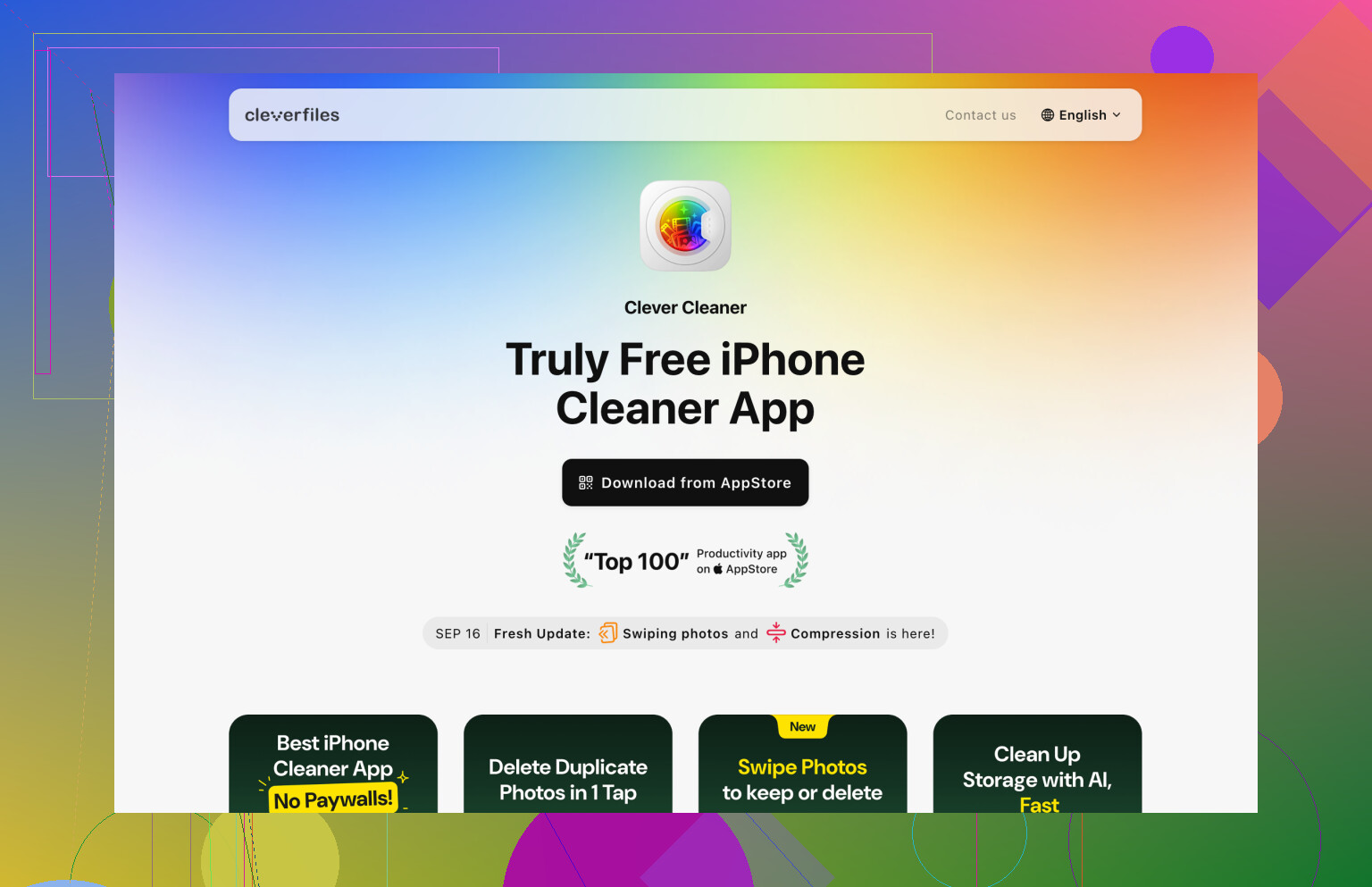
Photos and videos are usually where you’ll find the biggest wins. Apple Photos can help with exact duplicates, but it doesn’t go much further than that. If you want something more thorough, Clever Cleaner is worth looking at because it’s actually free to use for removing files and doesn’t force a subscription just to clean your library.
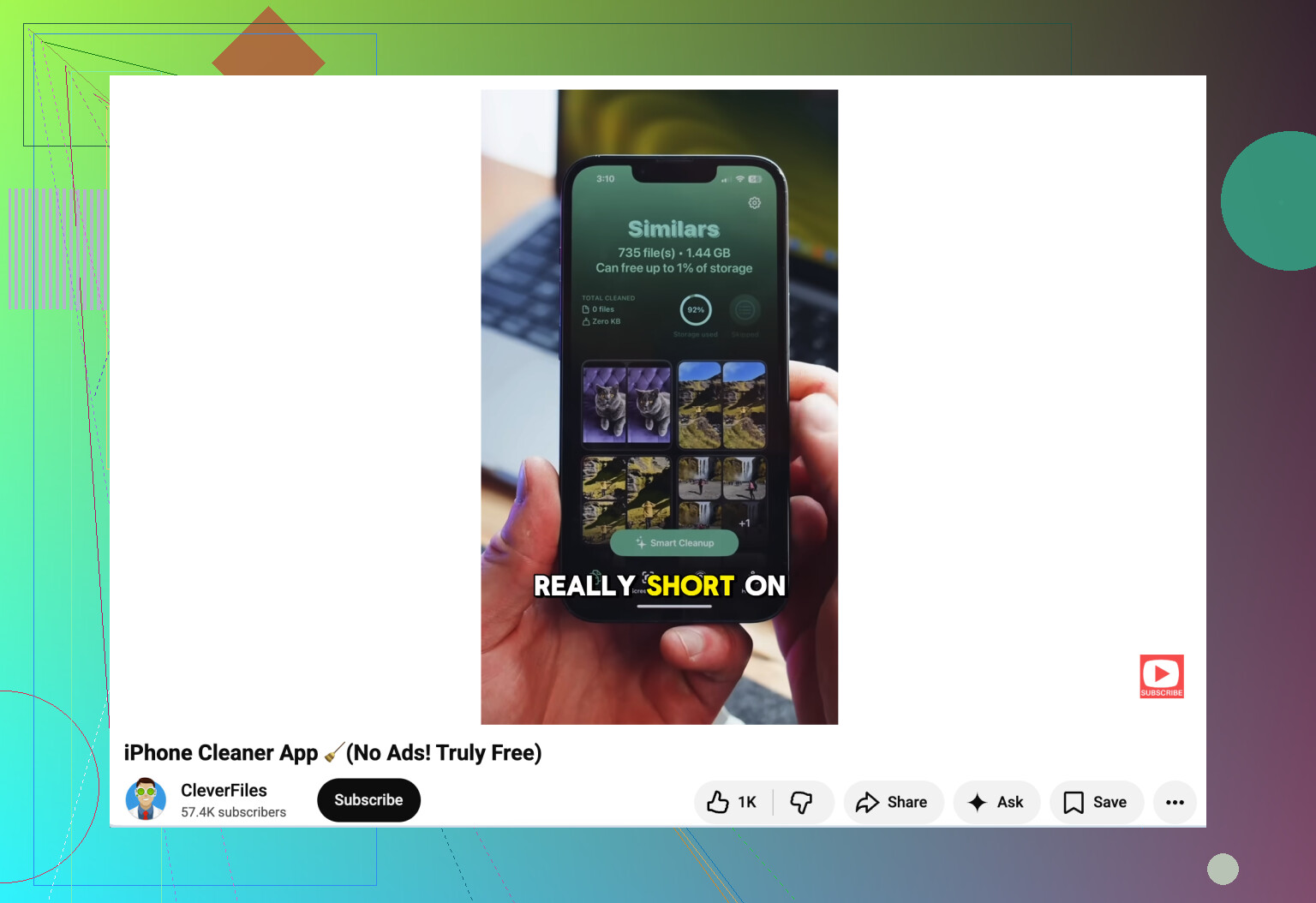
Its Similars tool groups photos that are almost the same and suggests which one to keep, which is useful if you take a lot of repeated shots. The Heavies section is also handy because it pulls up your largest videos, and those are often the files eating several gigabytes by themselves. It can also find screenshots, turn Live Photos into still images if you no longer care about the motion part, and let you review photos quickly with a swipe-style interface.
After that, go through your apps. Delete anything you don’t use anymore. If you might need an app again later but don’t want it installed right now, use Offload App instead. That removes the app itself but keeps its documents and settings.
Messages are easy to forget about, but they can build up a huge pile of attachments over time. Old videos, photos, GIFs, audio messages, and shared files can sit there for years. In the iPhone Storage section, you can review large attachments and delete only the stuff you don’t need, without wiping full conversations.
Keep less stuff stored locally
Once the obvious junk is gone, reduce how much your iPhone has to store on the device.
For photos, turn on Settings > Photos > Optimize iPhone Storage. Your phone will keep smaller versions locally and store the full-resolution originals in iCloud. When you open something, the full version downloads as needed.
Also check the Files app. PDFs, ZIP files, videos, downloads, and random documents can sit there for months without you noticing. If you use iCloud Drive, move files there and then use Remove Download so the cloud copy stays available, but the local copy stops taking up internal storage.
The catch is that Apple only gives you 5 GB of free iCloud storage, and that fills up fast. If you don’t want to pay for more iCloud space, you can use Google Drive, Dropbox, or OneDrive for files you don’t need sitting on the phone every day.
Use an external drive for big media files
If you work with large videos, RAW photos, or other bulky files, external storage may be less annoying than constantly trying to clear space.
USB-C iPhones can connect to external SSDs and flash drives directly. Older Lightning iPhones can use compatible Lightning storage accessories too. If you’re moving big files often, I’d pick an SSD over a basic flash drive. SSDs are faster, usually more reliable, and come in larger capacities, which makes them a better fit for video work or big photo libraries.
Skip the hardware “upgrade” idea
You may see videos where someone upgrades an iPhone from something like 128 GB to 512 GB by replacing the NAND storage chip. Technically, specialized repair shops with the right microsoldering tools can do that kind of work. That does not make it a practical upgrade for most people.
Taking apart the phone and soldering on a different storage chip can easily ruin the logic board. Even if the chip swap works, the phone still has to be programmed correctly afterward. At that point, it’s a complex repair job, not a normal storage upgrade.
For almost everyone, the safer answer is simple: clean up the phone, move older files to the cloud, and use external storage when you need it. That gets you more usable space without risking the whole device.
1 Like
Turning on Optimize iPhone Storage is not the same as making a separate backup. It saves space by keeping smaller local copies, but iCloud Photos is still a sync system, so if you delete a photo on the iPhone, it deletes from iCloud too. Before doing any big cleanup, make sure iCloud Photos says it has finished syncing, then back up anything truly important somewhere else, like a computer, external drive, or another cloud account. After that, use Optimize iPhone Storage, clear large videos/attachments, and offload apps. Just don’t “free space” by deleting photos from the Photos app unless you actually want them gone everywhere.
Free up a little breathing room before changing photo settings. If the phone is down to almost zero space, iCloud Photos can get stuck, apps crash during cleanup, and “Optimize iPhone Storage” may not have enough room to sort itself out. I’d first delete or offload a couple of large apps you can easily reinstall, clear downloaded Netflix/Spotify/YouTube stuff, and remove big files from Files/Downloads. That gives the phone space to actually work.
The easy thing people miss is that deleted photos are not really gone until “Recently Deleted” is emptied. So if you delete test photos or duplicate videos, then wonder why storage did not change much, check Photos > Albums > Recently Deleted. Same idea with Messages attachments: deleting a giant video from a chat can help, but only if you’re sure it is not the only copy.
I agree with @andarilhonoturno on the main warning: don’t treat iCloud Photos like a backup drawer. It mirrors changes. My safer order would be: make sure iCloud Photos says it is synced, copy anything irreplaceable somewhere outside iCloud Photos, then turn on Optimize iPhone Storage. After that, clean selectively. A cleaner app like Clever Cleaner can be useful for spotting similar shots or huge videos, but I’d still review before deleting anything. The fastest way to lose photos is trusting any automatic cleanup too much.