My exFAT external drive suddenly became unreadable, and Windows is asking me to format it before I can use it. I have important files on it and don’t want to lose anything. What’s the safest way to recover data from an exFAT drive before formatting?
If this just happened, the main thing is to stop touching the drive. Don’t copy anything to it, don’t save recovered files back onto it, don’t run random repair tools, and don’t format it because Windows or macOS suggests it. With exFAT, deleted files often aren’t wiped right away. The space just gets marked as free, so the data may still be there until something overwrites it.
If the external SSD still shows up, I’d try recovery before doing any repair work. Disk Drill is a decent option for this kind of thing since it handles exFAT and can scan for deleted files, formatted volumes, and some corruption cases.
The safer way to go about it:
- If the drive is acting weird, like disconnecting or freezing, make a disk image first and scan that instead of scanning the actual SSD.
- Run a Universal Scan.
- Preview the files before restoring them. If photos, videos, docs, etc. open in preview, that’s usually a good sign.
- Recover the files to a different drive. Never restore them back to the same exFAT drive you’re scanning.
If the problem is corruption, RAW file system, “you need to format this drive,” or similar errors, don’t click format yet. Recovery tools can sometimes read the data even when the OS can’t mount the drive normally. Get the important files off first, then worry about repairing or reformatting it.
A quick format is also not automatically the end. It usually rebuilds the file system structure without wiping every file’s contents, so recovery can still work if you stopped using the drive afterward. A full format is much worse because it overwrites data, so the odds drop a lot.
I’d also check the SSD’s health before doing long scans. On Windows, CrystalDiskInfo is good for that, and Disk Drill has SMART monitoring too. If you see a bunch of reallocated or pending sectors, or the drive keeps vanishing, disconnecting, clicking, or failing during scans, stop messing with it and look at a professional recovery service instead.
So for the usual exFAT messes:
- Deleted the wrong folder? Yes, recovery is worth trying.
- Corrupted external exFAT drive? Recover the files first, repair later.
- Quick formatted it by accident? Still possible, especially if nothing new was written to it.
- Thinking about formatting before recovery? Don’t. Recover first, then format if needed.
The file system matters, but the bigger issue is whether the lost data has been overwritten. If you stopped using the drive right away, you’re in a much better spot.
1 Like
Whether the drive shows the correct size in Disk Management matters a lot. If Windows says it needs formatting but Disk Management still shows the real capacity, that is usually a better sign than “No Media,” 0 bytes, or some tiny wrong size. The first case is often file system damage. The second can mean the enclosure, controller, or the drive itself is failing, and recovery software may just waste time or stress it more.
I agree with the “recover first, repair later” advice, but I’d be extra careful with CHKDSK here. A lot of people see an unreadable exFAT volume and immediately run chkdsk /f because Windows suggests repairs. That can change directory entries and orphan files, which is the opposite of what you want before recovery. If the data matters, make an image or clone first, then scan the copy. Disk Drill can be fine for a logical exFAT problem, but I would not make the original drive sit through repeated full scans if it is disconnecting or getting slow.
Also try the simple hardware checks before assuming the file system is the only problem: different USB cable, different port, avoid hubs, and if it is a 2.5’ portable drive, make sure it is getting enough power. Do not format it “just to make it usable” unless you already have the files copied somewhere else. The safe order is: verify it detects at the right size, image/clone if possible, recover to another disk, then reformat or replace the drive afterward.

Whether this is a spinning external HDD, an SSD, or a little USB flash drive changes how brave I’d be with software scans. A normal hard drive that is starting to fail can get worse while you scan it. A flash drive or SSD can have controller issues where it looks fine until it suddenly drops offline. If the files are truly important and not backed up anywhere, the safest “first step” is not a recovery app, it is deciding whether you can risk DIY at all.
I agree with @stellacadente on the clone/image-first approach, but there’s a catch people miss: you need somewhere else with enough free space to hold the whole device image, not just the used files. A 2 TB drive usually means planning for roughly 2 TB of destination space. If the drive is stable and shows the correct size, then scanning the image with Disk Drill or another recovery tool is reasonable. If the drive keeps disconnecting, gets very slow, makes clicking noises, or vanishes from Disk Management, stop. Repeated “just one more scan” attempts are how a recoverable case turns into a worse one.
Do not click Format, do not Initialize, and do not run CHKDSK on the original. Even if Windows says the volume is RAW or needs formatting, that is only Windows saying it cannot mount the file system cleanly. Recovery tools may still be able to read the old directory structure or at least carve files from the data area. After the files are recovered to a separate drive and checked, then you can wipe/reformat the external drive, or better yet replace it if there were any signs of hardware trouble.
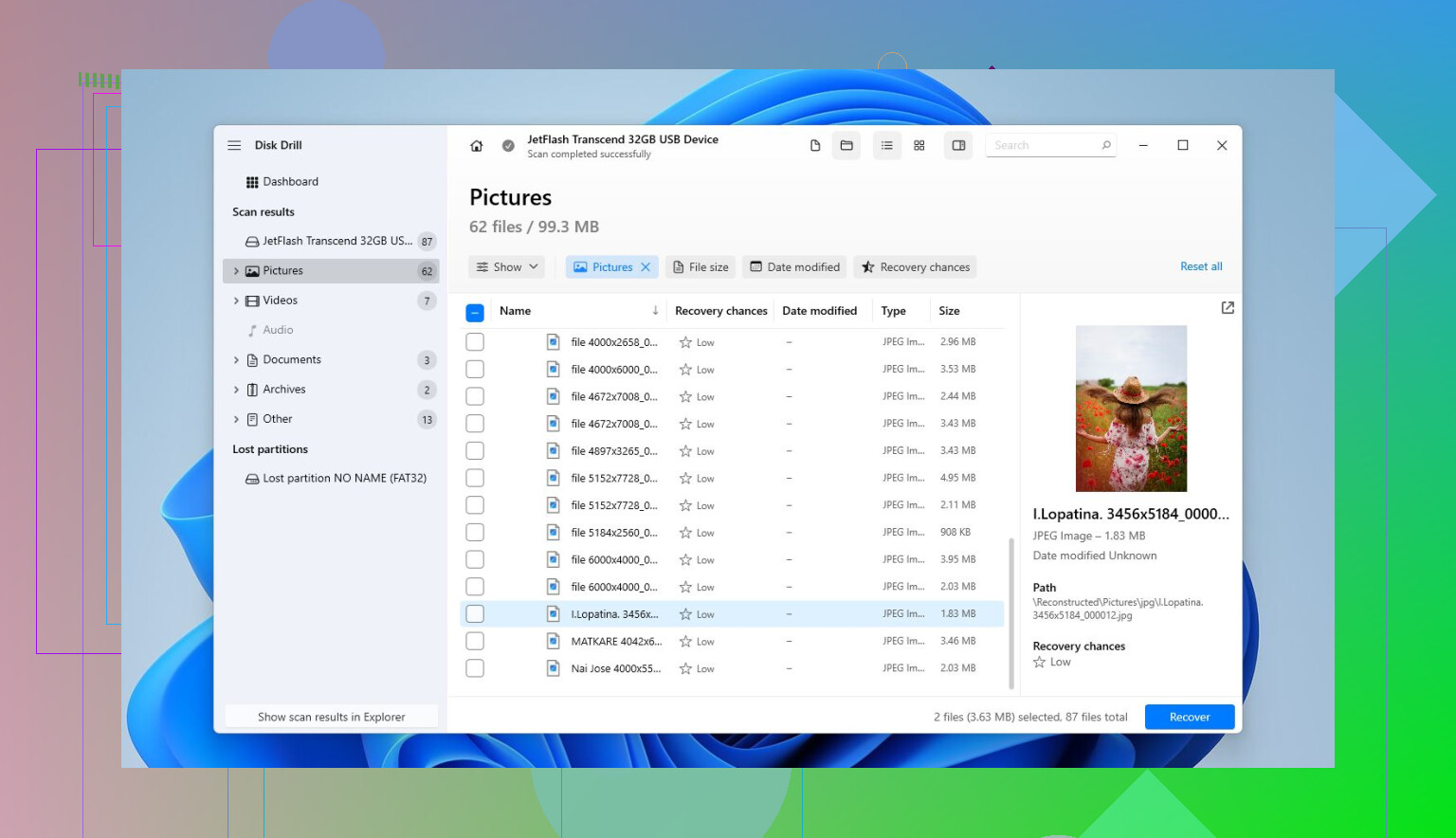
Unplug it if Windows keeps throwing format or repair popups, because the wrong click is easier than people think. Before running Disk Drill or any other recovery scan, close backup/sync apps, photo importers, and “cleanup” tools so nothing tries to write to the drive in the background.