I transferred a large batch of Live Photos from my iPhone to my computer to free up storage, but I’m not sure if it’s safe to delete them from the iPhone now without losing anything important. I need help understanding whether the full Live Photo files were copied correctly and what to check before removing them.
I ran into this a while back. My Photos library had turned into a pile of Live Photos, and I almost never played the motion part. I wanted the pictures, not the extra few seconds stuck to them.
I tried the iPhone way first. It works, sort of. You duplicate each Live Photo as a still image, then remove the original. Fine for ten photos. Miserable for a few hundred. I quit halfway through.
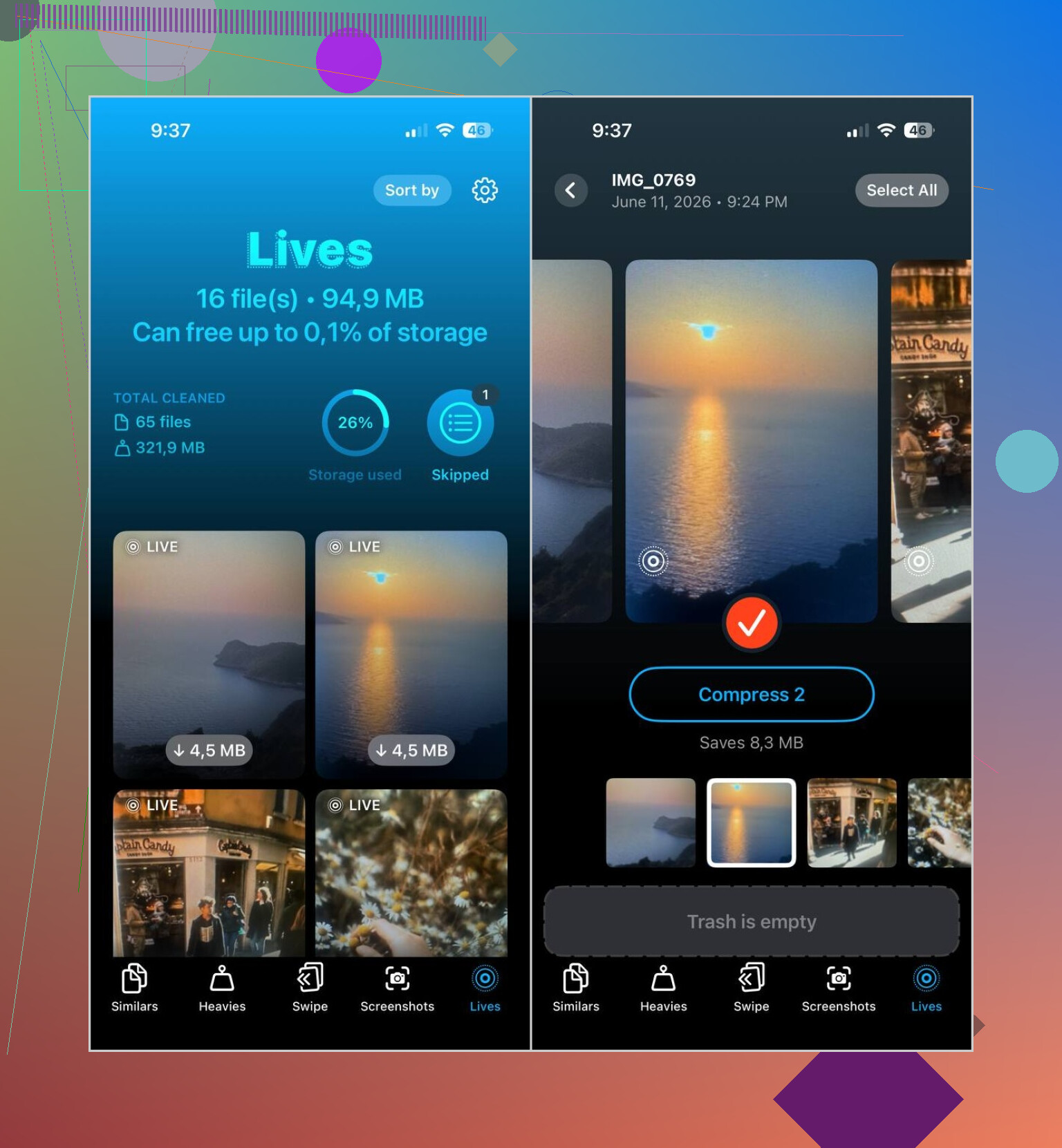
What worked for me was Clever Cleaner. I opened it, went to the Lives section, and it pulled all my Live Photos into one place. No scrolling through random albums. No guessing what was live and what wasn’t.
Here’s the flow I used:
- Open the Lives tab
- Sort by size if you want to clear the biggest files first
- Pick the Live Photos you want changed
- Tap Compress
- Check the new still versions
- Delete the original Live Photos if everything looks right
One part I liked, it shows the storage savings before you do anything. Then after the conversion, it asks what to do with the originals. I didn’t feel like I was one bad tap away from nuking family photos. Typo fear is real when you’re cleaning your library half awake.
I kept using the app after that. The Live Photo cleanup was only the first pass. I used Similars to wipe duplicate shots, Heavies to find huge old videos I forgot about, and Screenshots to clear out years of junk captures. For me, those three cleaned out more space than the Live Photos did.
If you want to stop this mess from building up again, turn Live Photos off in the Camera app. Open Camera, tap the Live Photos icon near the top, the circles one, and make sure it has the slash through it. Then go to Settings > Camera > Preserve Settings and keep Live Photos preserved there. If you skip that part, iOS sometimes flips it back on and you end up stockpiling more without noticing. Annoyng, but true.
So yeah, my fix was simple. Convert the Live Photos you already have into stills, delete the originals, then stop the camera from making new ones. After I did that, I stopped thinking about Live Photos at all.
1 Like
Yes, if the transfer to your computer is complete and the files open fine there, you can delete the Live Photos from your iPhone.
The part people miss is this. A Live Photo is usually more than one file. You have the still image, plus the short motion/audio part. On Windows, some import tools copy only the JPG. On Mac Photos, Image Capture, or a full export from Photos, you usually get both parts. So check before deleting.
Do this first.
- Open a few transferred items on your computer.
- See if they play as Live Photos, or if you at least have both the photo and video part.
- Confirm file counts match, or are close.
- Keep one backup on an external drive if the pics matter.
If your computer only has the still shots, deleting from iPhone means you lose the motion clip. For some people, no big deal. For family stuff, I woudn’t rush it.
I slightly disagree with @mikeappsreviewer on one point. Converting all Live Photos to stills is fine for storage, but not if you want to preserve the original format long term. If you care about keeping everything, store the originals first, then clean the phone.
If your goal is free space on the phone, Clever Cleaner is decent for sorting big media fast, especially if your library is a mess. Also worth checking this for clearing iPhone storage fast and free, how to clear iPhone storage fast and free.
One more thing. After deletion, empty Recently Deleted, or the storage won’t come back right away. That trips up alot of people.
Yes, you can delete them from the iPhone, but only after you verify what actually got transferred.
This is where I slightly part ways with @mikeappsreviewer. If your goal is just space, converting everything to stills is fine. But if you care about keeping the Live Photo effect, do not assume your computer import kept the motion part. A lot of people think ‘transfer complete’ means everything is safe, then later realize they only saved the JPG.
What I’d check first:
- open random transferred files on the computer
- see whether the motion part exists, not just the image
- compare total item count with what was on the phone
- make sure they’re backed up somewhere besides that one computer
Also, if you use iCloud Photos, be careful. Deleting from iPhone can delete from iCloud too, which then syncs the deletion everywhere. That catches people off guard allll the time.
@sterrenkijker is right about Recently Deleted too. Until you clear that album, storage may not come back right away.
If your library is a mess and you want to sort Live Photos before deleting, Clever Cleaner is actually useful for spotting bulky media fast. This guide on freeing up iPhone storage with Clever Cleaner explains it pretty clearly.
Short version: safe to delete, yes. Safe to delete without checking first, nope.