My hard drive suddenly stopped working, and I’m worried about losing important photos, work documents, and personal files. I need help figuring out the safest way to recover data from a failing hard drive without making the damage worse. If anyone knows reliable hard drive data recovery steps or tools, I’d really appreciate the advice.
Sorry you’re stuck with this. I’ve been there, and the first thing I’d do is stop writing anything to the drive. No downloads. No installs. Don’t save recovered files back onto it either. A drive with missing data is like wet cement. Keep stepping on it and you lose what was still there.
Before running recovery tools, check whether the drive is failing in a physical way. If I hear clicking, grinding, or weird beeps, I unplug it. Same if it drops off randomly or only appears once in a while. Repeated scans on a damaged drive made things worse for me once, so I quit doing cowboy stuff with sick disks.
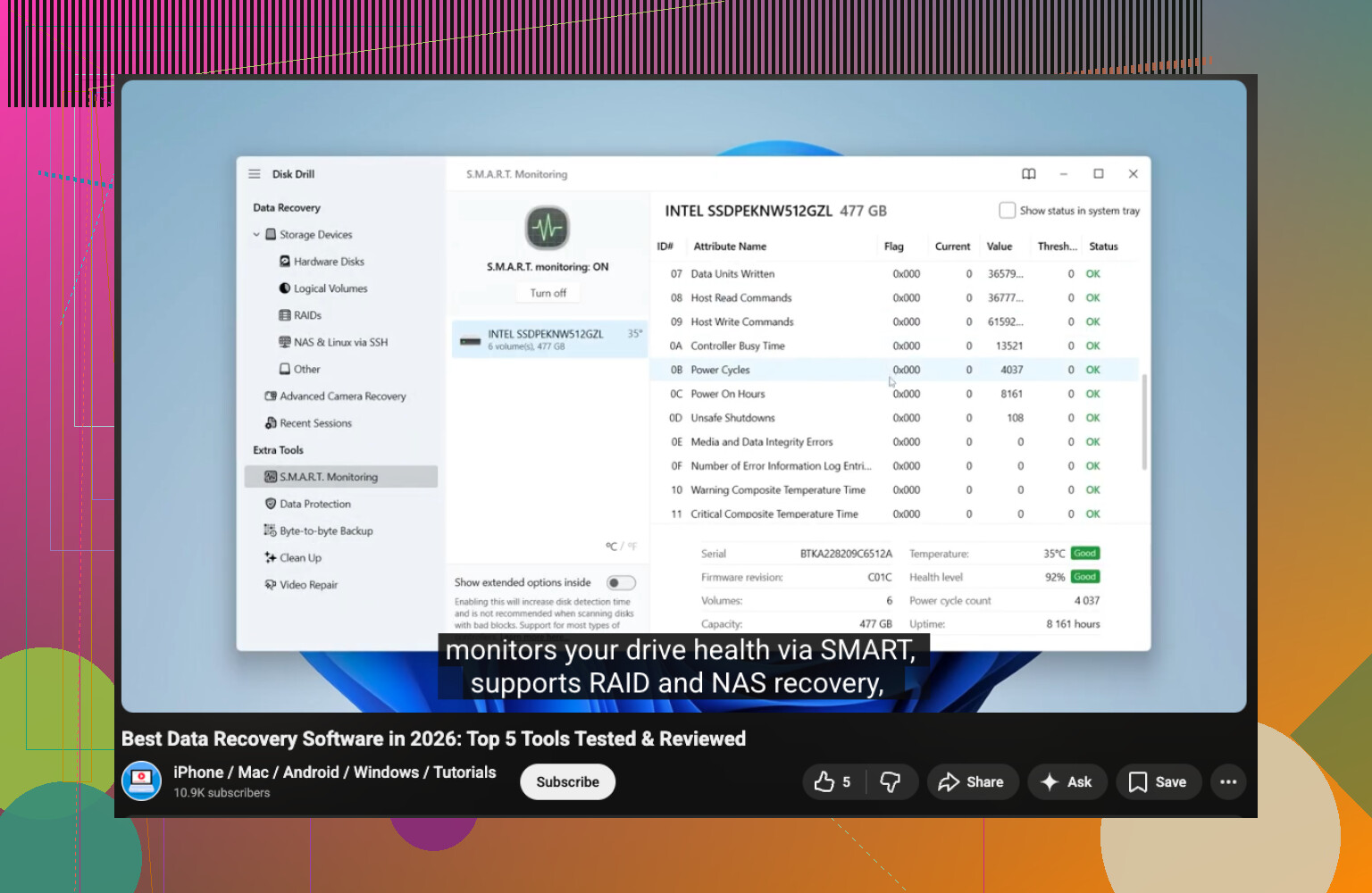
If the drive shows up normally, I look at S.M.A.R.T. health first. CrystalDiskInfo works. Disk Drill has S.M.A.R.T. monitoring too. If you see warnings or bad sectors piling up, grab the important files first and keep drive activity low.
If the disk still responds, I’d start with Disk Drill - Best Data Recovery Software for Mac & Windows. Free Try!. It’s one of the easier tools I’ve used for deleted files, formatted partitions, and busted file systems without turning the whole thing into a weekend project.
What I did:
- Install Disk Drill on a different drive.
- Plug in the problem drive.
- Open Disk Drill and pick the correct disk.
- Hit Search for lost data.
- Let the scan finish. Don’t cut it short if you want the full file list.
- Use search and filters to narrow things down.
- Preview some files first. This saved me time more than once.
- Recover the important stuff first.
- Save recovered files to another HDD, SSD, or USB drive. Not the same disk. Ever.
Also, check the boring stuff before you spend hours scanning. I found missing files in Recycle Bin once and felt dumb for skipping it. Look in File History, OneDrive, Time Machine, and any old external backup you forgot existed. Sometimes the fast answer is sitting there.
If Disk Drill comes up short, I’d try Windows File Recovery, Data Rescue, or AnyRecover next. If the drive is making noise or acting half-dead, I’d stop the home recovery attempts there. At that point, a recovery lab is the safer move.
1 Like
First, stop power-cycling the drive. Every spin-up matters on a dying disk. I agree with @mikeappsreviewer on avoiding writes, but I’d go one step earlier than scanning. Make a sector-by-sector image first if the drive still reads. Work from the copy, not the original. That cuts risk a lot.
Use a USB dock or direct SATA if possible. Some cheap USB bridges drop errors or hide SMART data. If the drive is slow but readable, image it with ddrescue on Linux. It keeps a map, skips bad areas, then retries later. Way safer than hammering the disk with repeated full scans. If you don’t know Linux, ask a freind who does. It’s worth it.
Then run recovery on the image. Disk Drill is fine for this and easy to sort through if you need the best data recovery software for photos, docs, and damaged partitions. Preview files first. Recover to a different drive with lots of free space.
One thing I disagree on a bit, SMART is useful, but don’t wait on it too much. I’ve seen drives die with “ok” stats.
If the drive is clicking, not spinning, or vanishes from BIOS, stop DIY. Lab time. Also swap cable, port, and power first. Sounds dumb, saves hours. If you want a quick visual guide, watch this hard drive recovery walkthrough here, safe hard drive data recovery steps.
First thing, don’t do the classic panic move and keep rebooting it 20 times. That’s how a “maybe recoverable” drive turns into a paperweight. I mostly agree with @mikeappsreviewer and @yozora, but I’m a little less eager to poke around too much if the drive is acting sketchy.
My take:
- If it clicks, grinds, smells weird, or disappears randomly, stop DIY.
- If it mounts read-only or very slowly, copy the most irreplaceable stuff first.
- If it’s an external drive, try a different cable, enclosure, or power adapter. I’ve seen the USB board die while the actual disk was fine.
- If it’s an internal HDD, test it from another computer before declaring it dead.
One thing people skip: check Event Viewer on Windows or Disk Utility on Mac for I/O errors. That can tell you fast whether this is file system damage vs actual hardware trouble.
For software, Disk Drill is a solid pick if the drive is still readable. It’s easy enough that you don’t need to spend six hours arguing with terminal commands. Just don’t install it on the bad drive, and don’t recover files back onto that same disk. Obvious, but people still do it somehow lol.
If you want more opinions before using it, this Disk Drill review and recovery discussion is worth a look.
Small disagreement with the usual advice: sometimes chasing full recovery of everything is the wrong goal. Go after the important photos, docs, tax stuff, project files first. The drive may not stay alive long enugh for a giant perfect scan. Prioritize, then get fancy later.
I’m with @yozora on one big point: treat the drive like it has a limited number of chances left. But I’ll push back a little on the “scan soon” instinct. If the disk is unstable, even a friendly recovery app can still stress it more than you want. Sometimes the safest move is not software first, but deciding whether this is actually a hardware case.
Quick triage I’d do:
- Drive spins, mounts, and stays visible: DIY is still on the table.
- Drive spins up, disappears, freezes Explorer/Finder, or reads at snail speed: high risk, minimize attempts.
- Clicking, grinding, burnt smell, not detected in BIOS/UEFI: stop. Lab only.
One thing not mentioned enough is heat. Failing HDDs often get worse as they warm up. If it’s barely readable, do short recovery sessions, then let it rest. Not magic, just practical.
For externals, I agree with @nachtschatten that the enclosure can be the real problem. But be careful opening some portable drives because certain WD models use onboard USB encryption. Pulling the bare drive can make the data look scrambled unless the original board still works.
If the disk is readable enough for software recovery, Disk Drill is reasonable because it’s easy to preview and prioritize files. Pros: clean interface, good for photos/docs, useful previews, less intimidating than command-line tools. Cons: deeper scans can take forever, results can get messy on badly damaged file systems, and it’s not a substitute for imaging a truly failing disk.
Also worth knowing: if Disk Drill doesn’t find a folder structure, that doesn’t always mean the files are gone. Raw recovery often brings files back without names/paths. Ugly, but usable.
I’d use recovery software only after confirming you have another destination drive ready, with plenty of free space. And unlike @mikeappsreviewer’s “full scan first” vibe, I’d prioritize the irreplaceable stuff before chasing every last recoverable fragment.