My iPhone photo library is full of duplicate pictures, and it’s taking up a lot of storage. I’m trying to figure out the easiest way to merge duplicate photos on iPhone without losing anything important. I probably created extras after syncing and restoring, and now I need help cleaning them up safely.
I started with the built-in Apple option, since it’s already there and costs nothing.
Open Photos. Scroll to Utilities, or Collections > Utilities on newer iOS versions. Tap Duplicates, then Select, Select All, and Merge.
What happens after that is simple. iOS keeps one copy, pulls together the metadata it finds, and sends the extra files to Recently Deleted. One thing I noticed after a big import, the Duplicates section did not fill up right away. It took a while because the scan runs in the background. A few hours, sometiems longer.
The catch is pretty small but important. Apple only catches exact duplicates. Same file, same photo. If your library is full of near-matches, like five shots of the same dog from three seconds apart, burst photos, or repeated attempts at the same sunset, those do not show up there.
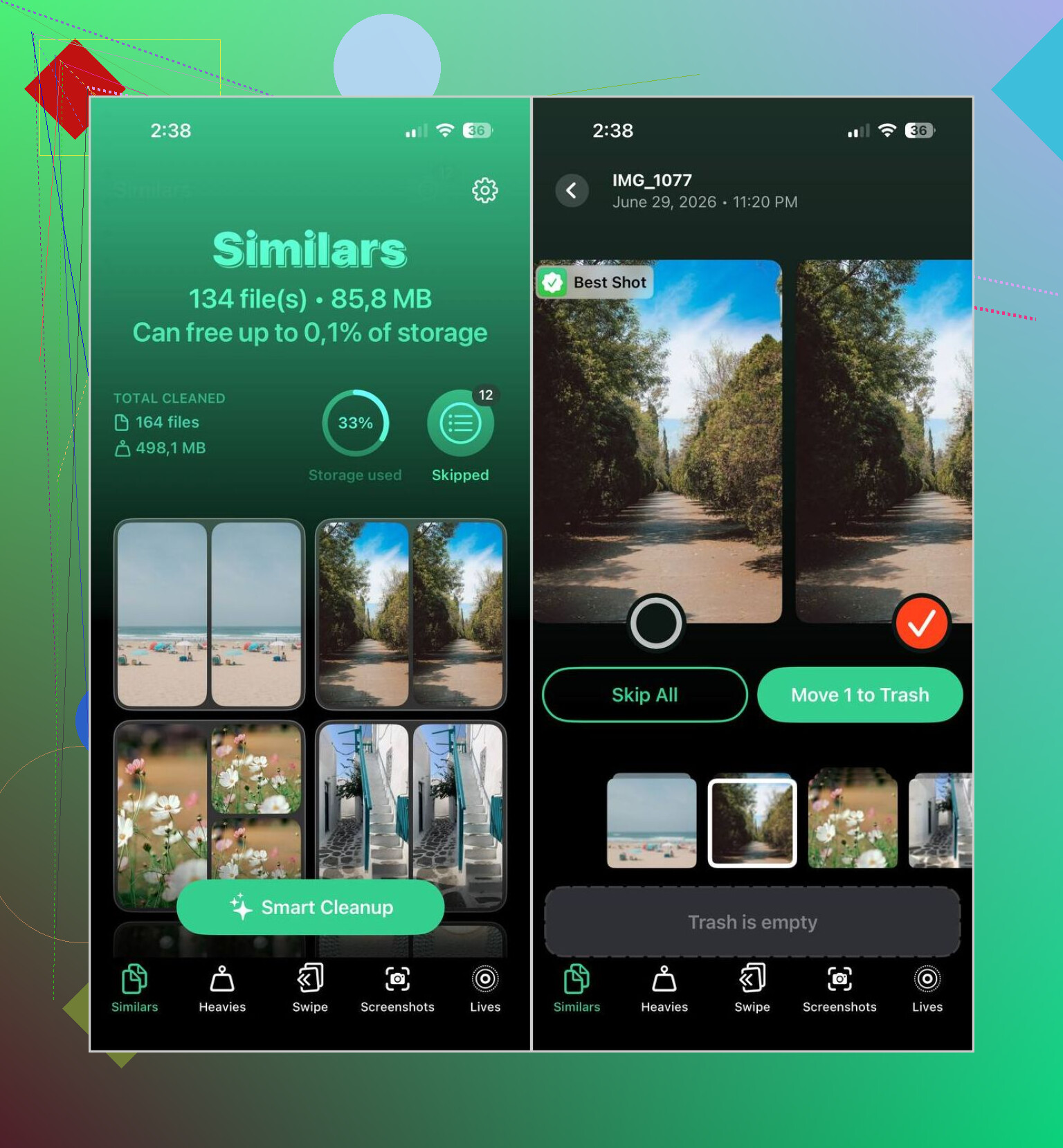
That gap is why I ended up using Clever Cleaner more often. It sorts both duplicates and similar-looking photos, which is what made the bigger dent for me. It groups related shots, picks a likely best image, and still lets you check everything before anything gets removed.
The way I used it:
- Install Clever Cleaner from the App Store.
- Give it access to scan your photo library.
- Open the Similars tab.
- Run Smart Cleanup, or go group by group yourself.
- Put back anything you want to keep.
- Confirm the cleanup.
- Empty Recently Deleted in Photos if you want the storage space back right away.
A few other parts of it were more useful than I expected:
- Heavies shows the biggest photos and videos first.
- Video Compression shrinks large videos without deleting them.
- Screenshots helps clear old screenshot piles fast.
- Lives turns Live Photos into regular stills.
- Swipe gives you a quick left and right review flow for your library.
If you’d rather skip third-party apps, I’d still do a few manual passes:
- Use Search in Photos to narrow things down by person, place, event, or object, then delete the extra lookalikes yourself.
- Check Burst albums and keep the strongest frame.
- If you use Photos on a Mac, Smart Albums make manual cleanup less annoying.
- Look in Recently Deleted after you finish. Until you clear it, the storage is still being used.
So yeah, for exact duplicate files, Apple’s built-in merge tool works fine. For the messier stuff, near-identical shots, repeat takes, accidental clutter, I got better results from something built to catch similar images too.
1 Like
I’d split this into two jobs.
First, merge true duplicates with Apple Photos. @mikeappsreviewer already covered that part, so I won’t repeat it. It works fine for exact copies.
Second, clean up the stuff Apple misses. This is where most people lose space. Near-identical shots, burst leftovers, WhatsApp re-saves, edited copies, screenshots. Apple does a weak job there, imo.
My take, do this before deleting anything:
- Sort your library by largest videos first. Videos often eat more space than dupes.
- Check screenshots and downloaded images. Those folders get messy fast.
- Review burst photo sets. Keep one, trash the rest.
- If iCloud Photos is on, make sure your deletions sync before assuming storage is free.
If you want faster cleanup, Clever Cleaner is worth a look because it catches similar photos, not only exact dupes. That matters more in real life. I don’t love trusting auto-picks blindly, so I’d review each group first. Safer that way.
Also, if your storage is full, this helps: running out of iPhone storage, here’s a faster way to free up space
One more thing people miss. After deleting, empty Recently Deleted, or the space wont come back right away. That trips up a lot of ppl.
I’d do one thing a little differently than @mikeappsreviewer and @ombrasilente. Don’t start by mass-merging or mass-deleting if your library is a mess and you care about old memories. First, make sure iCloud Photos has fully synced, or do a quick backup. Sounds boring, but it saves a lot of regret later.
Also, “merge duplicate photos” on iPhone is kinda misleading. Apple merges exact duplicates well enough, but the real storage hogs are usually similar shots, screen recordings, giant videos, and edited copies. Dupes are only part of the problem.
What helped me was breaking it up like this:
- Check your storage in Settings > General > iPhone Storage > Photos
- See whether Photos is the real issue, or if videos/apps are worse
- Review albums that create clutter, like selfies, screenshots, imports, and bursts
- Only then clean duplicate and similar photos
That’s where Clever Cleaner makes more sense than doing everything manually, because it’s not just about duplicate photo removal on iPhone, it helps sort similar images too. More practical, less “why do I still have no space?” vibes.
If you want a solid explainer on the easiest way to find duplicate and similar photos in Apple Photos, that’s worth a read too.
One tiny warning: if you use Shared Library or sync with a Mac, deletions can get confusing fast. Double check where the photo lives befor you wipe a whole batch. That part gets ppl.