I’m trying to recover lost files from a CompactFlash card after it suddenly stopped showing my photos on my camera and computer. These images are really important, and I’m worried I might make things worse by trying random fixes. What are the safest CF card recovery steps or tools to use?
CF card looks empty? I’d stop and do this first
Yeah, I’ve seen this happen. A CompactFlash card shows up blank, or your camera says it wants to format it, and your stomach drops. It feels like the shoot is gone. Sometimes it isn’t.
What often breaks first is the file table, not the photo data itself. Your computer loses the map. The files might still be sitting on the card until something new writes over them.
First step, stop touching the card
If you want the best shot at getting your files back, do this right away:
- Take the CF card out of the camera.
- Do not shoot more photos on it.
- Do not copy anything onto it.
- Do not approve any format warning.
- Do not run repair tools yet.
I did this wrong once with an old SanDisk card. I put it back in the camera to “check one more time.” Bad move. Every extra write raises the risk.
What I’d try before anything else
If there’s no backup, I’d go with recovery software first. For a card your computer still detects, this is usually the least messy option.
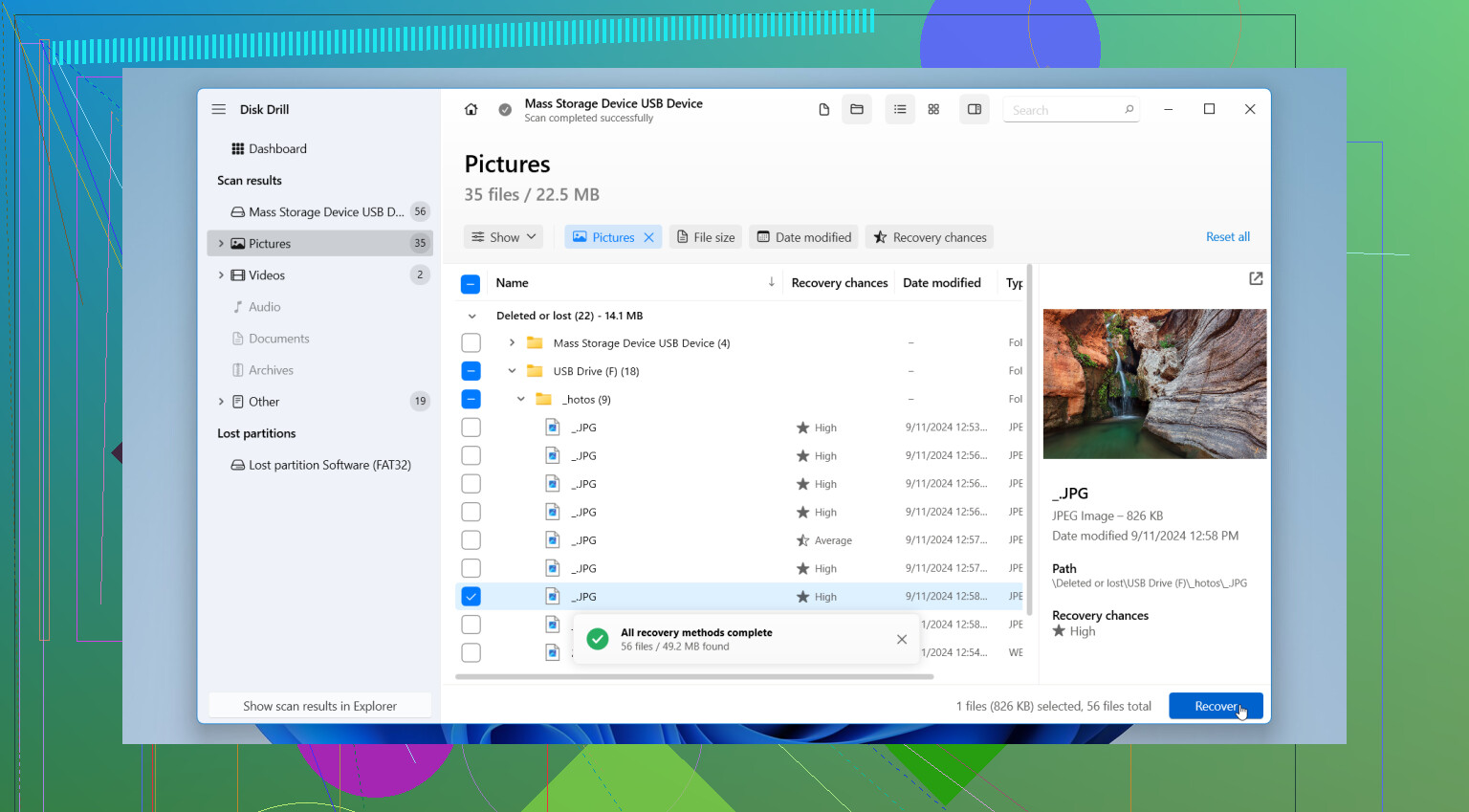
I’d start with Disk Drill.
Reason is simple. It’s easy to use, it reads common CF formats like FAT32 and exFAT, and it tends to find the camera files people care about, JPG, CR2, CR3, NEF, ARW, MOV, MP4. The preview part matters more than people think. If a file previews cleanly, your odds are better.
The exact recovery flow I’d use
1. Pull the card and leave it alone
Set it aside. No more camera use until you’re done recovering.
2. Use a real CF card reader
Plug the card into a dedicated reader. I would skip connecting the camera over USB. Readers usually expose the card more directly, and recovery apps tend to behave better with them.
3. Install the app on your computer
Do not install anything onto the CF card. Sounds obvious, but I’ve seen people pick the wrong drive in a hurry.
4. Scan the card
Open Disk Drill, pick the CF card, run a full scan, and let it finish. If the card mounts and stays stable, let the scan complete fully. Don’t keep canceling and restarting because it looks slow.
5. Check previews
Look through the found photos and videos before recovering. If the previews open, those files usually have a better chance of coming back in usable shape.
6. Save recovered files somewhere else
Put them on your internal drive, an external SSD, or another storage device. Not back onto the CF card. Ever. I know this sounds obvious too, but panic makes people do weird stuff, me included tbh.
If the card is acting weird
This part matters.
If the card reads slowly, drops connection, throws read errors, or freezes during scan, I’d make a byte-for-byte image first and scan the image instead of hammering the original card over and over. Less stress on failing media. Safer workflow.
And I would skip CHKDSK, macOS First Aid, or other “repair” options until after recovery. Those tools write changes to the file system. If your goal is rescue, not cleanup, don’t let them touch the card yet.
Get the files first. Fix the card later.
When software stops making sense
Sometimes the card is past the DIY stage.
I’d look at a recovery service if any of this is happening:
- The card is not detected on any computer
- The pins look bent or damaged
- The card gets hot
- It keeps disconnecting
- The files are too important to gamble with
If the card still shows up normally, software recovery is usually the first thing I’d try. If the hardware itself looks off, I wouldn’t keep poking at it.
Hope this helps a bit.
1 Like
If the CF card shows up on neither the camera nor the computer, I’d split this into two cases.
- The card is detected, but looks empty.
- The card is not detected at all.
@mikeappsreviewer is right about stopping all writes. I agree with that part 100 percent. Where I differ is this. I would not start by scanning the original card over and over if it feels unstable. I’d try one clean read on a different reader and different USB port first. Cheap readers fail a lot, and old CF pins are picky.
My order would be:
- Test the card in a known good CF reader.
- Try a second computer, if you have one.
- Check Disk Management on Windows or Disk Utility on Mac.
- If the card appears with a size, recover from it with Disk Drill.
- Save files to your SSD or HDD, not back to the card.
Disk Drill is a solid pick here because it handles camera file systems well and it previews photos before recovery. That saves time. If your RAW files preview, your odds are better. It’s one of the best CompactFlash card photo recovery tools for normal DIY cases.
If the card shows 0 bytes, disconnects, or gets stuck during reads, stop. At that point I’d lean toward imaging the card first or sending it to a lab. Repeated scan attempts on a dying card are how people turn partial loss into total loss. Seen it happen, it sucks.
Do not format it. Do not run CHKDSK. Don’t let the camera “repair” it. Those tools write changes.
Side note, if you want a quick explainer on storage recovery stuff, this CompactFlash photo recovery tips video is more useful than the usual vague posts.
Short version, yes, recovery is possible if the card still reports its capacity and the memory chips are fine. If it is fully dead or has bent pins, stop DIY stuff now.
If both the camera and computer stopped seeing the photos, I’d add one thing to what @mikeappsreviewer and @jeff said: check whether the problem is actually the reader, cable, or CF pins before you go deep into recovery mode. Old CompactFlash is kinda notorious for dumb physical issues.
What I would not do yet is keep reseating it 20 times in different devices. That can make bent-pin situations worse. Look inside the camera slot and the card reader with a flashlight if you can.
My take:
- If the card shows correct capacity, that’s a decent sign
- If it shows as unallocated/blank, file system may be toast but photos can still be there
- If it doesn’t appear at all, DIY odds drop fast
Slight disagreement with the “scan immediately” approach: if the card has been acting flaky, I’d first see if the OS can read basic device info consistently for a few minutes. If it keeps dropping, stop messing with it.
For software, yeah, Disk Drill is a reasonable first pass for CompactFlash photo recovery, especially if you need to recover RAW/JPG and preview results before saving. Just recover to another drive, not the CF card. Super imporant.
Also, ignore any format prompt. Those prompts are chaos in a box.
Side note, this thread on CFexpress image recovery help and photo rescue tips is worth a read too, even though it’s CFexpress and not standard CF. Some of the recovery logic is similar.
If the files are irreplaceable and the card is vanishing, heating up, or clicking in and out, I’d skip DIY entirely tbh.