My external hard drive was working fine, but now a folder with important photos and work files suddenly disappeared. I didn’t delete anything, and the drive still shows up on my computer. I need help figuring out if data recovery software can recover missing files from an external hard drive and what I should try first without making the problem worse.
If this happened to me, I’d stop right there and quit using the drive. No copying, no repair tools, no format attempts. When files “vanish,” the data often still sits on the disk and the file system lost its map. The bad part is simple, each new write cuts into your recovery odds.
Start with the boring checks
I’d rule out the easy stuff first before touching recovery software:
- Turn on Hidden items in File Explorer. I’ve seen folders look gone when they were only hidden.
- Look at used space on the drive. If Windows says the drive is still mostly full while your folders look empty, I’d take tht as a decent sign.
- Swap the USB cable, then try a different port.
- If the drive was plugged into another PC recently, reconnect it to the original machine. Sometimes it’s a permissions mess or some OS-specific weirdness.
Watch the drive before you trust it
The drive’s behavior tells you a lot.
If it mounts fine and opens like normal, but your files are missing, I’d lean toward a logical issue. Those usually give you better recovery chances.
If File Explorer hangs, the drive drops out, folder loading drags forever, or transfers crawl, I’d start worrying about hardware trouble.
If you hear clicking, grinding, or beeping, stop. Don’t keep reconnecting it to “see if it works this time.” I did tht once years ago on an old portable drive, and it got worse fast.
Recover first, repair later
If the drive still shows up and you don’t have a backup, I’d go after the files before trying fixes.
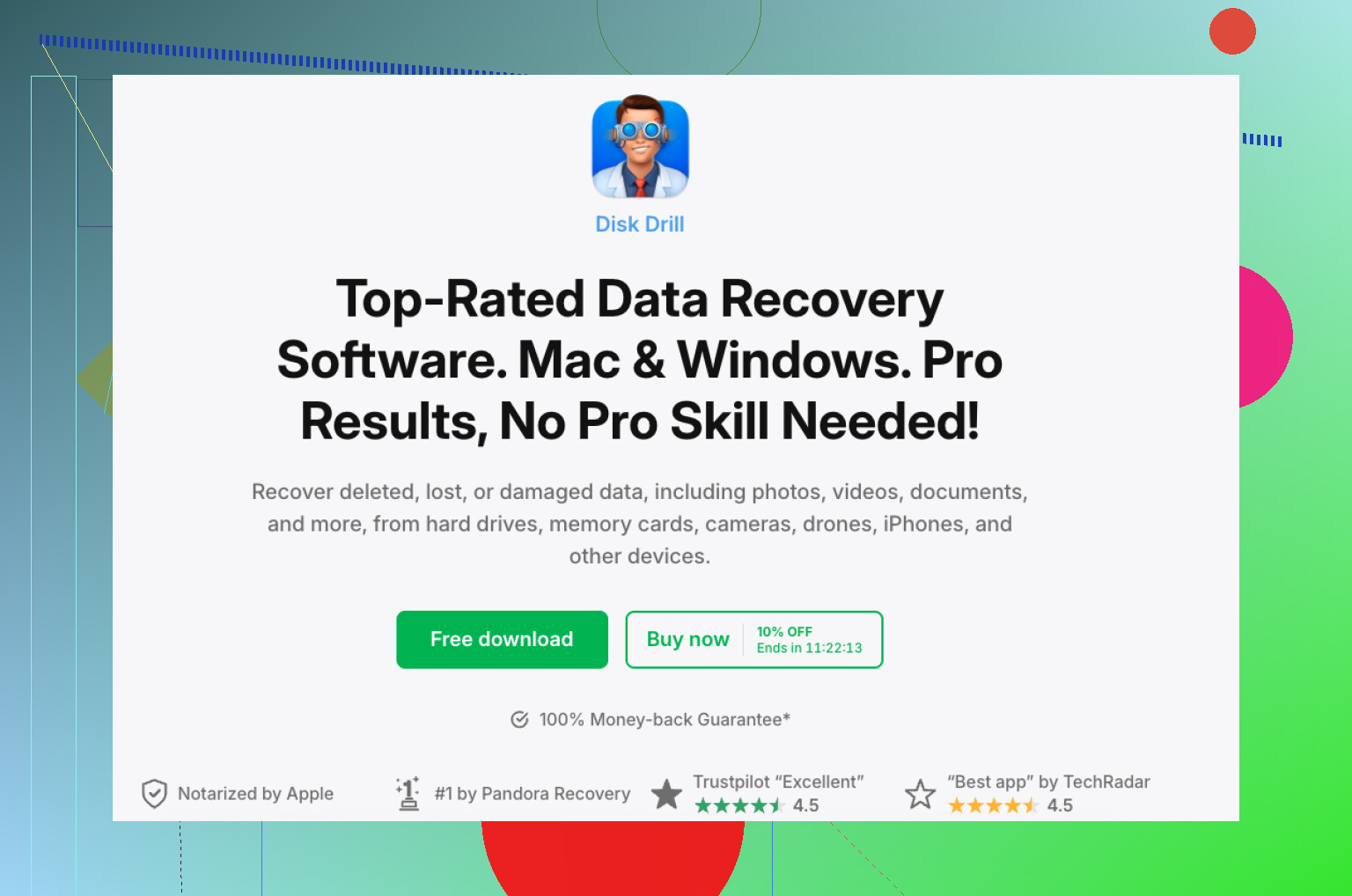
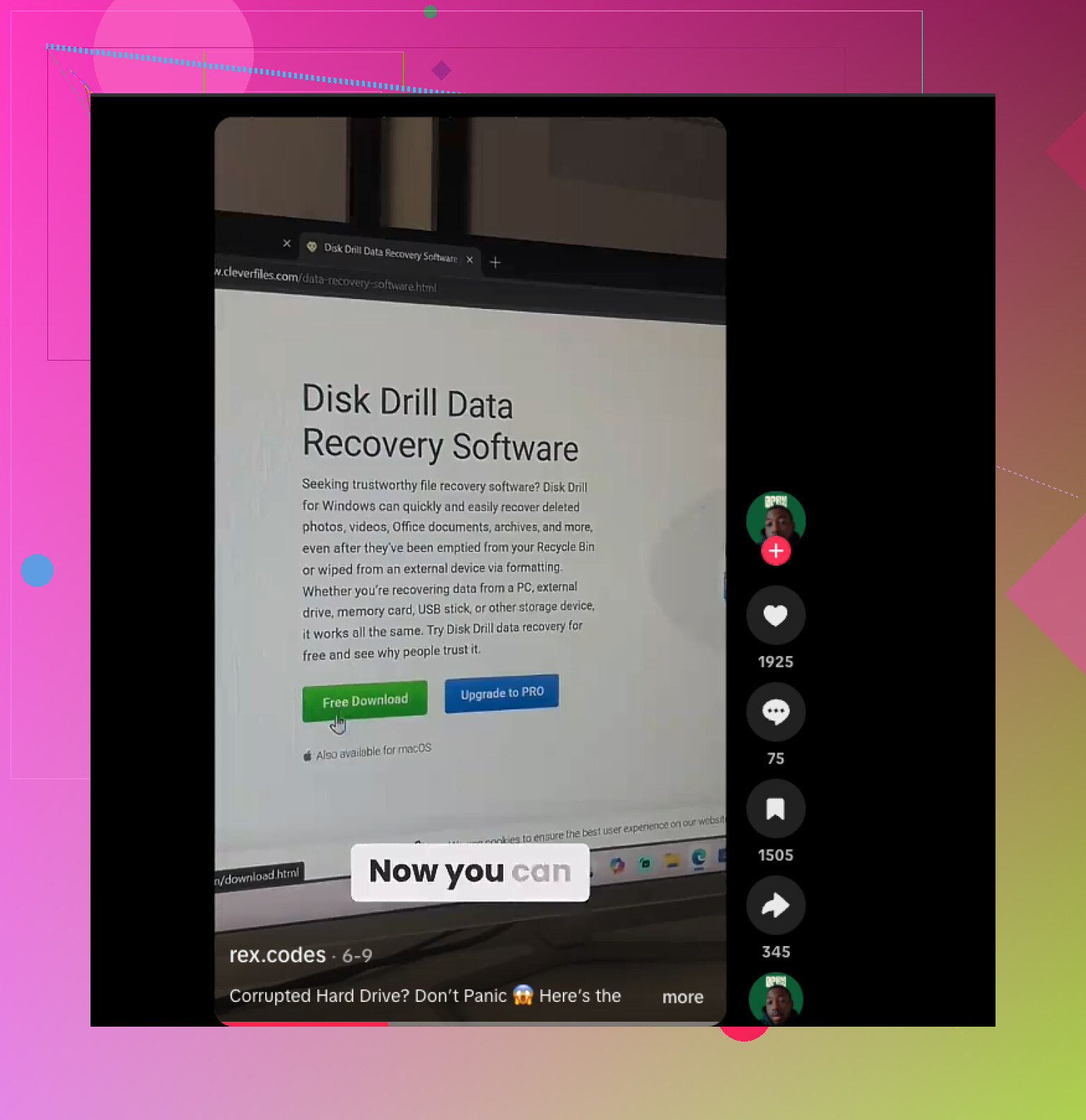
Disk Drill gets mentioned a lot, and I get why. It’s often listed among the best hard drive recovery tools. The reasons are pretty plain, it’s easy to work with, supports most common file systems, recognizes a lot of file types, lets you preview results, and includes a few tools tht help when a drive is acting sketchy. The YouTube link from the original reference is here:
The part I’d care about most is disk imaging. Instead of hammering the original drive with repeated scans, you make a full image first. That copy includes deleted data and file system info too. If the drive is unstable, working from the image is the safer move since you leave the original hardware alone after the copy is made.
What I’d do in Disk Drill
- Install Disk Drill on your internal drive, or on another healthy disk. Do not install it on the troubled external drive.
- Plug in the external drive and open Disk Drill.
- If the drive seems flaky, make a disk image first. Scan the image, not the physical disk.
- If the drive seems stable enough, select it and hit Search for lost data.
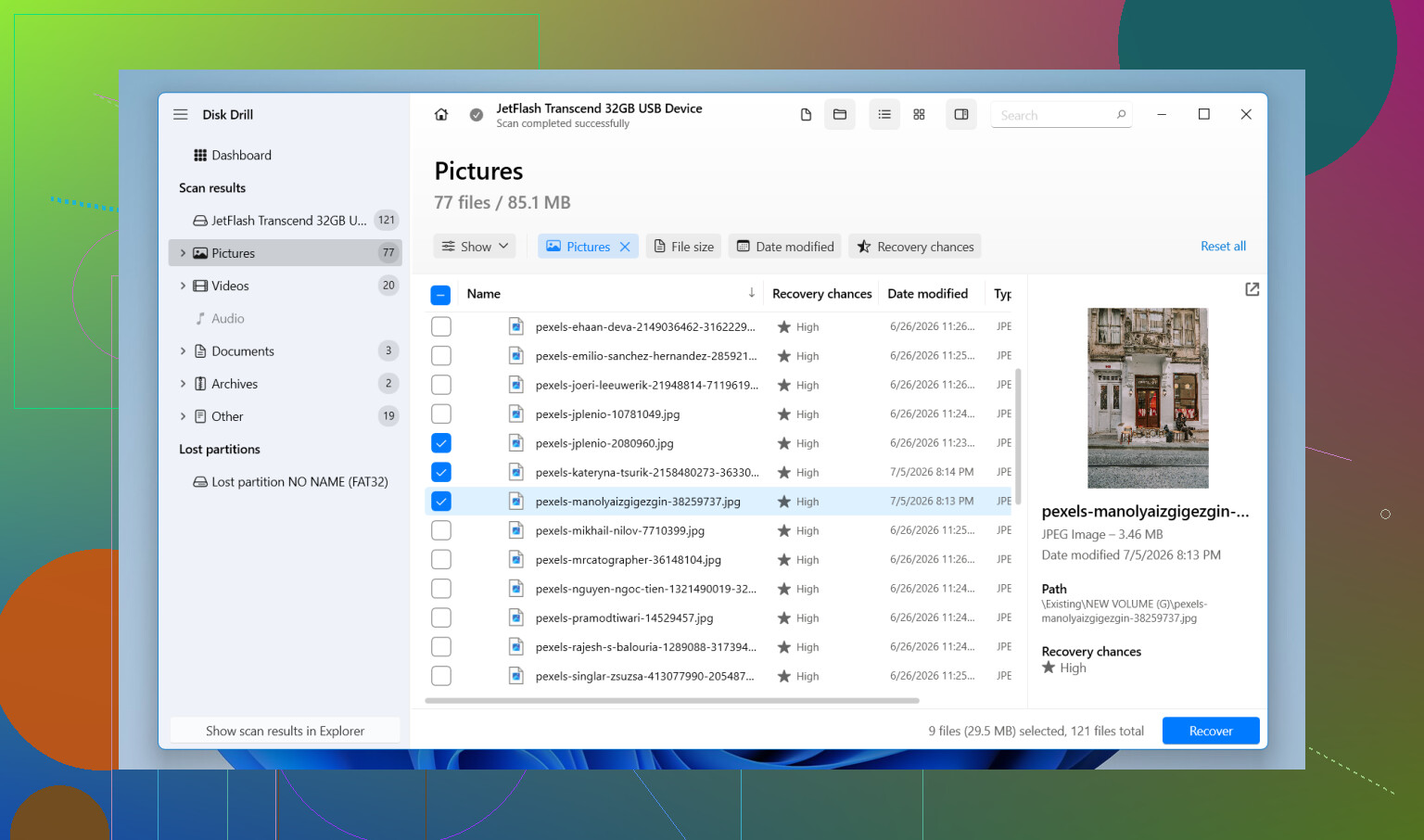
- Pick Universal Scan when it asks. It rolls multiple methods into one pass and looks for deleted files, busted file system records, lost partitions, and known file signatures.
- Let the scan finish. Big drives take a while, annoyingly so, but more results often show up later in the process.
- Go through the results, preview what matters, and mark the files you want back.
- Click Recover and save everything to a different drive. Don’t write recovered files back to the same external disk.
On Windows, Disk Drill lets you recover up to 100 MB free. I like tht because you get proof your files are there before spending money.
When software is the wrong move
Sometimes recovery software is not the move at all.
If the drive no longer gets detected, keeps disconnecting during scans, or starts making mechanical noise, I’d stop and hand it off to a data recovery service. Same thing if the drive holds stuff you can’t replace, family photos, business records, research, anything like tht.
Labs have hardware tools and cleanroom workflows software does not. If the damage is physical, an app on your PC won’t save you.
After you get the files back
Once the data is safe, I’d change a few habits:
- Keep at least one extra backup of important files.
- Eject the drive safely before unplugging it.
- Don’t pull the cable while files are copying.
- Check SMART health once in a while if your tools show it.
- Replace the drive if it starts vanishing from Windows, picking up bad sectors, or throwing file system errors over and over. Even if it starts behaving again, I wouldn’t trust it.
My guess, if I had to make one, is file system corruption is the better-case scenario here. If so, getting the files off first and saving repairs for later gives you the best shot.
https://www.youtube.com/watch?v=uhWmNUgIJTw

1 Like
Yes, if the drive still mounts, data recovery software often helps. Missing folders on an external drive usually point to file system damage, bad directory entries, or a drive starting to fail. It is not always deletion.
I agree with @mikeappsreviewer on one big point, stop using the drive. I disagree a bit on waiting too long before checking health. I would look at SMART data early with CrystalDiskInfo or the drive maker’s tool. If you see reallocated sectors, pending sectors, or read errors, skip long repair attempts.
A few things I’d do before any scan:
- Check the Recycle Bin on both PCs, if you used the drive on more than one system.
- Search the drive by file extension, like .jpg, .docx, .xlsx. Sometimes the folder is gone but files still exist.
- Open Disk Management. Make sure the partition size looks normal and the file system still shows up right.
- Run chkdsk only after recovery, not before. CHKDSK sometimes “fixes” the map by removing entries you needed. People reccomend it too fast.
If the disk looks stable, Disk Drill is a solid pick for external hard drive file recovery. Its folder reconstruction is often more useful than raw file carving, since you want your photo and work folders back with names intact. Preview a batch of files first. If previews work, your odds are better.
If you want more external hard drive recovery advice, this thread is worth a look:
external hard drive recovery tips for missing files and folders
One more thing. If the drive is an SMR portable model and scans crawl or freeze, don’t keep pushing it. Those drives get ugly fast when they start failing. At tht point, copy what you still see, then recover from an image or send it in.
If the drive still mounts, yes, recovery software can absolutely pull back “missing” external hard drive files. Not always, but often enough that it’s worth trying before you let Windows start “fixing” stuff for you.
I mostly agree with @mikeappsreviewer and @voyageurdubois, but I’d add one thing they only touched on lightly: check whether the folder actually got turned into a weird attribute/state issue rather than true loss. I’ve seen folders go “missing” because of bad USB disconnects, malware, or a janky file system flag change. On Windows, opening Command Prompt and running a read-only directory listing can sometimes show stuff File Explorer hides. Also check if the folder path got too long or the name got corrupted, which makes it look gone even when data is still there.
Another thing, don’t assume CHKDSK is your friend. It’s great after recovery, not before. It can tidy the filesystem right into deleting the breadcrumbs you needed. That part gets glossed over way too much.
If the drive is stable, Disk Drill is a solid option for external hard drive recovery because it tends to do better than basic undelete tools when the problem is a damaged folder structure instead of simple deletion. I’d focus on scan results that preserve original folders and filenames first, then fall back to raw recovery if needed. Raw recovery gets messy fast, esp for work files.
One more angle: if this is a photo folder, check whether your camera or phone imported duplicates elsewhere and the folder on the drive was just a shortcut/library entry that broke. Sounds dumb, but it happens.
For a simple hard drive recovery guide with practical steps, this is pretty easy to follow:
external hard drive recovery walkthrough
If the drive starts disconnecting, freezing, or making noise, stop messing with software. That’s the point where DIY turns into “welp, now it’s worse.”
One angle missing from @voyageurdubois, @shizuka, and @mikeappsreviewer: check whether the folder was replaced by a bad shortcut or mount-point glitch. In Disk Management, confirm the external drive letter did not change and that the partition is not suddenly showing as RAW or with no label. I also would not spend too much time hunting in Explorer if Windows search is flaky. Use PowerShell to list top-level folders and sizes, which sometimes reveals names Explorer chokes on.
If the drive is readable, I’d clone or image it first if you have enough space, then recover from that copy. Disk Drill is fine here.
Pros for Disk Drill:
- good at finding lost folder structure
- previews help verify photos/docs before recovery
- image-based workflow is useful on unstable drives
Cons:
- free recovery on Windows is limited
- deep scans on large externals can take forever
- raw results can get messy if the file system is heavily damaged
Small disagreement with the usual advice: I would not obsess over hidden files first unless used space still looks normal. If capacity suddenly looks mostly empty too, that points more toward file system damage than a simple attribute issue. If SMART is bad or the drive drops offline, skip DIY and go lab route.