I need help recovering data from my WD My Passport external hard drive after it suddenly stopped showing up on my computer. It has important photos and work files, and I’m worried about making things worse by trying random fixes. Looking for advice on safe WD My Passport data recovery steps or whether I should go straight to a professional service.
I’ve gone through this with a bunch of WD My Passport drives, and the first thing I learned was simple. Missing files do not always mean dead files. A lot of the time, the disk still works and the mess is in the file system, the partition table, or a bad delete.
Start with Windows and see if the drive shows up at all.
Open Disk Management. Find the WD My Passport in the list of disks. I would ignore the drive letter for now. What matters first is whether Windows sees the device and whether the size looks close to what the label says.
If the capacity looks right, I’d take that as a decent sign. Even when Windows marks it as RAW or Unallocated, or throws a format prompt in your face, recovery still works pretty often because the hardware is answering normally. Different story if the drive never appears, drops on and off, or starts clicking, buzzing, or doing weird slow spin-ups. At that point I’d stop thinking file system problem and start thinking hardware trouble.
Once the drive is visible, stop writing to it.
This part bites people. If you deleted files a minute ago, or the partition suddenly stopped opening, every new write puts old data at risk. Recovery software needs untouched space to pull from. Keep using the drive and your odds get worse fast.
Before you throw recovery tools at it, check whether the files already exist somewhere else. I’ve seen people spend half a day scanning a drive, then notice the folder was synced to OneDrive, Google Drive, Dropbox, or some old backup job they forgot they set up. Worth checking first. Saves time, saves stress.
If there’s no copy anywhere, I’d move to recovery software.
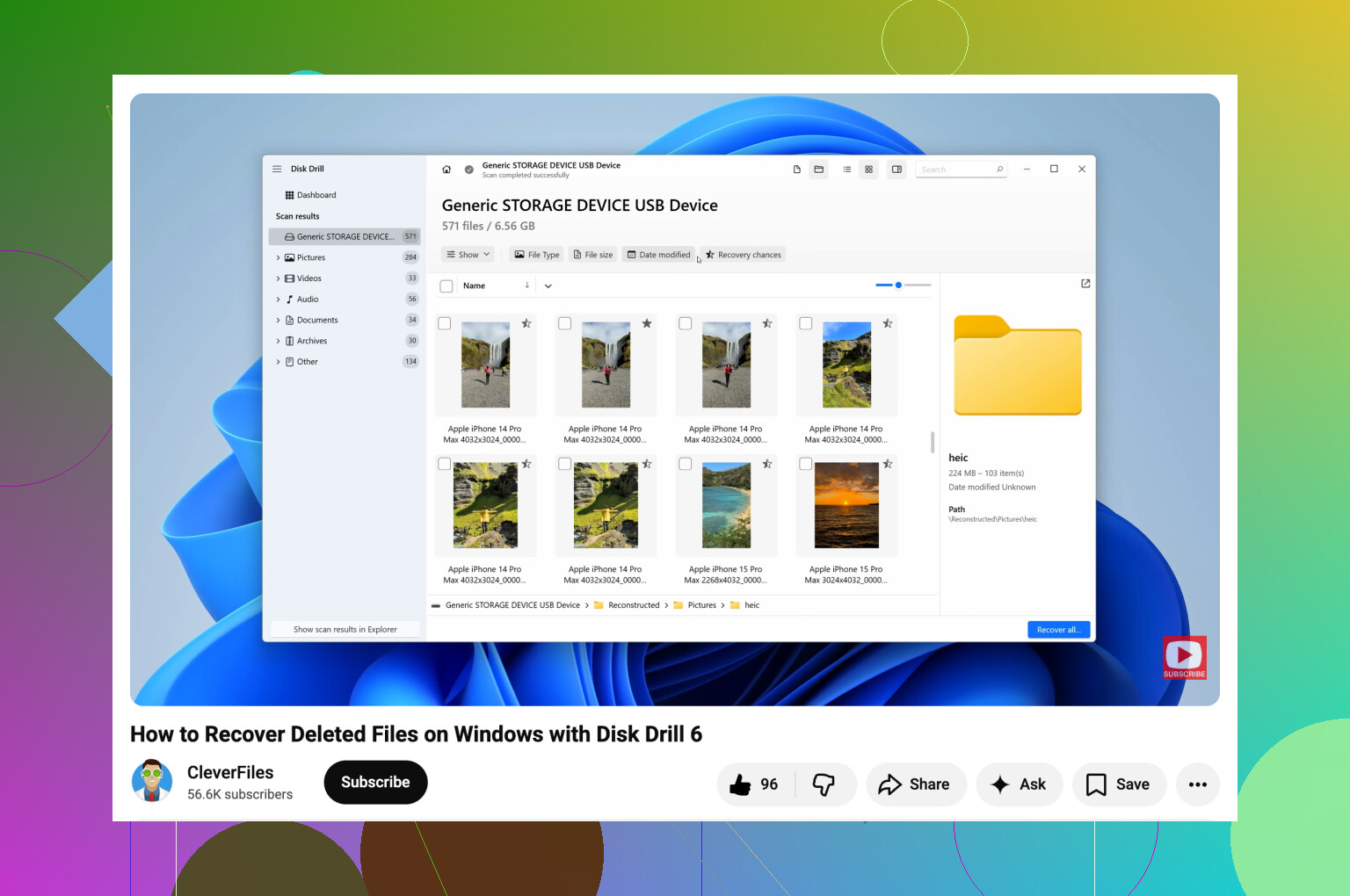
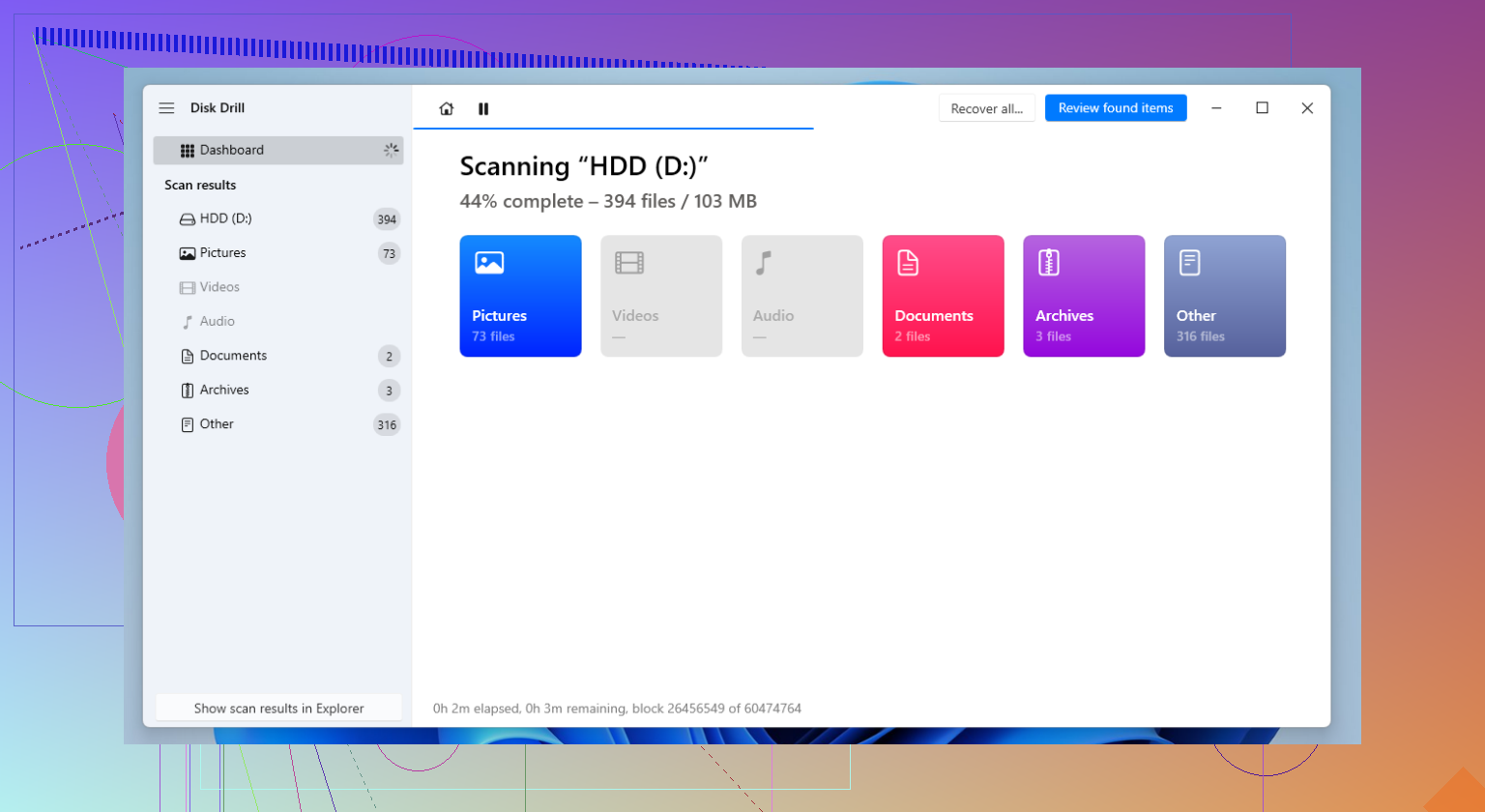
For WD My Passport drives, I usually try Disk Drill early in the process. It has done fine for deleted files, formatted partitions, and RAW volumes in my use. It also reads NTFS and exFAT well, which covers a lot of these drives. The preview feature matters more than people think. If a photo or document opens in preview, your recovery odds are usually decent.
What I do, step by step:
- Install the software on your computer, not on the WD drive.
- Plug in the My Passport and wait for the software to detect it.
- If the drive acts unstable, make a byte-for-byte backup first and scan the image file instead of hammering the original disk.
- Run a full scan.
- Go through the results and preview the important stuff when possible.
- Recover files to a different drive, never back onto the same My Passport.
After you pull off what matters, set up backups before you trust the drive again.
External drives are fine for storage. I still use them. I would not keep the only copy of anything important on one. File History, Acronis, cloud sync, whatever fits your setup. Two copies turns a bad drive day into an annoyance instead of a small disaster.
1 Like
Stop plugging it in and out over and over. That does more harm than people think.
I agree with @mikeappsreviewer on checking whether the drive is detected, but I would add this first. Try a different USB cable and a different port, preferably on the back of a desktop or directly on the laptop, not through a hub. WD My Passport drives fail from bad cables more often than people expect. I’ve seen drives look dead, then show up fine with a new cable. Stupid fix, but it works.
Next, check Device Manager. If you see the WD under Disk drives or USB devices, your odds are better. If it shows with the right size in Disk Management but no letter, assign a drive letter only if the partition already looks healthy. If it says RAW, don’t format it. Don’t run chkdsk either. I disagree with people who throw chkdsk at this stuff early. It can make file recovery worse.
If the drive spins, stays connected, and is quiet, I’d scan it with Disk Drill from another drive. Recover to a second disk, not back to the Passport. If the connection drops during scans, clone it first, then work from the clone. That saves wear and cuts risk.
If it clicks, powers off, or vanishes every few mins, stop DIY and use a lab. Clean room jobs are expensive, but so is losing your photos.
Also, this helps for Windows basics if you need a visual walkthrough:
easy Windows hard drive recovery guide
Short version:
New cable.
New port.
No format.
No chkdsk.
Use Disk Drill if the drive stays stable.
Go pro if it doesn’t.
Thats the safest path.
If @mikeappsreviewer and @himmelsjager already had you checking detection/cable/RAW stuff, I’d add one thing they kinda only touched lightly: look at the drive’s SMART health before doing anything heavy. Use CrystalDiskInfo or WD Drive Utilities if it still detects. If you see lots of reallocated sectors, pending sectors, or read errors, stop rescanning it over and over. That’s how a “maybe recoverable” drive turns into “well crap.”
Also, I slightly disagree with the idea of jumping straight into a full scan if the data is super important. For irreplaceable photos/work files, making an image first is safer than poking the original disk for hours. HDD Raw Copy Tool or ddrescue if you’re comfortable. Then run Disk Drill on the image, not the failing Passport. Less stress on the hardware, less chance of it dropping dead mid-scan.
If the drive doesn’t mount but does show the correct size, that often means logical corruption, not instant death. If it shows as 0 bytes, disappears, freezes Explorer, or makes clicking noises, stop DIY. Seriously.
If you do go the software route, this Disk Drill review for external hard drive recovery gives a decent idea of what to expect before you run it. Install it on your internal drive, scan the Passport or its image, preview files, then recover somewhere else.
Big thing: don’t format, don’t run repair tools, don’t keep unplugging/replugging it every 2 mins. Thats where people make it worse.
One angle I’d add to what @himmelsjager, @suenodelbosque, and @mikeappsreviewer said: check whether the problem is the enclosure bridge, not the actual disk.
A lot of My Passport models use USB bridge hardware with built-in encryption. So even if you pull the drive out, plugging the bare drive into SATA often will not magically show your files. I mildly disagree with the common “just shuck it” advice for WD externals, because on many Passports that creates false hope.
What I’d do next is this:
- Look in Event Viewer for Disk and NTFS errors right when you connect it
- Try it on a second computer, just once, to rule out local USB driver weirdness
- If it appears long enough, copy only the most critical folders first, not everything
- If reads are slow but steady, use imaging before file recovery
For software, Disk Drill is fine if the drive stays online.
Pros:
- easy previews
- good for photos/docs
- simple interface
- can scan disk images
Cons:
- deep scans can be long
- not my first pick for a physically unstable drive
- recovery quality depends heavily on file system damage
If Disk Drill finds filenames and folder structure, that’s a good sign. If it only finds generic file fragments, expect a mess.
One more thing people skip: if the Passport is under warranty, do not send it to WD before recovery. Warranty replacement usually means your data is gone for good.