I accidentally deleted videos and photos from my GoPro SD card before backing them up, and some of the footage is really important. I need advice on the best GoPro file recovery steps, safe recovery software, and whether I should stop using the card right away to avoid losing everything.
I’ve been there. You get home, plug in the GoPro, and the clips you cared about are gone. It feels bad fast. The first moves matter more than people think.
First thing, stop touching the card
If the videos were deleted or the card got formatted, stop using the SD card right away.
Don’t shoot new clips on it. Don’t format it again. Don’t run random repair tools. In most cases, the video data is still sitting there until new data lands on top of it.
Before I went near recovery software, I’d check the easy stuff:
- Check your GoPro cloud account if you use a subscription with Auto Upload turned on.
- Look in Trash or any Recently Deleted area.
- Put the card back in the camera and see if the GoPro offers a file repair prompt.
- Swap the card reader, USB port, or the whole computer.
- See if the card shows up in Disk Management on Windows or Disk Utility on macOS.
If the card never appears, drops connection over and over, or looks physically damaged, I’d stop there. At that point I’d hand it to a recovery lab. Physical failure is a different mess.
Why GoPro video recovery gets messy
Photos are easier. Docs too. GoPro video is often a pain.
What I ran into is this, action cams tend to scatter video data in pieces across the card. Once the file system gets wiped or damaged, recovery software has to rebuild the clip from fragments. A lot of tools find an MP4 name and still give you a file which won’t open, or plays half a second and dies.
So for deleted, formatted, or logically corrupted GoPro cards, I’d start with software built for camera footage instead of generic undelete stuff.
What I’d try first
I’d use Disk Drill.
The part worth using here is Advanced Camera Recovery. From what I saw, it was built for footage from GoPros, drones, dash cams, and similar devices where fragmentation is common. It also comes from the older GoProRecovery and CnW Recovery approach, which a lot of people used for this exact problem.
The steps are short:
- Take the SD card out of the GoPro.
- Connect it to your computer with a card reader.
- Open Disk Drill.
- Select the card.
- Pick Advanced Camera Recovery.
- Run the scan.
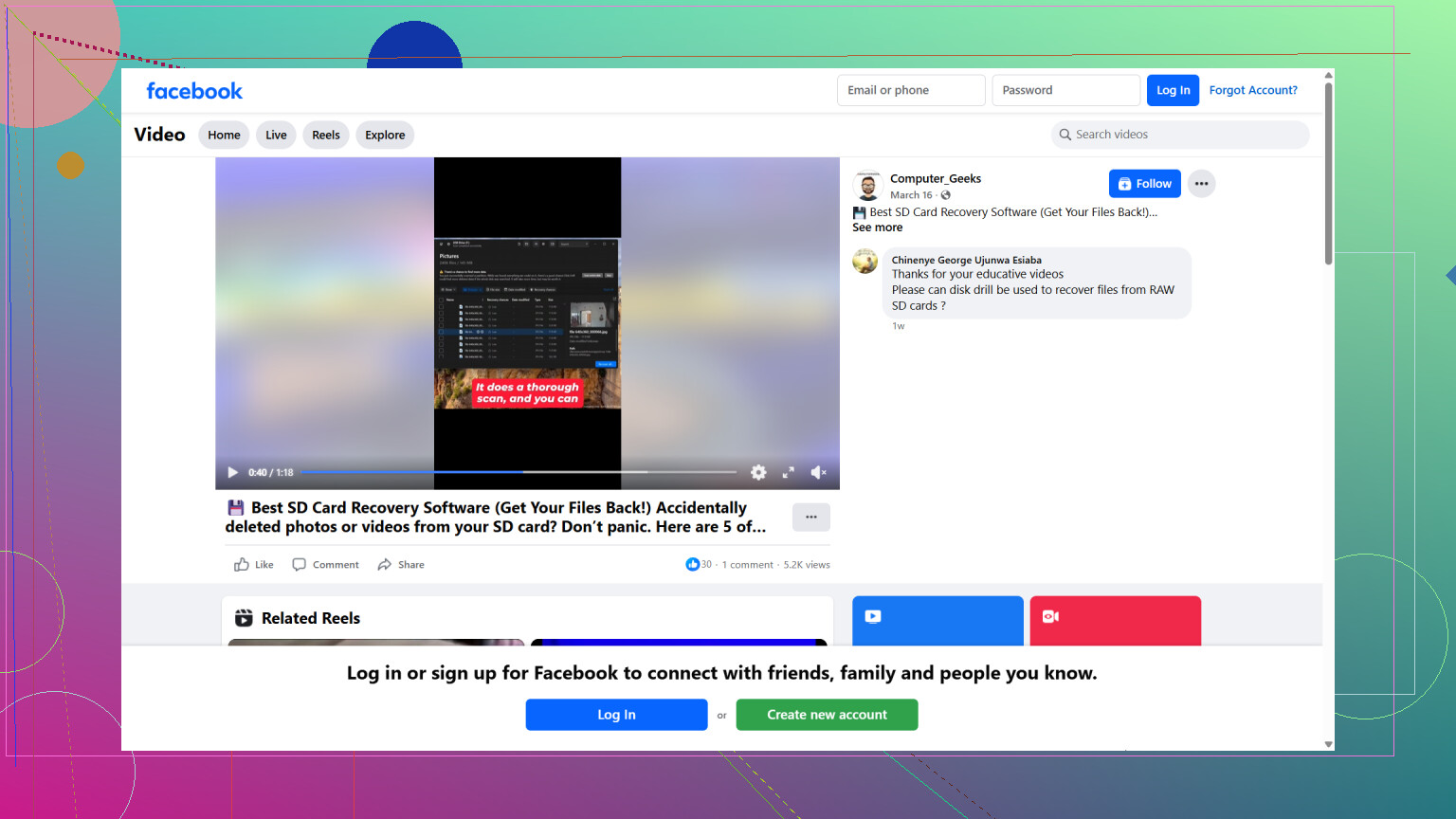
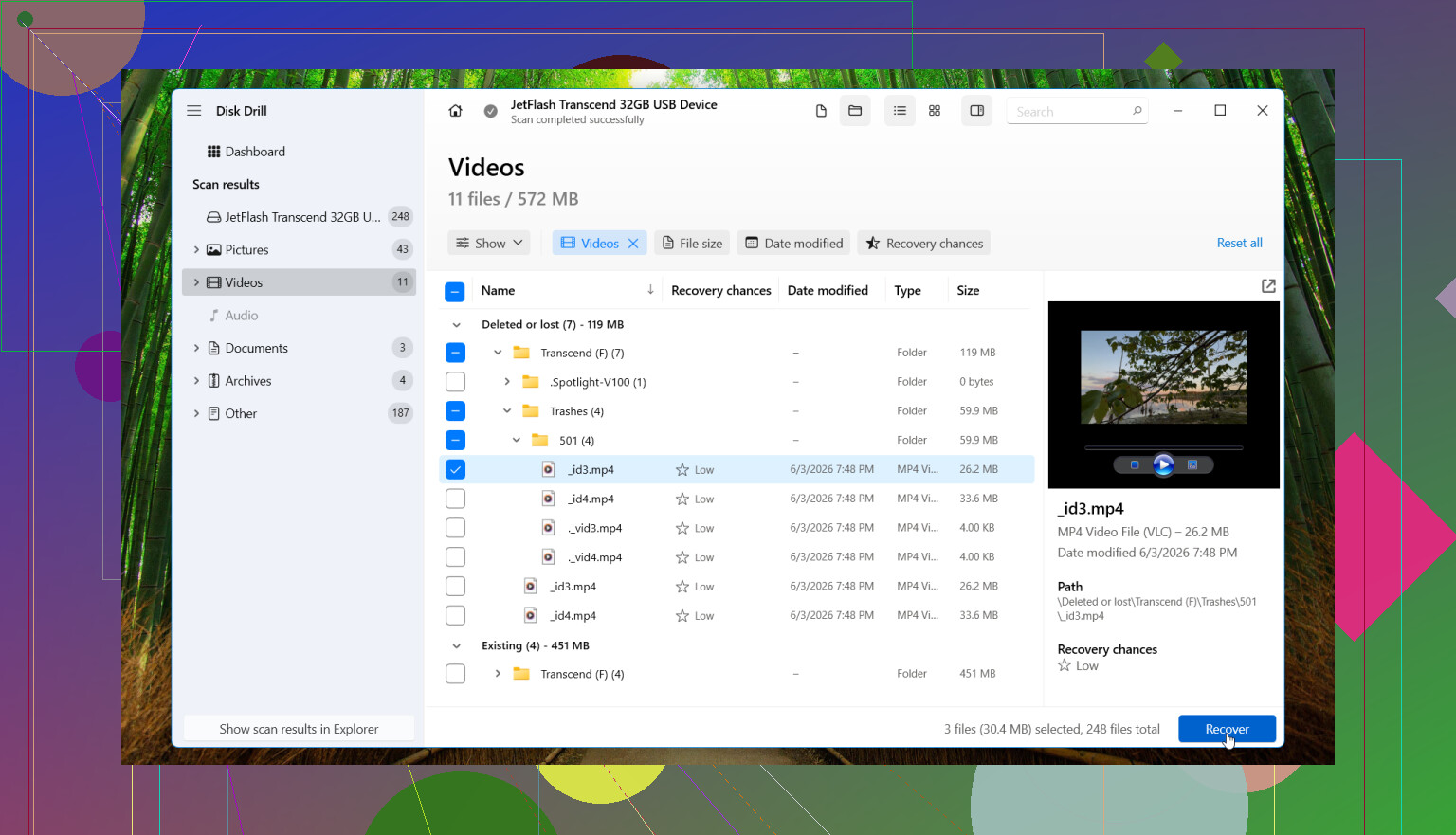
- Preview the found videos.
- Recover them to another drive, not back to the SD card.
The preview part matters. I liked being able to check whether a clip looked usable before saving everything out. Saves time. Saves false hope too.
If the card reads badly, freezes, or throws errors, I wouldn’t keep hammering it. Make a byte-to-byte backup first, then scan the backup. Less risk.
Mac side is about the same
No weird detour here. On a Mac, I’d still use a card reader, open the app, scan the card, preview the footage, and restore the files somewhere else. Same flow, same idea.
Times when software is the wrong move
Sometimes you stop DIY and send it out. I would if:
- The SD card is cracked, bent, or physically damaged.
- No computer detects it at all.
- It disconnects during every scan.
- It gets hot for no clear reason.
- The footage matters enough where one bad move is too much.
I learned this the hard way with an old microSD once. Kept retrying. Kept rescanning. Ended up with a worse result than if I’d left it alone earlier. If the card has hardware trouble, software poking usually doesn’t fix much.
Odds of getting the footage back
If this was a simple delete or a format, your chances are usually decent, espeically if you stopped using the card fast. Those are among the cleaner recovery cases. The longer the card sits unused after the loss, the better your shot.
If new footage was recorded after the missing clips, recovery gets a lot less predictable. Some files return fine. Some come back broken. Some are gone for good.
So yeah, first move, stop using the card. Then check the easy places. If the card still works, run a proper camera-focused scan. If the card looks unstable, clone it first. If it looks physically bad, don’t keep pushing it.
1 Like
Stop writing to the card. That part from @mikeappsreviewer is dead on.
I’d add one thing. Make an image of the microSD first if the card still reads. Use something like USB Image Tool on Windows or dd on Mac/Linux. Scan the image, not the original card. Less wear, less risk if the card starts bugging out mid-scan.
For GoPro stuff, generic undelete apps often recover file names and broken clips. That’s why Disk Drill gets mentioned a lot for GoPro recovery. Its camera-focused scan tends to do better with split MP4 footage than old school file recovery tools. I don’t agree with using preview as the main test, though. Some recovered GoPro files preview fine and still break later in editing. Export a few and test them in VLC and your editor.
If a recovered MP4 won’t open, try remuxing it with ffmpeg instead of tossing it:
ffmpeg -i broken.mp4 -c copy fixed.mp4
If the card shows 0 bytes, asks to format every time, or disconnects, stop. Lab time. Repeated scans can make it worse, ask me how I know. I cooked a card doing that. dumb mistake.
For anyone comparing tools, this is a decent place to start for GoPro and SD card recovery options:
top SD card and GoPro video recovery software picks
Short version:
- Stop using the card.
- Image it first.
- Scan the image with Disk Drill.
- Recover to a different drive.
- Test clips in VLC and an editor.
- If the card is unstable, send it out. Don’t keep poking at it.
One small disagreement with @mikeappsreviewer and @sonhadordobosque: I would not spend too much time putting the card back into the GoPro to see if it ‘repairs’ anything. Cameras are great at recording video, not at safe recovery. If the footage matters, keep the card out of the cam and do everything from a computer.
What I’d do that has not been stressed enough is check for sidecar and low-res proxy files too. GoPro sometimes leaves behind THM and LRV files even when the main MP4 is gone. THM is just a thumbnail, but LRV can be a usable low-res version of the clip. It’s not ideal, but if the important part is the moment itself, a blurry save is better than no save. A lot of people miss that.
Also, if you deleted files on a newer card, watch out for fake capacity or failing microSD issues. Run a read-only health check after imaging if possible. If the card was sketchy before this, recovery software is only half the story.
For software, yeah, Disk Drill is a reasonable pick for GoPro file recovery because it handles camera media better than basic undelete apps. I’d just be realistic about photos vs video. JPGs usually come back easier. Big GoPro MP4s are where things get messy real fast.
If your clips recover but won’t scrub properly, copy them to SSD first and try VLC, then ffprobe to inspect structure. Sometimes the file is there, just ugly.
Also worth reading: Reddit tips for recovering deleted videos from SD cards
Short version:
- stop using the card
- do not save anything back to it
- check for LRV/THM leftovers
- image first if possble
- scan with Disk Drill
- recover to another drive
- if the card is unstable, stop messing with it and go pro lab route
That’s the boring answer, but boring is usually how you save the footage.
One angle not covered enough by @sonhadordobosque, @reveurdenuit, and @mikeappsreviewer is how the files were deleted. If you erased them in-camera with “Delete All,” recovery odds are usually better than if the GoPro did a full format and then recorded new clips. Also, check the card for chaptered GoPro files like GX01, GX02, etc. Sometimes only one segment is missing and the rest are recoverable, which helps piece the timeline back together.
I slightly disagree with relying on previews too much. A preview only proves the first chunk of the file is readable. It does not prove the whole clip survived.
About Disk Drill for GoPro recovery:
Pros
- Good with camera media and large SD cards
- Simple interface
- Can find deleted photos plus video in one pass
- Better than many basic undelete tools for fragmented footage
Cons
- Not magic if the MP4 index is badly damaged
- Deep scans can take a while
- Preview can give false confidence
- Paid recovery if you need to export a lot
One more trick: after recovery, sort results by file size. On GoPro cards, the biggest recovered MP4s are often your real clips, while tiny ones are fragments or junk. Recover a few large files first before dumping everything.
If recovered videos stutter, try rewrapping them before assuming they are dead. Disk Drill is a solid first try, but if the card starts vanishing from the system, stop DIY. That is where people turn a recoverable card into an unrecoverable one.