I accidentally lost important videos from my SD card after it stopped working and prompted me to reformat it. The footage is really important, and I need help figuring out the best SD card video recovery method or software that actually works without making things worse.
Deleted video from an SD card, what I’d do first
I’ve been burned by this a few times, and the first thing I always wanted to know was simple. Is the footage gone for good, or is there still a shot. A lot of the time, there’s still a shot.
When a video gets deleted from an SD card, the camera usually does not wipe the data right away. It marks the space as free and waits until new footage lands there. If nothing new has been written over it yet, recovery is often possible.
First move, stop touching the card
This part matters more than anything else.
Stop using the SD card right now. Don’t shoot more video. Don’t snap photos. Don’t format it, even if your camera or Windows nags you to do it. Every write to the card chips away at your odds, because parts of the deleted file get replaced.
I ignored this once and kept testing the card. Bad idea. One clip came back half-broken and the other one was toast.
If the card still shows up on your computer
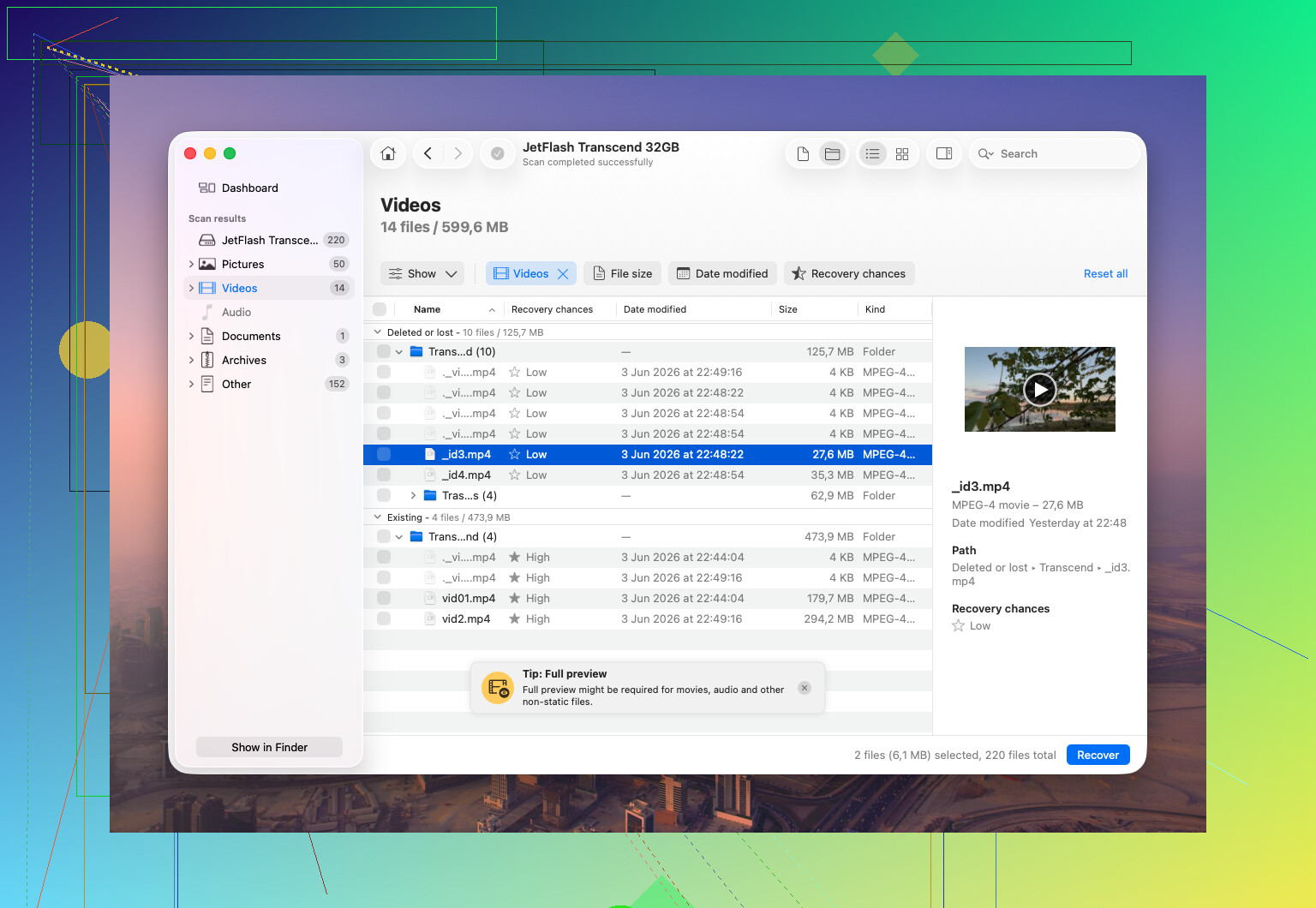
If your computer still detects the card, even if Windows labels it RAW or throws up a format prompt, I’d start with Disk Drill.
The reason I’d pick it first is the Advanced Camera Recovery mode. Normal file recovery tools do fine with plain files, but camera footage is messy. A lot of cameras split video data into fragments across the card. I’ve seen this with action cams, drones, and dashcams more than once. You recover a file name, sure, then the video won’t open or it plays for 11 seconds and dies.
Advanced Camera Recovery is built for piecing those fragments back together into something playable. From what I saw, this matters most with gear like GoPro, DJI, Sony, Canon, Nikon, Fujifilm, Insta360, and similar stuff.
Steps I’d follow
- Go to the official site and download Disk Drill for Windows or macOS.
- Install it and open it.
- Plug in the SD card with a card reader. I’d avoid connecting through the camera if possible.
- In Disk Drill, find the SD card in the list of drives.
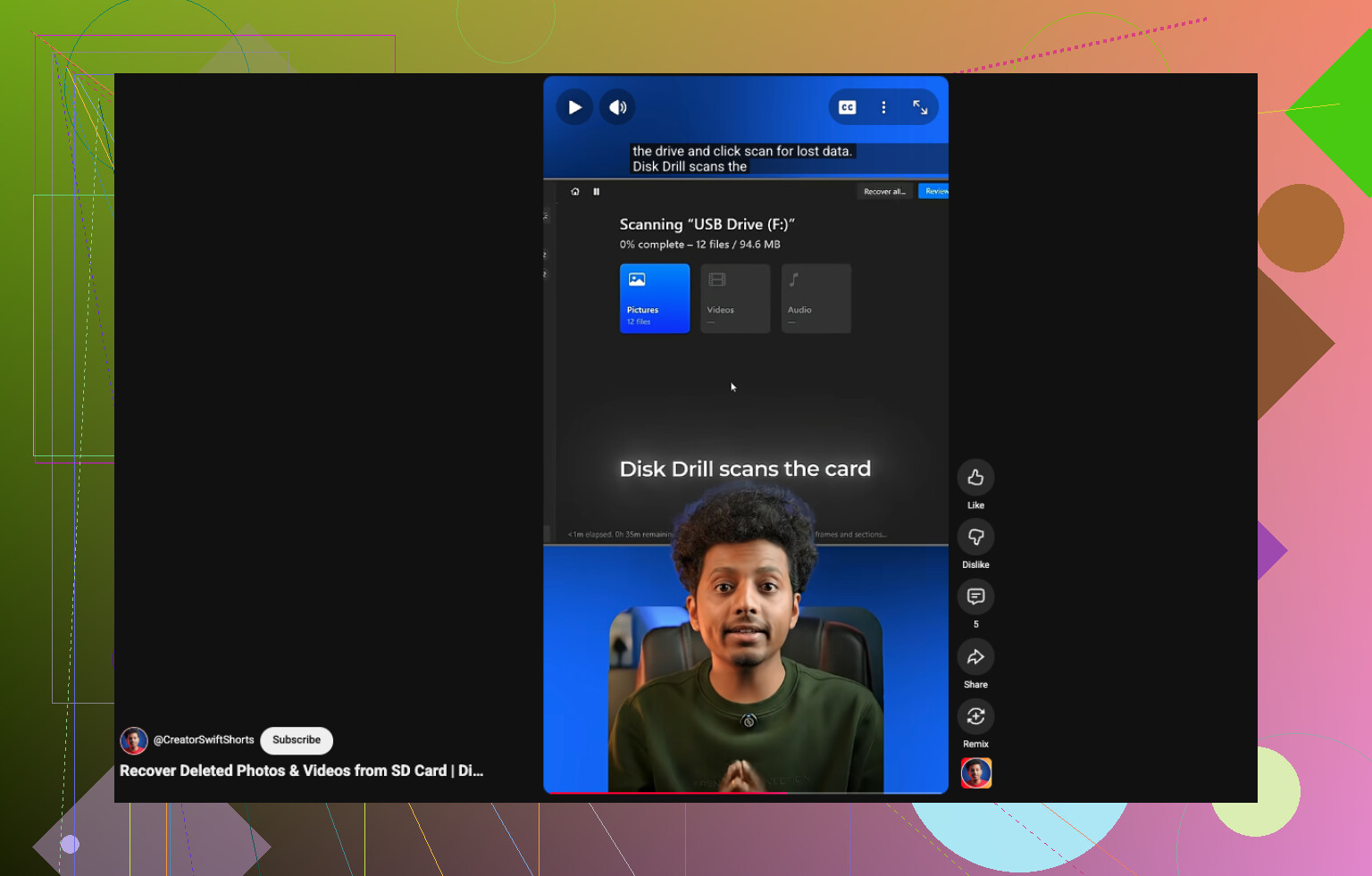
- Click ‘Search for lost data.’
- When it asks for a method, pick Advanced Camera Recovery.
- Let the scan run. Small cards finish fast. Bigger or flaky ones take a while. I’ve had scans run past an hour.
- Hit ‘Review found items’ in the top right if you want to look through results while the scan keeps going.
- Use filters to narrow things down by file type, size, or date.
- Preview the videos before recovering them. This step saves time and false hope.
- Select the clips you want and click ‘Recover.’
- Save them somewhere else, your internal drive or another external disk.
- Do not restore them back onto the same SD card.
That last part trips people up. If you save recovered files onto the same card, you risk overwriting other footage you haven’t pulled off yet.
After the scan
Once recovery wraps up, your files should show in File Explorer on Windows or Finder on macOS.
A small note on limits. Disk Drill on Windows restores up to 100 MB for free. On Mac, you can scan and preview first, then decide if paying for a license makes sense.
One extra step if the footage matters a lot
If the footage is important, work stuff, legal stuff, family video you can’t reshoot, I’d make a full byte-for-byte image of the SD card before trying recovery.
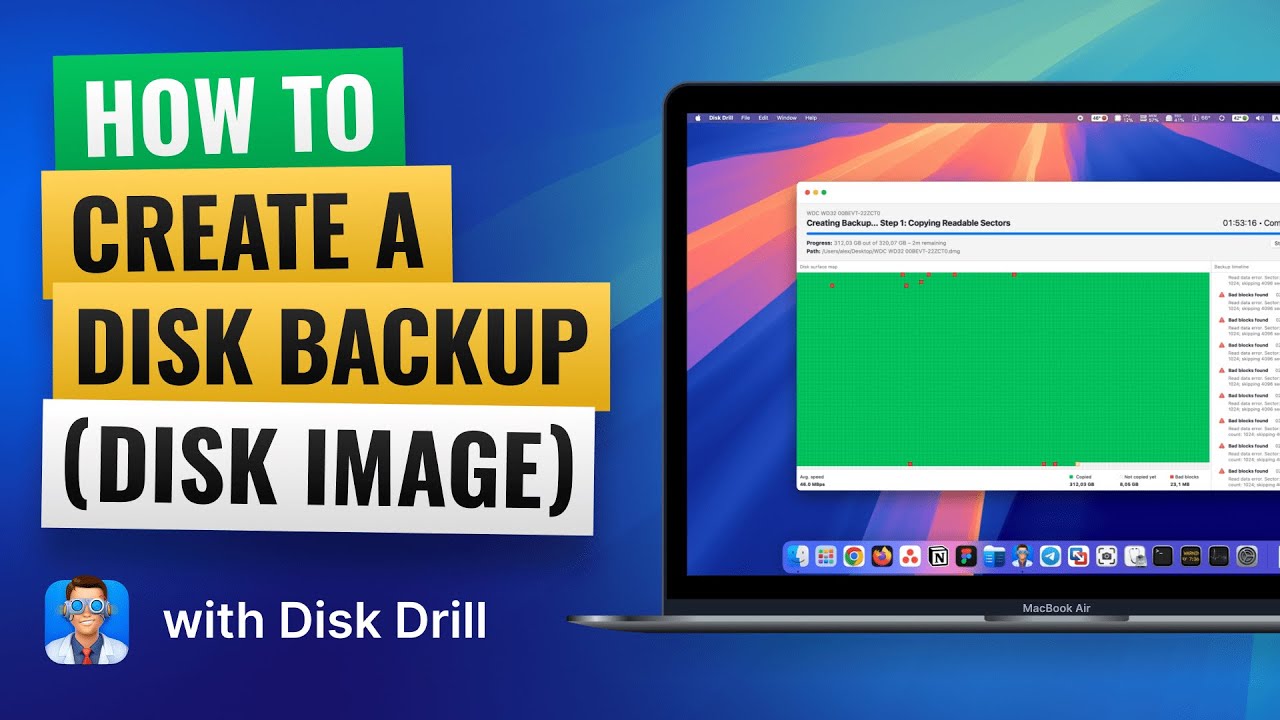
That gives you an exact copy of the card, so you do your recovery attempts on the copy instead of the original. Less risk. More room for mistakes. People who do recovery work for real tend to start there for a reason.
Times I would skip software and go straight to a recovery service
If any of these are happening, I wouldn’t keep poking at it myself.
- The SD card is cracked, bent, or water-damaged.
- The computer does not detect the card at all.
- The card keeps disconnecting during a scan.
- The card gets hot fast after plugging it in.
- The camera reports media or hardware errors.
- The footage has serious personal, legal, or business value.
That’s the line for me. If the card looks physically bad or the files matter too much to gamble on, a lab is the safer move.
My short version
If the card still appears in Disk Drill and it doesn’t look physically damaged, software recovery is worth trying first. The biggest factor is speed. Stop using the card, start recovery soon, and your odds are better.
1 Like
If the card asked for a reformat, ignore it. Don’t write anything to it. No tests, no retries, no new clips.
I agree with @mikeappsreviewer on one part, use a card reader and scan from a computer. I disagree a bit on starting with one recovery mode first. For a failing SD card, my first move is to clone the card, then scan the clone. If the card drops offline mid-scan, you lose time and stress the card more.
My order would be:
- Check if the SD card shows a size in Disk Management on Windows or Disk Utility on Mac.
- If it shows up, make an image of the card first.
- Scan the image with recovery software, not the original card.
- Recover files to a different drive.
For software, Disk Drill is a solid pick for SD card video recovery, mostly because it previews found videos well and handles damaged file systems better than a lot of cheap tools. If Disk Drill finds the clips but they won’t play, try VLC after recovery. Sometimes the file is fine and the default player is the problem.
If the card shows 0 bytes, disconnects, or gets hot, stop. That points to hardware failure. Software won’t fix tht.
Also, here’s a short guide for recovering deleted videos from an SD card:
watch this quick SD card video recovery tip
One more thing, don’t format first and “hope recovery still works.” People do that all the time and make it worse.
If the card asked to be reformatted, I’d add one thing to what @mikeappsreviewer and @sternenwanderer said: check whether the problem is the file system or the card controller before you spend hours scanning.
A lot of people jump straight into recovery software, but if the SD card is flaking out because of bad contact or a dying reader, you can make things worse fast. Try a different USB card reader and a different computer first. Seriously, cheap readers fail all the time and make a healthy card look dead.
If the card mounts but shows the wrong capacity, 0 bytes, or keeps vanishing, stop there. That’s not really a “which software is best” situation anymore.
If it does stay visible and stable, Disk Drill is a legit option for SD card video recovery. I like it mainly because it tends to do a decent job with media files and previews, which matters when you’re sorting through a pile of broken-looking clips. I don’t fully agree with the idea that every case needs a huge recovery workflow first. If the card is stable and the videos are not once-in-a-lifetime critical, a direct read-only scan is usually fine. People sometimes overcomplicate this stuff tbh.
A couple extra tips that haven’t been hammered enough:
- Look for sidecar files too, not just .mp4 or .mov
- Recover by file signature if folder names are trashed
- Test recovered clips in VLC before assuming they’re corrupted
- Save everything to your PC, never back to the SD card
If the videos were from a dashcam, drone, or GoPro, expect fragmented files and weird naming. That’s normal.
Also, this thread is pretty relevant if you want more angles on SD card video recovery:
best chance of recovering home videos from an SD card
If you already reformatted the card, don’t panic yet. A quick format is bad, but not always game over. A full format is where the odds get wayyy worse.